Five Google Docs habits do the most for a small business. You can set up each one within a day.
- Keep company files in a shared drive. Google Drive is where your Google Docs files are kept. A shared drive is a space in it that your company owns, not one person, so the files stay when a staff member leaves.
- Review in suggesting mode, and assign each open question. In suggesting mode, a reviewer’s changes show as proposals you accept or reject. An assigned comment names the one person who must act on it.
- Name a version before a big edit. A named version is a saved point in the file’s history with a label on it, so you can find it and go back.
- Start every quote from one company template. Put it in your organisation’s template gallery, the set of ready-made files on the Google Docs home screen. Then every quote looks the same.
- Format section titles as headings. Google Docs then builds the outline, a clickable list of those headings, so a reader can jump to any section of a long document.
Google Workspace is Google’s paid package for businesses: email on your own domain name, such as [email protected], plus Google Docs, Drive, Meet and more, priced per user each month. It comes in three business plans: Business Starter, Business Standard and Business Plus, from the lowest price up. Your administrator is the person who manages your company’s Google Workspace account.
Only the company template needs a plan above Business Starter. Google lists the template gallery feature for Business Standard and up. Business Starter is not on that list. Google names no higher plan for the other four habits.
Read the five habits as words
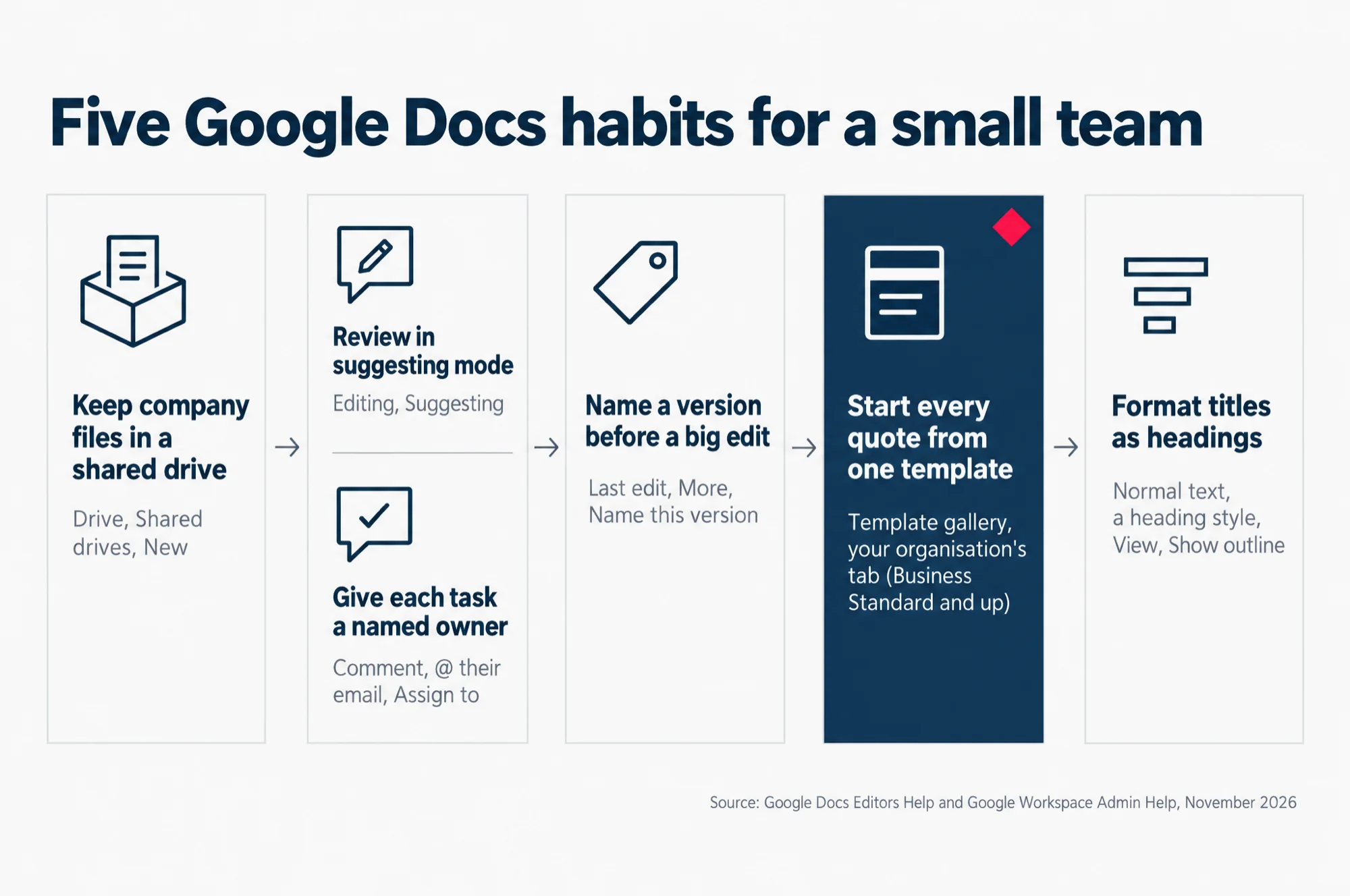
Five Google Docs habits for a small team
- Keep company files in a shared drive: Drive, Shared drives, New.
- Review in suggesting mode: Editing, Suggesting. Give each task a named owner: Comment, @ their email, Assign to.
- Name a version before a big edit: Last edit, More, Name this version.
- Start every quote from one template: Template gallery, your organisation’s tab (Business Standard and up).
- Format titles as headings: Normal text, a heading style, View, Show outline.
Source: Google Docs Editors Help and Google Workspace Admin Help, November 2026.
What happens to a staff member’s Google Docs when they leave?
It depends on where the files sit. My Drive is each person’s own space in Google Drive. Files in a person’s My Drive go with their account unless someone moves them first. Files in a shared drive stay with the company.
When your administrator deletes a staff member’s account, Google deletes the Drive files that person owned, unless someone transferred them to another user first. Google holds them for 20 days, and they come back only if the administrator restores the account in that time.
Files in a shared drive are not deleted with the account. Google puts it plainly: “Your organization owns these files, not users.” Google also says that when you add files to a shared drive, they “are owned by the team”, and if you leave the shared drive, “your files remain”.
So the habit is this: company documents live in a shared drive from the day they are made. Our advice to our own clients is one shared drive per team or per function, such as sales, accounts and human resources, with My Drive kept for personal drafts.
- On your computer, go to drive.google.com.
- On the left, click Shared drives.
- At the top left, click New.
- Enter a name for the shared drive, such as “Sales”, and click Create.
- Add the people in that team as members.
If there is no New button, ask your administrator. Google says you can create shared drives only if your plan supports them and your administrator allows it.
To move existing files in, drag them from My Drive to the shared drive. The shared drive then becomes the owner, and you stay listed as the file’s creator. Moving a whole folder needs Manager access, the top access level, on both sides. You may not be able to move a file someone else owns, so ask that person to move it.
Business Starter has shared drives too. Google gave them to Business Starter from 23 September 2024. Its version leaves out some admin controls, such as the ability to control access to the items in a shared drive.
Who can open each file is a separate question from where it sits. Our guide to checking who can open a Google Drive folder covers that.
When someone does leave, the order of the other steps matters as well, from suspending the account to deciding how it ends. Our guide to what to do in Google Workspace when staff leave walks through them.
How do I let someone suggest changes in a Google Doc without editing it?
Ask them to work in suggesting mode. In suggesting mode, a person’s changes show up as proposals in a new colour, and anything they delete is crossed out. The original text stays as it is until the document’s owner accepts the change.
That is what a review round needs. The person who wrote the quote or the policy sees every proposed change, and decides on each one.
To switch it on, go to the top right of the document, click Editing, and choose Suggesting from the list. A reviewer can do this themselves if they have comment or edit access to the file.
For a reviewer who should never change the text directly, share the file with them as a Commenter. In Google’s words, a Commenter can “make comments and suggestions on files”. Your text then changes only when you accept what they propose.
The file’s owner gets an email about the suggestions. To deal with a whole round at once, go to Tools, then Review suggested edits. A box opens at the top right. Its arrow lets you preview the document with every suggestion in, or with none, before you click Accept all or Reject all.
If a reviewer works in Microsoft Word and sends back a file with tracked changes, Word’s own way of marking edits, convert it to Google Docs format. Google says the tracked changes become suggestions, so you review them the same way.
How do I assign a task to someone in a Google Docs comment?
Put their email address in the comment, with @ or + in front of it, and tick the box that says Assign to and their name. The comment becomes an action item, a task with one named owner, and Google emails that person.
This fixes the review round where everyone reads a comment and nobody acts on it. A comment with a name on it has an owner.
- Highlight the text the task is about.
- In the toolbar, click Add comment and type what needs doing.
- Somewhere in the comment, type @ and the person’s email address.
- Tick the box next to Assign to and their name.
- Click Assign.
When the task is finished, click Done at the top right of the comment. In Google Drive, a file with open action items or suggestions shows a “Follow up” number beside its name, so you can see which documents still have work waiting.
Google offers action items on a work or school account, such as your company’s Google Workspace account.
One sign-off tool is not on the Business plans at all. Drive approvals ask named people to approve a file, and can lock it while they review. Google lists approvals for Enterprise and Education Plus accounts only. Enterprise is the tier for larger teams, above the three Business plans. Education Plus is one of Google’s plans for schools.
How do I save a named version before a big edit in Google Docs?
Before you rewrite a staff policy or rework a price list, give the current version a name. If the edit goes wrong, you open that version and restore it.
Google Docs keeps a version history on its own: a list of earlier versions of the file, each with who changed it. Without a name, the version you wanted is one unlabelled entry among many, and Google may merge older entries together. Google says a named version makes sure “your versions aren’t merged”.
- At the top right of the document, click Last edit. The versions open in a panel on the right.
- Choose the version you want to keep.
- Click More, then Name this version, and type a name that says what it was, such as “Before the price review”.
A document can carry up to 40 named versions. Turn on Only show named versions and the panel shrinks to your checkpoints. To go back, choose the version and click Restore this version at the top.
Only people who can edit the file can open its version history. Google says you need “permission to edit that file” to browse earlier versions.
Google names no plan for naming a version. One related feature does need a higher plan: Show editors. Select a part of the document, right-click, and it tells you who changed that part. Google lists it for Business Standard, Business Plus, Enterprise Standard, Enterprise Plus and Education Plus.
How do I make a company template in Google Docs, and which plan does it need?
Build one quote template, then submit it to your organisation’s template gallery. The template gallery is the set of ready-made files you open from the Google Docs home screen, and your company can have its own tab in it. After that, everyone starts a quote from the same file, so every quote carries the same logo, layout and terms.
This is the habit that needs Business Standard or above. Google calls it the custom template feature, and lists it for these plans: Business Standard and Business Plus, Enterprise Standard and Enterprise Plus, Education Fundamentals, Education Standard and Education Plus, Enterprise Essentials Plus, Nonprofits, and G Suite Basic and G Suite Business. Business Starter is not on the list.
The Education plans are for schools, and Nonprofits is the plan for non-profit groups. G Suite is the old name for Google Workspace, so the two G Suite plans are older ones.
On Business Starter, Google’s own ready-made templates are still on the Google Docs home screen. What you do not get is your company’s tab. A quote file kept in a shared drive, which everyone copies before they start, does a similar job by hand.
First, your administrator turns it on
The switch is in the Admin console, the site where administrators manage your company’s Google Workspace account. Your administrator needs the Drive and Docs administrator privilege. That is Google’s name for the right to change the settings for Google Drive and Google Docs.
- In the Admin console, go to Menu, then Apps, Google Workspace, Drive and Docs, Templates.
- Click Template Gallery settings.
- Tick Enable custom templates for your organization.
- Click Save.
In the same place, the administrator can add categories, such as sales or human resources, and choose who can submit templates. Open lets anyone in the company add or remove templates without approval. Moderated sends each new template to an administrator to approve first.
Our advice to our own clients is to pick Moderated, even in a team of ten. One person then decides what goes in, and the gallery does not fill up with near-copies of the same quote.
Then submit the quote template
- Open the document you want as the template and make your changes.
- Go to the Google Docs home screen, click Template gallery, then the tab with your organisation’s name.
- Click Submit template, then Select a document, pick your file and click Open.
- If you want to submit a copy rather than the original, tick the box for that.
- Choose a category and click Submit.
Build it from a clean file, never from a quote that has already gone to a client. Google says that when a document is submitted as a template, anyone it was already shared with keeps their access, and the template becomes visible to everyone in your organisation.
If the template file sits in a shared drive, check that shared drive’s sharing settings. Google warns that sharing limits there can stop people from opening the template.
How do I make an outline or table of contents from headings in Google Docs?
Format each section title with a heading style, and Google Docs lists it in the document outline for you. A heading style is a text style for titles, named Heading 1 to Heading 6. The document outline is the list of headings down the left of the screen. Click one and you jump to that place in the document.
This is the habit for the staff handbook, the leave policy and the long tender reply, your bid for a contract. A new staff member can find the section on medical leave without scrolling through twenty pages.
- Select the text you want as a heading.
- At the top, click Normal text in the toolbar.
- Click a heading style. The heading is added to the outline.
- To see the outline, click View, then Show outline. It opens on the left.
Text formatted as a subtitle does not appear in the outline. If someone removed a heading from the outline and you want it back, select the heading, right-click, and click Add to document outline.
The same headings build a table of contents, a list near the top of the document where each item links to its heading. Click where you want it, then go to Insert, Page elements, Table of contents, and choose a look. When you add new headings later, click Refresh and the table of contents updates.
Heading styles are worth setting in the company template too. Then every quote and policy starts with the same structure, and every one of them gets an outline for free.
Which Google Workspace plan each habit needs
| Habit | The plan it needs |
|---|---|
| Company files in a shared drive | On Business Starter since 23 September 2024, with fewer admin controls |
| Suggesting mode | Google names no plan. The reviewer needs comment or edit access to the file |
| Assigned comments (action items) | A work or school account, such as Google Workspace |
| Named versions | Google names no plan. You need edit access to the file |
| Company template gallery | Business Standard, Business Plus and the other plans Google lists. Business Starter is not on the list |
| Heading styles and the outline | Google names no plan |
The one thing to check next
Four of these habits you can start today, on the plan you already have. The company template is the one that depends on what your business pays for.
So find out which plan you are on. Your administrator can tell you whether it is Business Starter, or Business Standard and up.
If you are on Starter and want the company template gallery, look at the difference in price before you decide. Our Google Workspace pricing page for Singapore sets out what Starter, Standard and Plus cost, in Singapore dollars.