Yes, you can cancel Google Workspace yourself. The button is in the Google Admin console, under Billing, then Subscriptions. But press it last, not first. Google warns that once you cancel, your users’ Workspace data is deleted and cannot be restored.
Start by checking who bills you and which plan you are on. Then four steps, in this order. Save your data with Google’s Data Export tool, which can take up to 14 days. Move your mail to its new home. Make sure the domain stays yours. Only then cancel. And if all you want is a smaller bill, moving everyone to Business Starter may do that without leaving at all.
This guide is for the owner or office manager of a business of 5 to 50 people, with no IT person, who pays for Google Workspace and wants to stop without losing the company’s email, files or web address. Every step follows Google’s own help pages as they read in early October 2026.
Two words first. The Google Admin console is the website where your company’s Workspace account is run: the users, the settings and the bill. Your domain is your web address, the part after the @ in your email, such as yourcompany.com.sg.
Read this as words instead
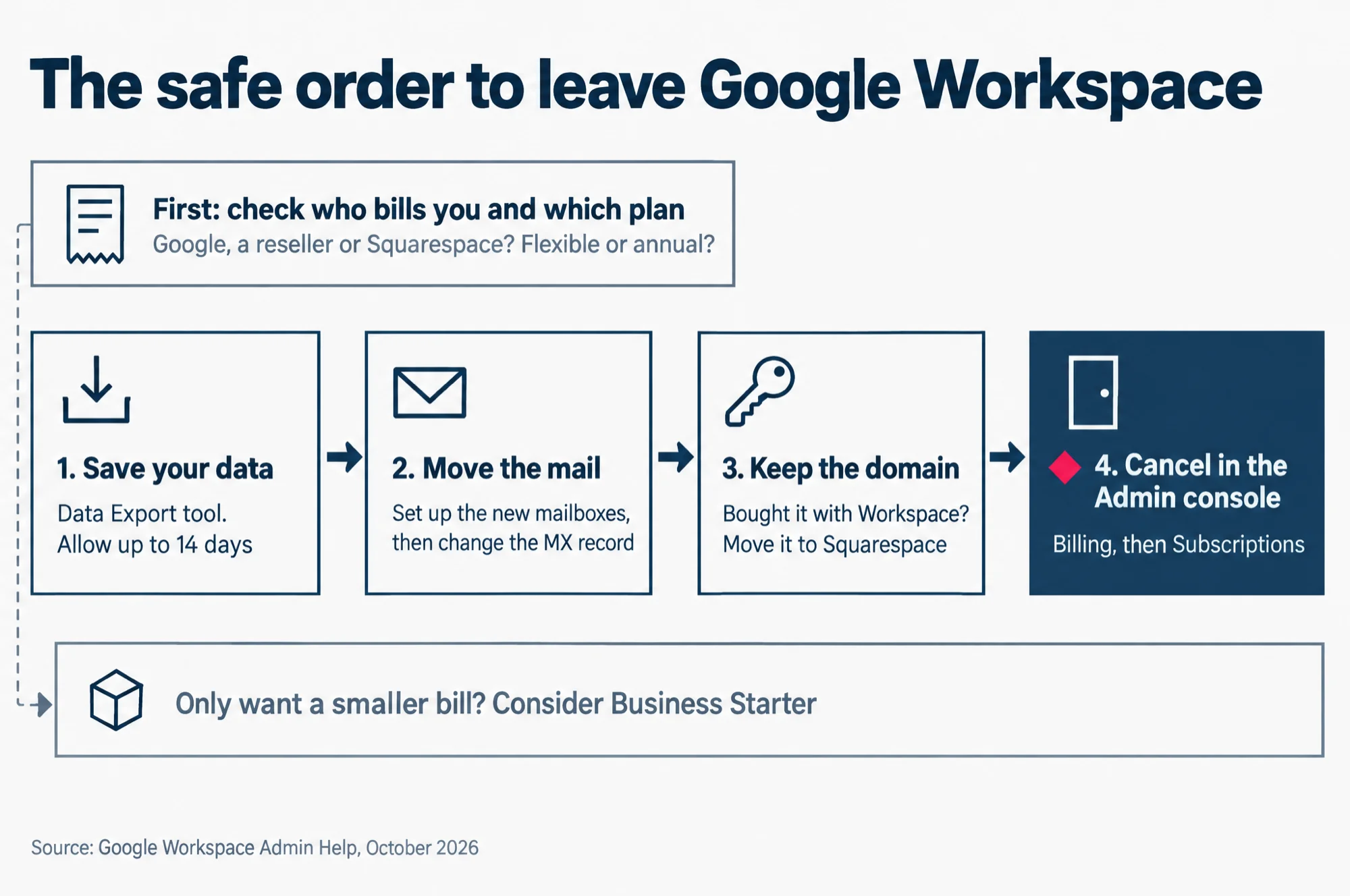
The safe order to leave Google Workspace.
First: check who bills you and which plan. Google, a reseller or Squarespace? Flexible or annual?
1. Save your data: Data Export tool. Allow up to 14 days.
2. Move the mail: set up the new mailboxes, then change the MX record.
3. Keep the domain: bought it with Workspace? Move it to Squarespace.
4. Cancel in the Admin console: Billing, then Subscriptions.
Only want a smaller bill? Consider Business Starter.
Source: Google Workspace Admin Help, October 2026.
Before you start: who bills you, and which plan are you on?
Two facts decide how your exit goes: who sends you the bill, and whether you pay month by month or by the year. You can see both on one page.
In the Admin console, open Menu, then Billing, then Subscriptions, and look at the Payment plan for your subscription. Google says that if you bought it from a reseller, that line shows “Reseller pricing” and the reseller’s name. A reseller is a company that sells and bills Google Workspace for Google.
If a reseller bills you, Google’s cancel steps are not your route. Google’s help page sends reseller customers to the reseller instead. Squarespace is one such reseller, and its route is a little different. Both are covered in the section on resellers below.
Google also sends a few other sign-ups elsewhere. If you signed up with a Gmail address from the web, or pay through Google Play on Android or the Settings app on an iPhone, Google’s main cancel page points you to a different page for your case.
Then check the plan. Google’s help compares two payment plans, Flexible and Annual/Fixed-Term, and the Payment plan line is where to look. On the Flexible Plan you pay month by month, and Google says cancelling stops new charges straight away. On the Annual/Fixed-Term Plan you have agreed to a year, and Google charges the remaining balance of the contract when you cancel. That one fact can change your timing, so it has its own section below.
Why you might not find the cancel button
If you cannot find a way to cancel, rule out these three first. Each comes from Google’s own help pages.
- Someone else bills you. A reseller or Squarespace holds the subscription, so the cancel goes through them.
- Your login does not cover billing. Google’s cancel steps need an admin with the Billing management privilege, the permission to manage the bill. An everyday account, or an admin role without that permission, will not get you there.
- You are still in the free trial. Google says you can cancel during the 14-day trial and you will not be charged. It also cancels a trial by itself if billing is not set up by the end of the trial.
Step 1: save your data with Google’s Data Export tool
This is the step that cannot be skipped, and it takes time. Google’s help is blunt: after you cancel, your users’ Workspace data is deleted and cannot be restored. That includes their Gmail messages, Calendar events, Chat messages and Drive files.
Google names the Data Export tool as the easiest way to save it all. It copies your whole organisation’s data, every user at once, into a storage space Google provides, and you download it from there.
Before you start the export, check that the person doing it meets Google’s three conditions:
- they sign in with a super administrator account, the admin login that can do everything, and that account is at least 30 days old (unless your company’s account itself is newer than that);
- 2-Step Verification is on for that account, so a password alone cannot sign in to it;
- Google Cloud is turned on for that admin account, because Google keeps the exported files in its Cloud Storage and you need Cloud to open them.
To start it, open Menu, then Data, then Data import & export, then Data export.
Allow up to two weeks. Google says the export is available no earlier than 48 hours after you start it, that it typically takes 72 hours, and that it can take up to 14 days, depending on how much data you have. Plan your cancel date around the slow case, not the quick one.
Then download it promptly. In the storage space Google provides, the exported data is deleted automatically 60 days from the start of the export. Google’s rule for a large export is to subtract the days the export took from 60: that is your last day to download. So an export that takes 14 days leaves you 46 days.
Three smaller points from the same Google page:
- The export does not include deleted data, unless Google Vault, Google’s archiving tool, was set to keep it.
- Each person can also download their own data with Google Takeout, if you allow it. That suits a small team where everyone saves their own files.
- Apps your team signs in to with their Google account, such as ones from the Google Workspace Marketplace, keep their own data. Google says that data is not deleted when you cancel, so export what you need from each app, and check that people can still sign in to the apps they keep.
Step 2: move the mail before you switch Gmail off
The export is a copy of your old mail. It does not receive new mail. Once you cancel, Google says you lose access to Gmail, Calendar, Meet and the other core Workspace services. So your company’s email needs a new home that is already working before that day.
Pick the new provider first and set up a mailbox there for each person. Our guide to email hosting in Singapore compares the usual choices for a small business.
Then change your MX records. An MX record is a setting on your domain that tells other mail servers where to deliver email sent to your addresses. While it points at Google, your mail goes to Gmail. Your new provider gives you its own MX values, and you change the record wherever your domain is managed.
Keep Workspace running until the new inbox receives mail. Google says a change to MX records can take up to 48 hours to spread, and that until the new records are active, email still goes to the previous provider. Google wrote that for people moving into Workspace, but it works the same way out. For those hours or days, the previous provider is Gmail. Cancel too early, and mail sent in that gap lands in an account that is about to be deleted.
Our advice, borrowed from Google’s own checklist for changing MX records: set up every mailbox at the new provider before you change the record, make the change when email is quiet, such as an evening or a weekend, and warn your main contacts that a few messages may need to be sent again.
Your old mail is in the export. Putting it into the new provider’s inboxes is a separate import, and how that is done depends on the provider you choose. Ask them before you cancel, while the old mailboxes are still open.
Step 3: make sure the domain stays yours
What happens to your domain depends on one thing: where you bought it.
If you bought the domain from someone else, Google never sold it to you. A .com.sg or .com bought from a local registrar or your web host stays with them when you cancel Workspace. Its mail settings pointed at Google, and Step 2 moved those.
If you bought the domain while signing up for Google Workspace, it needs one more step. Squarespace works with Google to provide domains to new Google Workspace customers, and Squarespace calls these resold domains, managed by both Google Workspace and Squarespace. To check, look for a domain registration in your Admin console’s Subscriptions list. Google lists it there as its own subscription, and cancelling Workspace does not cancel it.
Google’s warning here is the one to read twice. If you bought the domain while signing up, you may want to move its management to Squarespace before you delete your Google Workspace account. If you delete the account without doing that, Google says you will lose access to your Squarespace domain.
Squarespace’s help sets out how to take the domain fully over, billing included. With Google’s note on signing in, the safe order is:
- If you sign in to Squarespace with your Google Workspace login, change it to another login first. Google calls this turning off single sign-on, and it keeps you able to reach the domain once the Workspace account is gone.
- Ask Google Workspace to end its billing for the domain.
- When Google confirms, sign in to Squarespace, open your domains dashboard, click the domain and click Renew domain. From then on Squarespace bills you for the domain directly.
Squarespace says that after Google stops billing for the domain, it stays active until the end of its billing cycle, does not renew with Google Workspace, and keeps its DNS settings, the records that point your web address and mail to the right places. Do not stop halfway. Squarespace also says that if you end the billing with Google but never claim the domain, it will expire on its original date and you may be unable to renew it.
If you have already deleted the Workspace account and cannot get into Squarespace, Google says to contact Squarespace Support and ask them to move the domain’s management to Squarespace.
Step 4: cancel in the Admin console
With the data saved, the mail moved and the domain safe, the cancel itself is six steps. These are Google’s steps for a normal company account, the kind that proved it owns its domain. You need an admin with the Billing management privilege.
- In the Google Admin console, open Menu, then Billing, then Subscriptions.
- Click your Workspace subscription, then More, then Cancel Subscription. Some accounts show Cancel Subscription without the More step.
- Pick a reason for cancelling, then click Continue, then Continue to cancel.
- Google shows some alternatives to cancelling. Choose one, or click Continue to cancel.
- Tick the box to confirm you have read the information.
- Enter your email address and click Cancel My Subscription.
If you would rather see the clicks first, Google’s own Workspace channel has a one-minute video on cancelling a subscription.
Watch on YouTube: How to cancel your Google Workspace subscription, by Google Workspace.
It comes from Google itself, so the clicks are Google’s. It was published in July 2024, so if a screen looks different today, the six steps above follow Google’s help as it read in October 2026.
Some accounts were set up with an email address only, without proving they own the domain. Google calls these email-verified. For them, Google asks one more question at the end. The first choice lets each person keep their own My Drive files in a personal Google account. But it deletes the company account, all shared drives, the groups and the billing records, and it cannot be reversed. The second choice deletes all the data, which can take up to 90 days. Read both options on the screen slowly.
What happens after you cancel
Your team loses Gmail, Calendar, Meet and the other core Workspace services. Google says other Google services, such as YouTube, Google Photos and Google Ads, stay available.
The accounts stay, even though the data goes. Google says cancelling does not remove your user accounts, groups or company structure. They remain until you delete your organisation’s Google Account, which is a separate step.
One more bill may come. Google bills at the start of the next month for anything still owed. On the Flexible Plan that is the days you used: Google’s own example is that cancelling on the 15th means paying for half a month. On the Annual/Fixed-Term Plan it is the rest of your commitment. If you had paid in advance and money is left over, Google says you can ask for a refund of the remaining credit.
You can change your mind, within limits. If you keep your organisation’s Google Account, Google says you can add a new subscription within 51 days of cancelling, and your users, groups and structure will still be there. After that, you wait until after 84 days, when the cancellation finishes.
Deleting the whole account, only if you need to
Cancelling is enough to stop the bill. Deleting your organisation’s Google Account is a further, optional step. Google says it is for when you no longer want a Google Account for your organisation at all. Deleting it also frees your domain within 24 hours, so it can be used with a new Google Account.
Before you delete it, three things matter, all from Google’s help:
- Save your billing records. After the account is deleted you cannot see them, so print the payment receipts and save the monthly invoices first.
- Cancel every subscription. Google will not delete the account while any remain. The one exception is a free Cloud Identity subscription, if your account has one: it cannot be cancelled, and it does not stop the deletion.
- Sort out a domain you bought through Google first. That is Step 3 above. Google’s account warning is about exactly this moment.
On an annual plan: what leaving early costs
On the Annual/Fixed-Term Plan, cancelling early does not end the bill. Google says that to cancel without a penalty, you must wait until the end of the contract. If you cancel before then, you are still responsible for the full value of the commitment, and Google charges your account whatever is left unpaid.
The same plan also stops you shrinking it part way through. Google says you cannot remove licences, the paid seats for each user, and lower your price until it is time to renew.
So the honest advice for an annual customer is this. Find your renewal date in the Admin console. Do the export, the mail move and the domain work in the weeks before it. Cancel at the end of the contract, not in the middle of it, because cancelling early saves you nothing on the contract. The guide we link at the end of this page covers the two plans and the renewal date in more detail.
When a reseller or Squarespace bills you
A reseller-billed plan is cancelled through the reseller. Google’s cancel page sends reseller customers to their reseller, and Google’s reseller page says to contact the reseller for billing. The data, mail and domain steps above still apply. Only the cancel itself moves.
We resell Google Workspace for Singapore businesses ourselves. If xSquare bills your Workspace, your cancel goes through us, not through Google. Our page on what a Google Workspace reseller can do explains the rest of that relationship.
Squarespace works differently. If you pay Squarespace for Google Workspace and cancel there, Squarespace says it transfers your Workspace account to Google and stops billing you. From there you either set up billing with Google and carry on, or cancel completely in the Admin console with the steps above. Squarespace says it calls cancelling and transferring to Google the same process.
Three things Squarespace says to know before you press it:
- The account enters a 7-day grace period with Google. If you want to keep Workspace, add your billing details in Google within that time.
- A monthly plan gets no refund. Annual plans follow refund rules that depend on when you signed up, renewed or reactivated, so check Squarespace’s page for your dates.
- The account cannot go straight from Squarespace to another reseller. It goes to Google first, and from Google to the new reseller.
If you are leaving the reseller, not Google, you may not need to cancel at all. Google lets you move a paid subscription from Google to a reseller, from a reseller to Google, or from one reseller to another. Google says the move does not affect your data or availability. It cannot be undone, and you can move to resellers no more than 2 times in a calendar year.
When moving to Business Starter beats cancelling
If the real reason is the bill, not Google, cancelling is the hard way to fix it. You do all the work above, and then you pay a new email provider instead. If you are on a larger edition, such as Business Standard, moving everyone down to Business Starter keeps you with Google on a smaller plan, with none of that work.
A downgrade keeps your data. Google says moving to a new edition does not affect your data or service availability. The mail, the files and the domain stay where they are.
Google’s switch page names three limits to check first:
- Storage. Business Starter adds 30 GB per user to your company’s shared storage pool. Check what you use now under Menu, then Storage. If the team already uses more than the new pool, people hit the limit. Our guide to the pooled storage limit explains what happens then.
- Everyone moves together. Google says everyone in your organisation gets the same subscription, so you cannot keep one person on a bigger plan this way.
- Features you lose take time to get back. If you drop a feature such as Google Vault, Google’s archiving tool, you can get it back by upgrading within 51 days. After that, Google says you wait at least 85 days.
On an annual plan, the downgrade has to wait too. Google says you can move down only after switching from the annual plan to the Flexible Plan, and that switch takes effect at your renewal date.
| If this is you | Move to Business Starter | Cancel Google Workspace |
|---|---|---|
| You want a smaller bill and are happy with Gmail and Drive | Fits. Data, mail and domain stay as they are. | More work than you need. |
| The team fits in 30 GB of shared storage per user | Fits. | Not needed for storage reasons. |
| You rely on a feature such as Vault | Check first that Starter has it. A feature you lose takes time to get back. | You lose it either way. |
| You are moving the company to another email provider | Does not help. | Fits, after Steps 1 to 3. |
| You are on the annual plan, mid-contract | Only from your renewal date. | The rest of the contract is still charged. |
Our comparison of Business Starter and Business Standard sets out what else Starter leaves out, so you can check before you switch. Our page on Google Workspace prices in Singapore lists what the Business plans cost in Singapore dollars.
What to read next
Before you cancel anything, find out which plan you are on and when it renews. That one date decides whether leaving now costs you the rest of a contract.
Our guide to the Google Workspace Flexible and Annual plans sets out what each plan costs in Singapore dollars, what cancelling means on each, and why to read your renewal date in the Admin console rather than count it from the day you signed. Read it first, then come back to Step 1.