Six settings in Google Docs carry a proposal from a blank page to the file your client receives. Use them in the order you meet them.
Start from your company’s own template, a ready-made proposal file the whole team copies. Keep the document in pages format, which breaks into pages like paper, rather than pageless, which is one long scroll. Put the price in a table and pin its header row, so the column headings repeat on every page.
Share the proposal with the client as a Commenter. They can then comment and suggest changes, but not edit.
Name the version you send, so the exact text the client got is easy to find again. Then download it as a PDF, the fixed copy the client keeps. If the proposal is split into tabs, the sections listed down the left of the screen, choose All Tabs.
One more setting decides whether the client can sign inside Google Docs at all. That is eSignature, the Google Docs tool for asking someone to sign on screen. It comes with some Google Workspace plans only.
Google Workspace is Google’s paid package for businesses: email on your own domain, Google Docs, Drive, Meet and more, priced per user each month. eSignature is on Business Standard, Business Plus and the Enterprise plans Google lists, once your administrator turns it on. Your administrator is the person who manages your company’s Google Workspace account.
Business Starter is not on Google’s list for eSignature. On that plan, the proposal still goes out as a PDF, and the signing happens some other way.
Google’s help pages quoted here are the ones on its site on 2 November 2026.
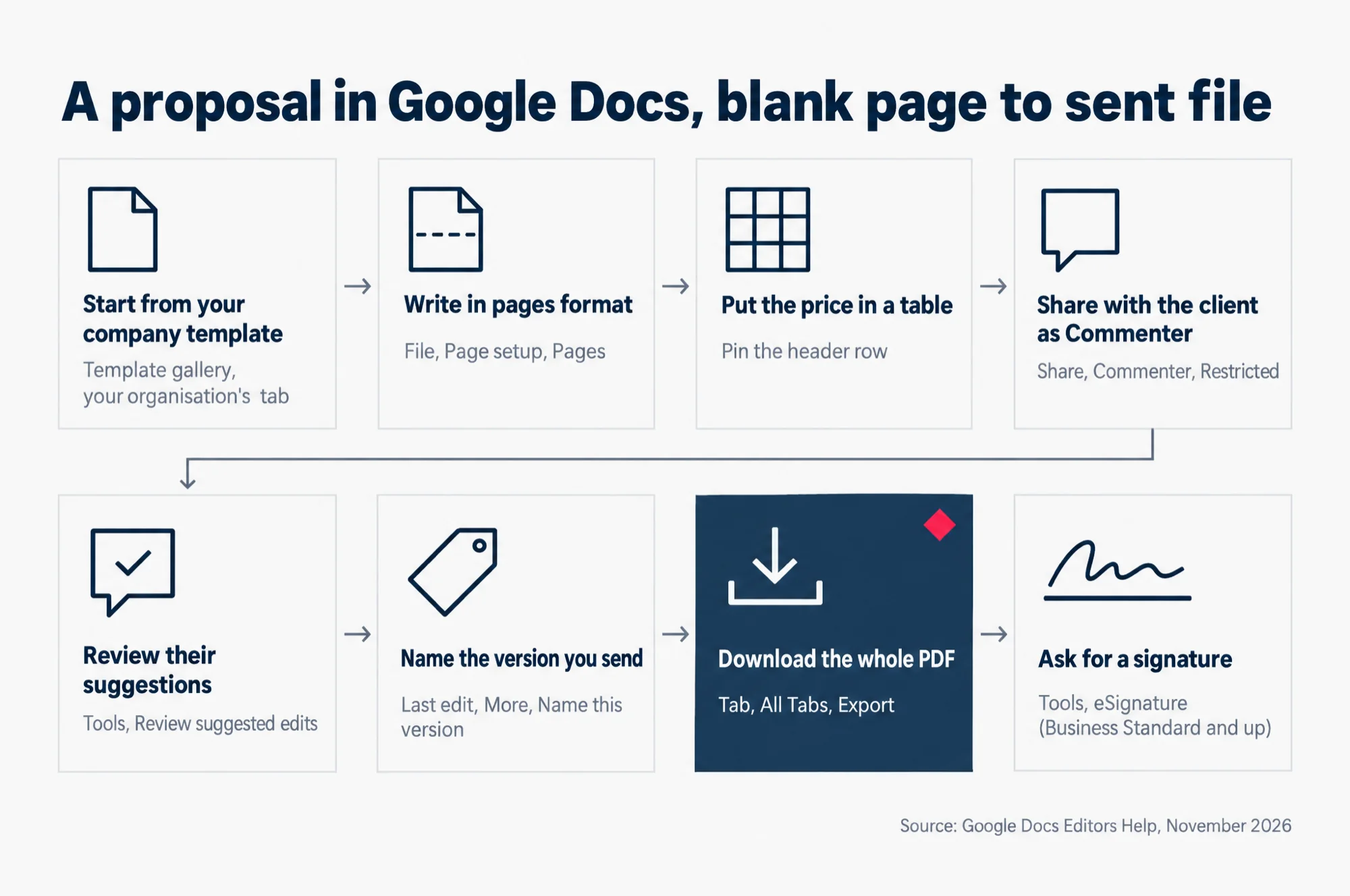
Read the eight steps as words
A proposal in Google Docs, blank page to sent file
- Start from your company template: Template gallery, your organisation’s tab.
- Write in pages format: File, Page setup, Pages.
- Put the price in a table: pin the header row.
- Share with the client as Commenter: Share, Commenter, Restricted.
- Review their suggestions: Tools, Review suggested edits.
- Name the version you send: Last edit, More, Name this version.
- Download the whole PDF: Tab, All Tabs, Export.
- Ask for a signature: Tools, eSignature (Business Standard and up).
Source: Google Docs Editors Help, November 2026.
Is there a proposal template in Google Docs?
Yes, two kinds. Google’s own Template Gallery, its set of ready-made documents, sits at the top right of the Google Docs home screen. Click a template and a new file opens with it already laid out.
The better start is your company’s own template. A Google Workspace account can have a gallery tab carrying your organisation’s name, filled with templates your own people submitted. Google says this works “only if your organization supports it”, so if you cannot find the tab, ask your administrator.
Build the proposal template once, with everything that never changes: the cover, your company details in the footer, the headings for scope, price and terms, and an empty price table. Then submit it.
- Open the document you want as the template and make your changes.
- Go back to the Google Docs home screen and open Template gallery, then the tab with your organisation’s name.
- Click Submit template, then Select a document, and pick your file.
- Choose a category for it and click Submit.
Two things to know before you submit. You need permission to change the file’s sharing settings, or the submit button refuses it. And Google says anyone the document was already shared with keeps their access level, while the template itself becomes visible to everyone in your organisation.
So make the template from a clean file that you have never shared with a client. Our advice to our own clients is to keep one proposal template for the whole company, owned by whoever owns the sales process, and to stop each person keeping a private favourite.
Tabs for the cover, scope, price and terms
A long proposal can be split into document tabs, one per section, listed down the left of the screen. Each new document starts with one tab, called “Tab 1”. You add more from Show tabs & outlines, then Add tab.
Tabs help the client find the price without scrolling past the cover. They also change how the PDF comes out, which the export section below deals with. Decide on tabs while you build the template, not on the day you send.
Should a proposal use pages or pageless?
Use pages if the proposal will be printed or sent as a PDF. Use pageless only when the client will read it inside Google Docs, on a screen, and nowhere else.
Pages is the format of a printed document. It has page breaks, and it is where headers and footers, page numbers and columns work. A header or footer is a line that repeats at the top or foot of every page. A proposal wants at least two of those: your company name in the footer, and a page number the client can quote back to you on a call.
Pageless is one long scroll with no page breaks. Images and line breaks fit the reader’s screen, and a wide table can scroll sideways instead of being squeezed. Google is clear about what it gives up: in pageless, “you won’t be able to add certain features, such as columns, page numbers, headers and footers, and more.”
Switching a finished proposal to pageless does not delete those things. Google says headers and footers are hidden while the document is pageless and come back when you switch it to pages again. That is easy to miss when someone flips the setting to read a draft more comfortably.
To set it, go to File, then Page setup, and pick Pages or Pageless at the top. Set it in the template. If you want every new document you create to start that way, click Set as default in the same box.
How to lay out the price block in a table
Put the price in a table, never in lines spaced out with the Tab key, which slip out of line as soon as someone edits a figure. In Google Docs, go to Insert, then Table, and choose the rows and columns. A table can be up to 20 by 20 cells, which is more than any price block should need.
Three table settings make a price block behave on paper. All three are in Format, then Table, then Table options.
- Pin the header row. Under “Row”, tick Pin header row(s). On a table that runs onto a second page, the column headings repeat at the top of that page, so the client never reads a column of figures without knowing what they are.
- Stop a row splitting across pages. Under “Row”, untick Allow row to overflow across pages. A line item and its price then stay together. Google says this one is not available in pageless format, which is one more reason to write proposals in pages.
- Set the cell padding. Under “Cell”, set the cell padding, the empty space inside each cell’s border. A little padding stops the figures touching the borders.
Keep the price table to what the client is agreeing to: the item, the quantity or term, and the amount. Notes and conditions read better as a sentence under the table than as a fourth column.
How do I let a client comment on a proposal without editing it?
Share it with the client’s email address as a Commenter. In Google’s words, a Commenter can “make comments and suggestions on files”. The client can mark up the price, question a line in the scope and propose new wording, but your text only changes when you accept it.
The other two roles are the wrong fit. A Viewer can read the proposal but cannot add comments, so every question comes back by email. An Editor can change anything, and Google says editors “can also change permissions and share items with others by default”. A client should never be an editor of your proposal.
- In the proposal, click Share.
- Enter the client’s email address.
- Set their role to Commenter.
- Leave Notify people ticked if you want Google to email them, or untick it if you will send the link yourself.
- Click Send.
Keep General access on Restricted. Then only the people you named can open the proposal, even if the email is forwarded. Changing it to “Anyone with the link” means anyone on the internet who has the link can open it without signing in. Those visitors show up as anonymous animals, so you cannot tell who opened it. A price is not something to send that way.
Later, you may want to see who can still open the folder the proposal sits in. Our guide to checking who can open a Google Drive folder walks through that check.
If Google Docs will not let you share with the client’s address, look at your company’s settings first. Google warns that on a work account, “your organization may limit how you can share files externally”. Your administrator sets that limit, so ask them.
Once the deal is closed or lost, take the client’s access away. Google suggests the same for outside clients once a project is complete. On a work account, open Share, click the arrow beside the client’s name and choose Add expiration, with any date within a year.
How do I see what the client changed or suggested?
Their suggestions show inside the text in a different colour, and anything they want deleted is crossed out. Nothing changes until you accept it. Google says the file’s owner gets an email about the suggestions and “can decide whether to keep them”.
You can accept or reject suggestions one at a time from the comment box beside each one. To deal with a whole round at once, go to Tools, then Review suggested edits. A box opens at the top right. Its arrow lets you preview the proposal with every suggestion in, or with none, before you click Accept all or Reject all.
Comments sit in the panel you open with Show all comments, at the top right. Reply to each one, and click Resolve when the point is settled, so the open list shows only what is still being discussed. To pull a colleague in on a pricing question, type @ and their name in a comment, and Google emails it to them.
A client who works in Microsoft Word may send their changes back as a Word file with tracked changes, Word’s own way of marking edits. Convert that file to Google Docs format and the tracked changes become suggestions, so you review them the same way.
Two limits are worth knowing. A Commenter cannot open the version history, the file’s list of earlier versions, because Google allows that only to people who can edit the file. And the right-click Show editors view, which tells you who changed a selected passage, is on these Google Workspace plans only: Business Standard, Business Plus, Enterprise Standard, Enterprise Plus and Education Plus.
Name the version that went out
The day you send the proposal, give that version a name. Google Docs saves every edit on its own, so without a name, the exact text the client agreed to is one unlabelled entry among dozens, and Google may merge old entries together. Naming the version stops that. Google says a named version makes sure “your versions aren’t merged”.
- At the top right of the proposal, click Last edit. The versions open in a panel on the right.
- Choose the version you are about to send.
- Click More, then Name this version, and type a name with the client and the date, such as “Sent to client, 2 Nov”.
A document can carry up to 40 named versions. Turn on Only show named versions and the history shrinks to the list of what went out and when. If the client later quotes a price you changed, you open the named version and read what they were sent. If you want that text as a file of its own, the same More menu has Make a copy.
How do I send the proposal as a PDF that keeps the layout?
Go to File, then Download, and choose PDF as the file type. Two things decide whether that PDF looks like the proposal you wrote.
The first is the format. A PDF is a set of pages, and only pages format carries the footer and page numbers you set up in the template. Write the proposal in pages from the start and the PDF keeps them.
The second is tabs, and it is the one that catches people out.
Printing works the same way: File, then Print, then Print all tabs rather than Print current tab. Open the PDF and page through it once before it goes into an email. It takes a minute, and it is the copy the client keeps.
For a very large proposal, Google suggests another route in its Chrome web browser: File, then Print, then set the destination to Save as PDF.
Can a client sign a proposal in Google Docs?
Yes, if your Google Workspace plan includes eSignature. It lets you place signature boxes in the proposal and send it to the client, who signs on screen. They do not need a Gmail address, which is Google’s own email service. Signature requests can go to “non-Gmail users”, in Google’s words.
Whether you have it depends on the plan your business pays for.
| Plan | eSignature |
|---|---|
| Business Starter | Not on Google’s list |
| Business Standard | Yes, once your administrator turns it on |
| Business Plus | Yes, once your administrator turns it on |
| Enterprise Starter, Standard and Plus | Yes, once your administrator turns it on |
| Enterprise Essentials and Enterprise Essentials Plus | Yes, once your administrator turns it on |
| Workspace Individual | Yes |
If you are on one of those plans and the Tools menu has no eSignature item, ask your administrator for it. The switch is in the Admin console, the site where administrators manage your company’s Google Workspace. The path there is Apps, Google Workspace, Drive and Docs, eSignature. The administrator can give it to everyone, or only to one department or group, such as sales.
On Business Starter, the proposal still goes out as the PDF from the section above. The client signs it outside Google Docs, by hand or with another signing tool. Our comparison of Business Starter against Business Standard covers what else changes at the upgrade.
How eSignature works on a proposal
- Open the proposal and go to Tools, then eSignature. A side panel opens.
- Drag the fields you need onto the page: Signature, Initials, Name, Text field or Date signed. A text field can ask for a job title.
- If more than one person signs, use Manage signers to add them, up to 10, and assign each field to the right person.
- Click Request signature, give the PDF a title, enter each signer’s email address and add a message.
- Turn on Automatic reminders if you want Google to chase the client for you, then click Request signature again to send.
Only the proposal’s owner and its editors see the Request signature button, so the person sending has to be one of them.
Google Docs then makes a PDF of the proposal and shares that PDF with the signers. They can sign it but cannot change anything else in it. The PDF locks the moment you send, while the document you wrote stays open for edits.
That split matters when the client asks for a change after you send. You cannot edit the locked PDF. You cancel the request, make the change in the document, and send a new request. Name a new version when you do, so the history shows both rounds.
The client signs by typing their name or drawing a signature with a mouse, trackpad or touchscreen. With reminders on, Google emails a signer who has not finished 3 days after the request, then every 3 days for up to 9 days. When everyone has signed, the final PDF normally lands in the same folder as your proposal, and its last page is an audit trail: a log of when the signature was requested, signed and completed, with each person’s name and email.
Does a signature in Google Docs count in Singapore?
Singapore’s Electronic Transactions Act 2010 is the law on electronic records, signatures and contracts. It accepts an electronic signature where a law requires a signature, on two conditions. The method has to identify the person and show their intention about what they signed. It also has to be “as reliable as appropriate for the purpose”, in the light of all the circumstances, or proven in fact to have done that job.
Whether the Act settles your own contract is a question for your lawyer, and for a large or unusual deal, ask before you rely on it.
The one thing to check next
Signing is the step in this walk that depends on the plan your business pays for. So find out which plan you are on. Your administrator can tell you whether it is Business Starter, or Business Standard and up.
If you are on Starter and want clients to sign inside Google Docs, look at the difference in price before you decide. Our Google Workspace pricing page for Singapore sets out what Starter, Standard and Plus cost, in Singapore dollars.