
Google Workspace Studio is Google’s tool for making small automations inside Google Workspace. You describe a routine job in plain words, and Gemini, Google’s AI, builds it for you. Google calls each automation a flow.
Studio has no price of its own. Google says it is included in its business and enterprise plans, and it lists Business Starter, Business Standard and Business Plus as eligible. If your office already pays for one of those, there is nothing new to buy.
So the real cost question is a different one: which plan you are on, and how often your flows are allowed to run. This page answers both, in Singapore dollars, and walks through one job Studio can take off a small office.
We checked the Singapore prices below against Google’s Singapore pricing page on 20 September 2026. Google’s Studio help pages quoted here are the ones on its site on 30 September 2026.
What Google Workspace Studio does, in plain words
A flow has two parts. The starter is the event that sets it off, such as a new email arriving or a set time each week. The steps are what the flow then does, one after another: save a file, add a row to a sheet, send a message in Google Chat.
You do not have to wire those parts together yourself. Google’s launch post gives the example of typing “every Friday, ping me to update my tracker” and letting Gemini create the flow from that sentence. Google also offers ready-made templates, among them a daily summary of unread emails, a label on emails that have action items, and a note when an email arrives from someone important.
Some steps use Gemini to read and judge, not just to move things. One of Google’s own examples is a flow that picks out high-priority emails in your inbox and labels them. That is the part a rule in a Gmail filter cannot do.
A flow acts as the person who built it. Google’s admin guide says flows can draft emails, create and update files and create tasks on a user’s behalf. Google also says Studio can only reach data that the person running it already has permission to open, so a flow cannot read a folder its owner cannot.
Read this as words instead
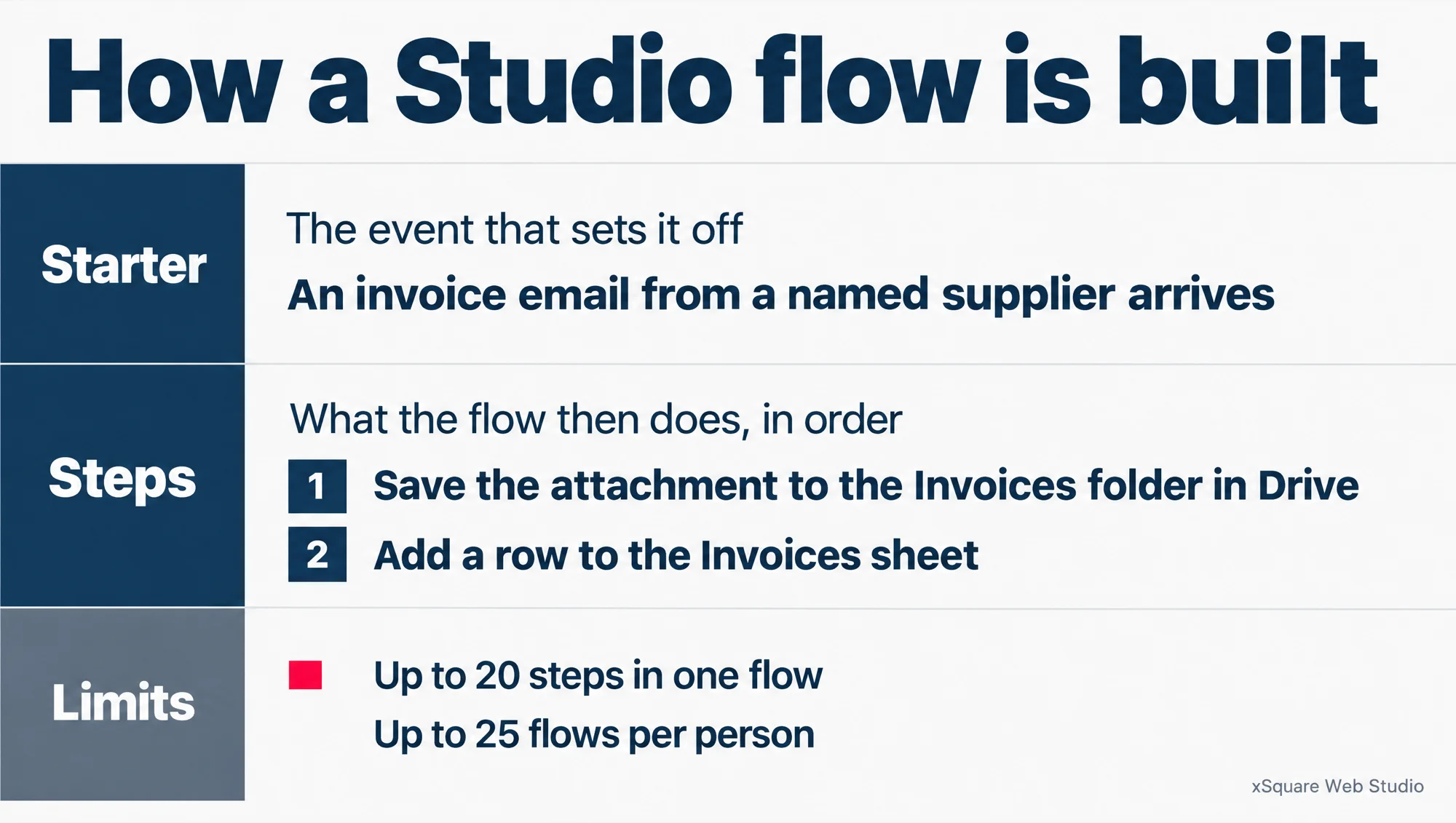
How a Studio flow is built
- Starter
- The event that sets it off: an invoice email from a named supplier arrives.
- Steps
- What the flow then does, in order: 1. Save the attachment to the Invoices folder in Drive. 2. Add a row to the Invoices sheet.
- Limits
- Up to 20 steps in one flow. Up to 25 flows per person.
xSquare Web Studio
Three more facts that save confusion:
- It used to be called Google Workspace Flows. Google’s product page says Studio grew out of the early version it released under that name.
- It is not Google AI Studio, and not Google Flow. Google AI Studio is a tool for developers building their own apps on Gemini. Google Flow is a tool for making video clips. Neither is part of your Workspace plan’s automation.
- You build flows on a computer. Google says Studio is not available on mobile devices yet. Once a flow is on, Google says it can run on any device.
Google announced Studio on 3 December 2025. By 19 March 2026 it had reached every Workspace organisation on both of Google’s update speeds: Rapid Release, which gets new features first, and Scheduled Release, which gets them later.
If you would rather see the screen than read about it, Google’s own short introduction walks through it.
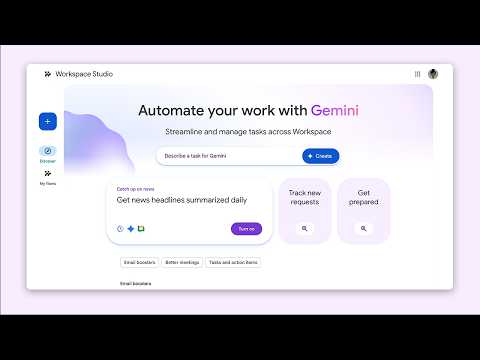
Watch on YouTube: Get started with Google Workspace Studio, by Google Workspace.
It is about four minutes long and comes from Google’s own Workspace channel, so the screens it shows are the ones Google itself ships.
Which plans include it, and what it costs in Singapore dollars
All three Business plans include Studio, and none of them charges extra for it. What changes from plan to plan is the seat price and how much of Gemini comes with it.
| Plan | Price per user a month | Workspace Studio | Gemini in the apps |
|---|---|---|---|
| Business Starter | S$9.40 | Included | Gmail and Google Vids only |
| Business Standard | S$18.80 | Included | Gmail, Docs, Meet and more |
| Business Plus | S$29.40 | Included | As Business Standard |
A month-to-month commitment runs about 20 per cent higher per seat than the annual prices in the table.
There is no Studio line on the bill. Google’s own product page describes Studio as included in its business and enterprise plans.
Google’s Singapore pricing page does list one optional add-on that touches Studio. It is called AI expanded access. The page puts it among the add-ons sold separately, and says it gives more Workspace Studio automations, among other AI extras. So if someone quotes you a separate price connected to Studio, ask whether it is for this add-on.
If you are not on Workspace yet, our Google Workspace setup and migration page explains what moving over involves.
What Business Starter gets
Yes, Business Starter has Studio. Google’s page on access to Workspace Studio lists “Business Starter, Standard, and Plus” together, with no exception for Starter.
The catch is Gemini, not Studio. On Starter, Gemini works in Gmail and Google Vids, while Docs, Sheets, Slides and Meet stay without it until Business Standard. Studio’s AI steps run on Gemini. Google’s access page also lists this among the requirements for a work account: “Your admin must enable Gemini.”
What that means for AI steps inside a Starter flow is not something Google spells out. Its Studio access page, its limits page and its admin set-up guide set no separate limit and no shorter list of steps for Starter.
Our advice to our own clients: before you upgrade anyone for Studio, build the flow you want on one Starter account and see whether it runs. If it does, the upgrade can wait. If you are weighing the step up for other reasons, our comparison of Business Starter and Business Standard goes through it app by app.
One job it can take off a small office: supplier invoices
Most small firms here had not yet adopted AI in 2024. IMDA, the Infocomm Media Development Authority, found that 14.5 per cent of Singapore SMEs had, up from 4.2 per cent in 2023. A flow that files invoices is a small, easy-to-check place to start.
Here is the job. Suppliers email their invoices as attachments. Somebody in the office saves each one into a Drive folder, then types a line into a spreadsheet so the accounts person knows it came in. It takes a few minutes each time, and it is easy to miss one.
Google lists this exact shape of task among its own Studio examples: save attachments to a Drive folder and record them in Sheets, without leaving Gmail. This is how we would set it up for a client:
- On a computer, open studio.workspace.google.com while signed in with the account that receives the invoices.
- Describe the job in one sentence, for example: “When an email with an invoice attached arrives, save the attachment to the Invoices folder in Drive and add a row to the Invoices sheet.” Gemini turns that into a flow.
- Narrow the starter so it only runs for the right emails: from named suppliers, or with a set word such as “invoice” in the subject. Google gives this same advice, to stop flows running when they do not need to.
- Open each step Gemini made and check it points at the right Drive folder and the right sheet before you switch it on.
- Turn the flow on, then look at the Activity tab in Studio after the first few invoices come in.
Step 4 is the one not to skip. Google’s own admin guide warns that a badly set-up flow could edit or delete data by mistake, or send too many notifications.
One more thing to know before you build it. The flow runs as the person who made it. If that person leaves and an admin switches Studio off for their account, Google says any active flows they own stop at once. So build it under the account that owns the job, and put it on your handover list.
The limits, and what happens when you hit one
Studio’s limits apply to each person, not to the company as a whole. Google’s limits page gives one set of them and does not split them by plan. There are three fixed numbers and one daily limit.
- Flows one person can create, on or off (Google, 2026)
- 25
- Steps in one flow (Google, 2026)
- 20
- Active flows that can start from Gmail (Google, 2026)
- 25
The 25-flow cap counts every flow you have made, including the ones you have switched off. Clear out old ones rather than letting them pile up.
The daily limit is the one that matters day to day. Google describes it as the maximum number of times all of your flows combined can run in 24 hours. Its limits page does not print the number.
When Studio launched, Google said eligible plans would get promotional access to higher usage limits for a while, and that the per-user figures could change. So if you see a monthly run allowance quoted for Studio, check it against Google’s limits page before you plan around it.
Here is what happens when you reach the daily limit:
- Your active flows stop running, and each attempt to run fails.
- An error notice appears in the Studio side panel inside apps such as Gmail or Google Chat.
- The limit resets every 24 hours, and your flows then run again on their normal schedule.
Google does not say whether those failed runs are made up later, so check anything that mattered. The Activity tab in Studio shows which flows were affected.
If those free fixes are not enough, the AI expanded access add-on is the paid route to more automations that Google’s Singapore pricing page names.
Is Studio already switched on at your office?
It may be, without anyone having decided it. Google says Studio is on or off by default depending on a setting it calls your organisation’s release preference for new products. If nobody chose that setting on purpose, nobody chose Studio’s either.
So the only way to know is to look. Whoever holds your Google Workspace admin login can check in a couple of minutes:
- Sign in to the Google Admin console with an admin account that has the Service Settings privilege. A super admin has it, because Google gives that role every feature in the Admin console. An admin with a narrower role, such as help desk, may not.
- Go to Menu, then Apps, then Google Workspace, then Workspace Studio.
- Click Service status and read the setting: on for everyone, off for everyone, or set differently for part of the company.
- To change it, pick On for everyone or Off for everyone and click Save. Google says a change can take up to 24 hours, though it usually happens sooner.
“Part of the company” means an organisational unit, which is a department-style folder of staff accounts in the Admin console, or an access group, which is a list of people picked across departments. Either one lets you switch Studio on for, say, the accounts team only.
Gemini has its own switches, and Studio’s AI steps depend on them. Our guide to what Gemini in Google Workspace includes on each plan covers where those are.
Two more settings are worth knowing about. Google’s set-up guide for admins suggests keeping one organisational unit with Studio switched off. Moving a person into it stops every flow they own straight away, which is Google’s emergency stop for a flow that has gone wrong. The same guide suggests an alert that emails the admins when flows start more than 100 runs in an hour, which catches a flow stuck in a loop.
Where Studio stops
Studio is built around Workspace. It starts from things that happen in Gmail, Drive, Chat and the rest. Past that point, it needs more from you.
Outside apps are possible, with care. Google names Asana, Jira, Mailchimp and Salesforce among the services a flow can connect to. A flow can also call a webhook, which is a web address another service gives you so that it can receive a message. Your admin decides which of these outside connections staff may use.
Your data rules do not follow the data out. Google’s data-loss prevention rules are the settings that stop sensitive files leaving your Workspace. Google says Studio will not override them inside Workspace services such as Drive, but that covering outside services is “not yet part of our immediate plans”.
That is the point to settle before anyone connects a flow to an outside service. Google’s own advice is that admins should consider which outside services they connect to Studio, just as they do for Workspace as a whole. In plain terms: decide first which services your staff may send company data to.
Code is where no-code ends. When a ready-made step cannot do the job, Google lets a developer build a custom step with Apps Script, Google’s own coding tool for Workspace. That works, but it means somebody writing and looking after code, which is a different kind of commitment from a flow anyone in the office can read.
Common questions about Workspace Studio
Can I build a flow on my phone?
No. Google says Workspace Studio is not available on mobile devices at the moment, so you build and edit flows on a computer in a supported web browser. A flow that is already on can run on any device.
If I share a flow with a colleague, can they see my emails?
No. Google says the colleague gets their own copy of the flow, including the text, email addresses and Drive links you set up in it. They do not get access to your emails or files, only to content they could already open.
Does Google use what Studio reads to train its AI?
Google says data processed in Studio, such as prompts and the data a flow reads, is not used to train its general AI models outside your organisation, and is not used for advertising. It also says your data remains your property.
Can Studio replace Zapier or Apps Script for a small team?
It depends where your work starts. If most of your routine jobs begin in Gmail, Drive or Sheets, try Studio first, because it comes with the plan you already pay for. If most of them run between apps outside Google, compare Studio’s list of connections with what you use now before you move anything. Apps Script is not something Studio replaces: it is what Studio uses when a job needs code.
Check your plan before you change it
Every Business plan carries Studio, so for an office already on one, the first step costs nothing: find out whether it is switched on, and try one flow. Business Standard is the lowest plan where Gemini also works in Docs, Sheets and Meet, so it is the step up to price if your Starter flows feel thin.
Our Google Workspace pricing page for Singapore sets out each plan and the price of the step up, in Singapore dollars.