Microsoft 365 security for a small business starts with one free switch. Every Microsoft 365 Business plan, Basic and Standard included, can turn on security defaults. That is a fixed set of sign-in rules from Microsoft. It makes everyone use multi-factor sign-in: a password plus a second proof, usually a tap in the Microsoft Authenticator app on their phone. It blocks the old sign-in methods that skip the second proof. And it blocks sign-in codes, the route a phishing kit launched this year uses to get staff to sign an attacker in.
Microsoft calls multi-factor sign-in multifactor authentication, or MFA. A phishing kit is a ready-made set of tools that criminals rent to send fake emails that steal access to accounts.
Business Premium adds two things on top. Conditional Access lets you write your own sign-in rules, such as blocking sign-ins from countries you never work from. Microsoft Defender for Office 365 adds checks on the links and attachments in your email.
One trap sits between the two. Security defaults and Conditional Access do not run together. Switch the defaults off before your own rules are ready, and your accounts are left with neither.
This page sorts each setting by the plan that has it, so it also helps you decide whether Premium is worth paying for. The menus and steps here are the ones on Microsoft’s own help pages on 8 October 2026. If a menu has moved since, follow what your own screen shows.
The short version, if you are doing this today.
- Switch on security defaults if they are off. They cost nothing on any Business plan.
- Before you do, check the office scanner or printer that emails scans. If it signs in the old way, it stops sending.
- Keep your admin login apart from the account you read email on.
- Stop staff from approving outside apps that ask to read their mailbox. That is a setting on every plan too.
- Buy Business Premium for your own sign-in rules or for link and attachment checks. Do not buy it to get multi-factor sign-in. You already have that.
What every Microsoft 365 Business plan already has
Security defaults, at no extra cost. In Microsoft’s words: “Our goal is to ensure that all organizations have at least a basic level of security enabled at no extra cost.” In Microsoft’s table of what each option needs, security defaults show “None” under “Required licenses”.
Every sign-in setting on this page lives in Microsoft Entra ID. That is the part of Microsoft 365 that holds your staff accounts and decides who may sign in. Microsoft labels it differently by plan. Basic and Standard list “Core identity and access management for up to 300 users”. Premium lists “Policy-based identity and access management for up to 300 users”. Identity and access management means the staff accounts and the rules on who may sign in. The difference that matters here is Conditional Access. It needs a paid level of Entra ID called P1. Microsoft’s Premium FAQ says P1 is included. Basic and Standard do not list P1 among their features.
Microsoft lists what security defaults switch on. Here is each item, and what it means for you:
- Everyone registers for multi-factor sign-in. Each person sets up a second proof, usually the Authenticator app on their phone.
- Admins use it every time they sign in. An admin role is a set of powers to change settings, given to a person’s account. Microsoft names sixteen admin roles this covers. Global Administrator is first, and it is the role the person who set up your Microsoft 365 holds by default.
- Staff use it “when necessary”. Microsoft decides when, “based on factors such as location, device, role, and task”. Your staff are not asked at every sign-in.
- Old sign-in methods are blocked. Microsoft calls this legacy authentication: older programs and mail connections that cannot ask for a second proof, so they let a stolen password straight in.
- Sign-in codes are blocked. Microsoft calls this device code flow: you type a short code on one device to let another device sign in. The trick further down this page abuses it.
- Admin website sign-ins need the second proof. The Azure portal and the Microsoft Entra admin center are Microsoft’s websites for managing your cloud services and staff sign-ins. Changes made there can reach settings and billing for the whole company. Anyone opening them has to complete the second proof, admin or not.
Every cloud mailbox also gets Microsoft’s built-in email protection: filters for malware (harmful software), spam and senders who fake an address. That part needs no switch.
| Setting | What it does for you | Basic | Standard | Premium |
|---|---|---|---|---|
| Security defaults | Multi-factor sign-in for everyone, old sign-in methods and sign-in codes blocked | Yes, free | Yes, free | Yes, but Microsoft points Premium customers to Conditional Access |
| Built-in email protection | Filters malware, spam and faked senders | Yes | Yes | Yes |
| A separate admin account | Keeps admin power off the inbox that phishing emails reach | Yes | Yes | Yes |
| User consent settings | Stops staff letting outside apps read their mailbox | Yes | Yes | Yes |
| Conditional Access | Your own sign-in rules, by country, device or app, with exceptions | No | No | Yes |
| Defender for Office 365 Plan 1 | Link checks (Safe Links), attachment checks (Safe Attachments), and checks for emails that pretend to be someone you know | Not included | Not included | Yes |
The first four rows are on every plan. Only the last two separate Premium from the rest.
How do you turn on multi-factor sign-in on Business Basic or Standard?
You switch on security defaults. There is no separate multi-factor switch to find, and on Basic or Standard this is the way Microsoft gives you.
Check first, because yours may already be on. Microsoft says that if your tenant was created on or after 22 October 2019, “security defaults might be enabled in your tenant”. Your tenant is your company’s own space in Microsoft 365, the one your admin login opens.
Then check what still signs in the old way. Say there is a scanner in the corner of your office that emails scans to staff. If it sends through an older mail connection with a plain username and password, security defaults will block it. Microsoft counts “Any client that uses older mail protocols such as IMAP, SMTP, or POP3” as legacy authentication. IMAP, SMTP and POP3 are the older ways that mail programs and devices send and collect email. An Office program too old for the newer sign-in counts too, and Microsoft’s example is Office 2010. Microsoft’s warning: “Before you enable security defaults, make sure your administrators aren’t using older authentication protocols.” It links a guide to setting up a “multifunction device”, meaning a printer that also scans and emails, to send email through Microsoft 365. That guide is the fix for the scanner.
Tell your staff before the day, because there is no grace period now. Microsoft removed the 14-day window for registering on 29 July 2024. Staff register at myprofile.microsoft.com, under the Security Info link. Under security defaults they register the Microsoft Authenticator app using notifications, the pop-ups on the phone that they tap to approve a sign-in. After that, codes from the Authenticator app or another authenticator app also work.
When the app asks to approve a sign-in, it shows a number to type in. Microsoft says this “helps prevent users from falling for MFA fatigue attacks”. That is where an attacker with a stolen password sends approval requests again and again until somebody taps yes to make them stop.
You need at least the Conditional Access Administrator role to change the setting. That is the admin role for sign-in rules. The person who set up your Microsoft 365 is a Global Administrator by default, which is enough.
- Sign in to the Microsoft Entra admin center with your admin account.
- Go to Entra ID, then Overview, then Properties.
- Select Manage security defaults.
- Set Security defaults to Enabled.
- Select Save.
Then sign everyone out once. Microsoft says admins “should revoke all existing tokens to require all users to register for multifactor authentication”. A token is the pass that keeps a person signed in after their first sign-in. Revoking it makes everyone sign in again and set up the second proof. Microsoft’s page does this with a PowerShell command, Revoke-MgUserSignInSession, not a button. PowerShell is Microsoft’s tool for running typed commands instead of clicking through menus. If nobody in your office runs PowerShell, ask whoever supports your Microsoft 365 to do it on the same day.
One more warning from the same page: “Don’t disable methods for your organization if you’re using security defaults. Disabling methods might lead to locking yourself out of your tenant.” Leave the sign-in methods as they are.
How do you stop sign-in code phishing in Microsoft 365?
On Basic or Standard, security defaults block it. On Premium, a Conditional Access rule blocks it. Either way it is a setting, not only a talk to your staff.
First, what a sign-in code is for. Some devices cannot show a proper sign-in page, such as a smart TV or a printer. Microsoft lets them sign in with a code instead. The device shows a short code. You type it at microsoft.com/devicelogin on your phone or laptop and sign in there, and the device is let in. Microsoft calls this device code flow.
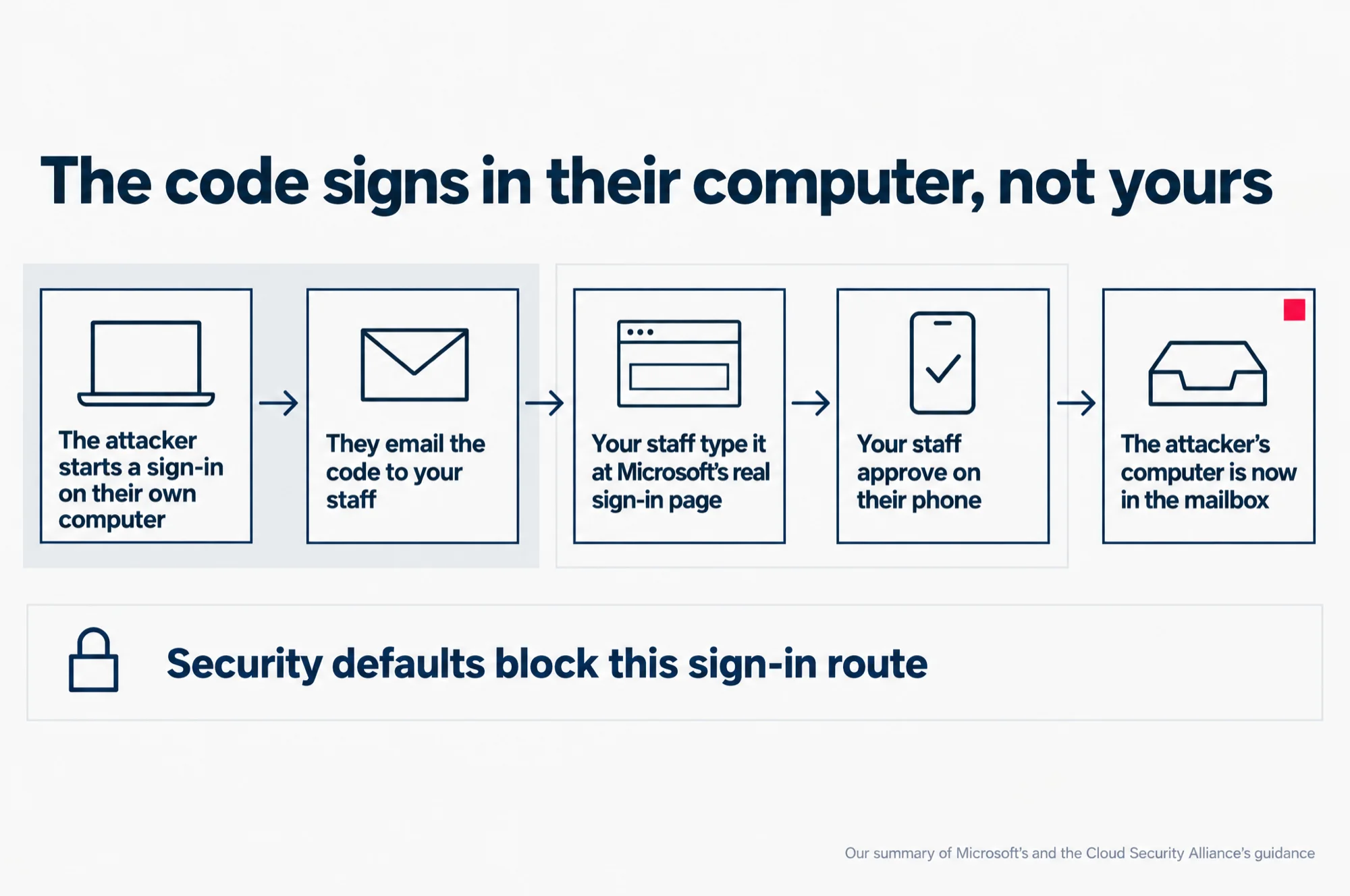
The trick turns that around. An attacker starts a device code sign-in on their own computer, then emails the code to someone on your team. The email dresses it up as a one-time password (a code that works for one sign-in only), a code to open a shared document, or a voicemail alert. Your colleague goes to Microsoft’s real page, types the code, and approves the sign-in on their phone. They have just signed the attacker’s computer into their mailbox.
Read this as words instead
The code signs in their computer, not yours
- The attacker starts a sign-in on their own computer
- They email the code to your staff
- Your staff type it at Microsoft’s real sign-in page
- Your staff approve on their phone
- The attacker’s computer is now in the mailbox
Security defaults block this sign-in route
Our summary of Microsoft’s and the Cloud Security Alliance’s guidance
This is why a good password and a phone code do not stop it. There is no fake website to spot. A research note from the Cloud Security Alliance, an industry group that publishes cloud security research, puts it this way: “the victim completes the MFA challenge themselves on behalf of the attacker”. In other words, your colleague does the second-proof step for the attacker. The note adds that the tokens this hands over “persist even after a password reset”. Changing the password does not throw the attacker out.
The same note, published on 25 March 2026, reports that a phishing kit called EvilTokens launched on 16 February 2026. A campaign using it reached 340 or more Microsoft 365 organisations by mid-March, in the United States, Canada, Australia, New Zealand and Germany. The sectors hit included construction, real estate, manufacturing and legal services. Singapore was not on that list. The note calls this kind of operation “indiscriminate” and “opportunistic”, which is the reason not to wait for it to arrive here.
What blocks it on Basic and Standard. Microsoft’s security defaults page: “After security defaults are enabled in your tenant, authentication requests that use device code flow are blocked.” The page also notes that “Starting July 1, 2026, all new Microsoft Entra tenants block device code flow as part of security defaults.” Microsoft gives no date there for a Microsoft 365 set up before then. If your security defaults were switched on years ago, ask whoever supports your Microsoft 365 to look in the Entra sign-in logs for device code sign-ins. The sign-in logs are the record Entra ID keeps of each sign-in, and the Cloud Security Alliance note says device code sign-ins are labelled there.
What blocks it on Premium. A Conditional Access rule. The Cloud Security Alliance note describes it as a policy on the “Authentication Flows condition with the Device Code Flow option selected” and the grant set to block. In plain words: a rule that looks at how someone is signing in, picks out the sign-in code route, and refuses it. Microsoft’s own page points the same way for anyone who “needs granular control and exceptions”.
What it breaks. Microsoft is direct: “Applications or devices that depend on device code flow won’t be able to complete sign-in while security defaults are enabled.” The Cloud Security Alliance note lists the usual ones as “legacy IoT integrations, shared kiosk configurations, and some print management systems”. IoT means internet-connected gadgets, such as sensors and smart screens. A kiosk is a shared screen that many people use, such as one at a front desk. In a small office, look at any smart screen, shared front-desk device or printing system that signs in to Microsoft 365. Find yours before you block, so nothing stops working by surprise.
The one rule to give your staff. A code you did not ask for never goes into microsoft.com/devicelogin. It goes to whoever looks after your Microsoft 365, with the email it came in. That matches the note’s own advice: an unexpected code presented as an “OTP,” “access token,” or “security code” should be reported “without entering the code”.
If somebody already typed one in, a new password is not enough. Their sessions have to be ended from the admin side, and the note says to check the account for mail forwarding rules and for apps given access after that date. A forwarding rule quietly sends copies of a person’s mail to another address. If files or mail were deleted or changed, our guide to what Microsoft 365 keeps, and where it stops covers what Microsoft holds on to and for how long.
How many admin accounts should a small business have?
Microsoft’s advice comes in two parts. Each admin keeps a separate account for admin work. And the business keeps two emergency accounts that nobody uses day to day.
Keep admin work off your everyday account. The tip sits on Microsoft’s security defaults page: “Have separate accounts for administration and standard productivity tasks to significantly reduce the number of times your admins are prompted for MFA.” The same page asks you to “treat them with special care”, because “Administrators have more access to your environment.”
Here is what that looks like in practice. Say the owner reads email all day on the same login that holds the Global Administrator role. Every phishing email that reaches that inbox is then aimed at the account that can change everything in your Microsoft 365. Move the admin role to a second account that is used only for admin tasks, and the everyday inbox loses that power.
Keep two emergency accounts. Microsoft: “Microsoft recommends that organizations have two cloud-only emergency access accounts permanently assigned the Global Administrator role.” They “aren’t assigned to specific individuals” and are kept for when “all other administrators are accidentally locked out”. Cloud-only means the accounts exist only in Microsoft 365, not copied from a server in your office. Store their sign-in details somewhere safe that more than one person can reach.
Microsoft gives that advice where it explains moving to Conditional Access. The reason holds on any plan, though. A one-admin business that loses its admin’s phone has the same problem on Basic as on Premium.
Google gives a Workspace business similar advice: more than one super administrator, its name for the top admin role, each run by a different person. If you also run Google Workspace, our Google Workspace security checklist for a small business walks through that side.
Stop staff approving apps that ask for their mailbox
By default, anyone on your staff can let an outside app read their own mailbox. In Microsoft’s words: “by default, a user can consent to allow an app to access their mailbox”. This is a setting on every plan, and it is worth changing today.
Picture it. An email invites someone on your team to view a document in an app they have not heard of. A Microsoft window pops up asking whether the app may read their mail. They click Accept. They have not given away their password. They have given the app their mailbox.
Microsoft’s own recommendation is to “allow user consent only for applications that have been published by a verified publisher”. A verified publisher is an app maker whose identity Microsoft has checked. You can also switch user consent off completely. The setting sits under Identity, then Applications, then Enterprise apps, then Consent and permissions, then User consent settings. A Global Administrator changes it in the Microsoft Entra admin center.
Turn on the admin consent workflow at the same time. It lets staff send a request for an app they need, and you approve it, so the setting does not stop real work.
Changing the setting does not undo old approvals. Microsoft: “Existing consent grants remain unchanged, and users continue to have access based on the permissions previously granted.” Look through the apps already approved in your Microsoft 365 after you change it.
What Business Premium adds: Conditional Access
Your own sign-in rules. Security defaults are one fixed package, on or off. Conditional Access lets you decide who must do what, from where, on which device, with exceptions.
Microsoft describes the rules as “if-then statements: if a user wants to access a resource, then they must complete an action”. The feature “requires Microsoft Entra ID P1 licenses”, and Microsoft adds that “Customers with Microsoft 365 Business Premium licenses can also use Conditional Access features.”
Microsoft’s own list of common rules shows what a small business would use it for:
- Multi-factor sign-in for admin roles, the same as security defaults, but now a rule you can adjust.
- Blocking the old sign-in methods, as security defaults do.
- Blocking or allowing sign-ins from specific places. Microsoft says admins “can specify entire countries/regions IP ranges to block or allow traffic from”. An IP range is a block of internet addresses, which shows roughly where a sign-in comes from. If all your staff work in Singapore and Malaysia, sign-ins from anywhere else can be refused.
- Requiring company-managed devices for specific applications, so the finance system opens only on the office laptops. Managing those laptops needs Intune, Microsoft’s tool for managing company laptops and phones, which Premium includes.
- Blocking sign-in codes, the device code rule from earlier, with a smart screen that needs codes left out of it if you must.
One thing Premium does not include. Rules that react to a sign-in that looks risky need Microsoft Entra ID Protection, which Microsoft calls “a Microsoft Entra ID P2 feature”. P2 is the paid level of Entra ID above P1. Premium includes P1, and P2 is not on Microsoft’s list of what Premium includes. If a guide shows you a sign-in risk rule, check that you have P2 before you go looking for it.
The trap: security defaults and Conditional Access cannot run together
You have to switch security defaults off to use Conditional Access in their place. Microsoft: “Organizations that choose to implement Conditional Access policies that replace security defaults must disable security defaults.” Microsoft’s own label on that switch reads “Disabled (not recommended)”.
The gap opens between those two moves. Microsoft says that after the defaults go off, “organizations should immediately enable Conditional Access policies to protect their organization.” Switch the defaults off on a Friday, plan to write the rules on Monday, and the weekend runs without the protection the defaults gave.
Microsoft’s list of ready-made rules leaves one out. Microsoft offers managed Conditional Access policies “to maintain the same protections”, and lists them: “blocking legacy authentication, requiring MFA for Azure management, requiring MFA for admins, and requiring MFA for all users.” Sign-in codes are not on that list. Blocking them was part of security defaults, so on Premium you add that rule yourself.
The safe order, in one sitting:
- Write your Conditional Access rules first, including the one that blocks sign-in codes.
- Check the emergency accounts are in place and you can sign in to them.
- Switch security defaults off.
- Turn your rules on straight away, then test a staff sign-in and an admin sign-in.
Going the other way needs a plan too. If you later drop Premium and its licences expire, Microsoft says your rules “aren’t automatically disabled or deleted”, but “you can’t update them”. That is the point to plan your way back to security defaults, not after.
What Defender for Office 365 adds to your email
Every plan already filters email. Premium adds a layer aimed at the new and the targeted.
Every plan: the built-in protection. Microsoft says these features are “Included in all Microsoft 365 subscriptions with cloud mailboxes”. They include anti-malware, anti-spam and anti-phishing checks for faked senders. Microsoft describes their job as preventing “broad, volume-based, known email attacks”. That means the mass mailings and the threats already on record.
Premium: Defender for Office 365 Plan 1. Microsoft names Business Premium as a plan that includes it. It “protects email and collaboration features from zero-day malware, phishing, and business email compromise (BEC)”. Zero-day malware is a harmful file nobody has catalogued yet. Business email compromise is an email that pretends to be your boss or a supplier and asks for a payment or a change of bank details. The Plan 1 features with names you will see in the admin centre:
- Safe Links, which checks the links people receive, in email, Office apps and Teams, Microsoft’s chat and meetings app.
- Safe Attachments, which checks attached files, in email and in files on SharePoint, OneDrive and Teams. SharePoint and OneDrive are where Microsoft 365 keeps your shared and personal files.
- Impersonation protection, for mail that pretends to come from a person or a domain you trust.
Plan 1 is also sold on its own. Microsoft says Defender for Office 365 “is also available as an add-on subscription to many Microsoft 365 subscriptions with cloud mailboxes”. So if email checks are the only part of Premium you want, ask about the add-on before you move everyone up a plan.
One part of email security sits outside every plan: the records at your domain that prove your mail is really from you. Microsoft’s page says “SPF, DKIM, and DMARC records in DNS allow Microsoft 365 to more accurately protect against spoofing attacks.” DNS is the public list of settings for your domain name. SPF, DKIM and DMARC are three records in it that tell other mail systems which senders may use your name. Spoofing is mail that fakes your address. Our guide to why business email lands in spam: SPF, DKIM and DMARC explains all three.
Can you give Business Premium to only some of your staff?
Yes. Microsoft’s Premium FAQ asks the question directly: “Is everyone in my organization required to have a Microsoft 365 Business Premium subscription?” Its answer begins “No.”
The same answer sets the limit: “the security and management benefits of Microsoft 365 Business Premium are available only to users with devices managed with a Business Premium subscription.” It also says “you can deploy Microsoft 365 Business Premium to part of your organization”, while recommending it for all users “for the best protection”.
So a mixed setup works. One thing to plan for: security defaults cover your whole Microsoft 365, and they cannot run alongside Conditional Access. The day you switch them off to use Premium’s rules, the staff outside Premium lose them too. Decide how those staff will be covered before you switch the defaults off, not after.
Is Business Premium worth it for security?
Not for multi-factor sign-in. Business Standard with security defaults switched on already makes everyone use it, blocks the old sign-in methods, and blocks sign-in codes, with the check for an older Microsoft 365 set-up described above.
Premium earns its price when you need one of these:
- Sign-in rules of your own: by country, by device, or with exceptions for a machine that cannot change.
- Link and attachment checks, and protection against emails that pretend to be your boss or a supplier. The add-on is the other way to get these.
- Company laptops and phones managed and protected centrally. That is Intune and Defender for Business, Microsoft’s protection for the devices themselves. Our comparison of Business Basic, Standard and Premium covers both.
If none of those applies to your business today, Business Basic or Standard with security defaults on, two emergency accounts, a separate admin login and user consent tightened is a sound setup. The honest test for Premium is whether you can name the rule you would write with it on day one.
Our advice to our own clients is the same on every plan. Switch on what you already pay for first. Then buy Premium for a reason you can name.
Where to start
Start with what costs nothing, in this order. Check whether security defaults are on. Find anything that signs in the old way or with a code, starting with the scanner. Tell your staff the Authenticator app is coming, then switch the defaults on and sign everyone out once.
Then the two jobs that are not switches. Move your admin work to its own account and set up the two emergency accounts. Tighten user consent and look through the apps already approved.
Give your staff one rule to remember: a code they did not ask for never goes into microsoft.com/devicelogin.
Read the slides as words
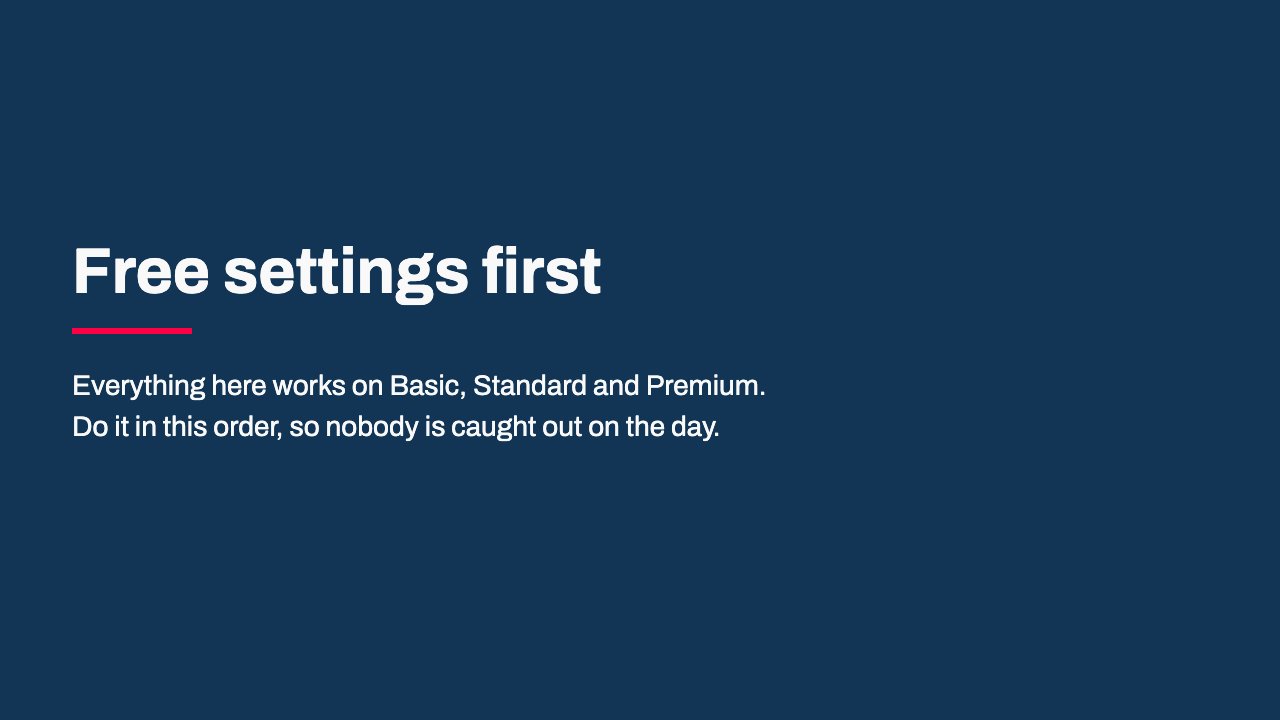
- Free settings first: Everything here works on Basic, Standard and Premium. Do it in this order, so nobody is caught out on the day.
- Check security defaults: Entra ID, then Overview, then Properties. Manage security defaults. If they are already on, skip to the admin accounts.
- Find what signs in the old way: The scanner that emails scans. Very old Office programs. Anything that signs in with a code, such as a smart screen.
- Tell staff, then switch on: Staff set up the Authenticator app at myprofile.microsoft.com. Switch security defaults on. Sign everyone out once so they all register.
- Admin accounts: Do admin work on its own account, never the one you read email on. Keep two emergency accounts that nobody uses day to day.
- Outside apps: Stop staff approving apps that ask to read their mailbox. Turn on the admin consent workflow for real requests. Look through the apps already approved.
- The one rule for staff: A code you did not ask for never goes into microsoft.com/devicelogin. It goes to whoever looks after your Microsoft 365.
- Only then, Premium: Your own sign-in rules, and link and attachment checks. Write the rules before you switch security defaults off. Add the rule that blocks sign-in codes yourself.
If two of these settings, your own sign-in rules and the email checks, made you think about Business Premium, the next thing to read is our guide to Microsoft 365 Business Basic, Standard and Premium. It sets out what else each plan carries, how mixing plans per person works, and what each one costs.