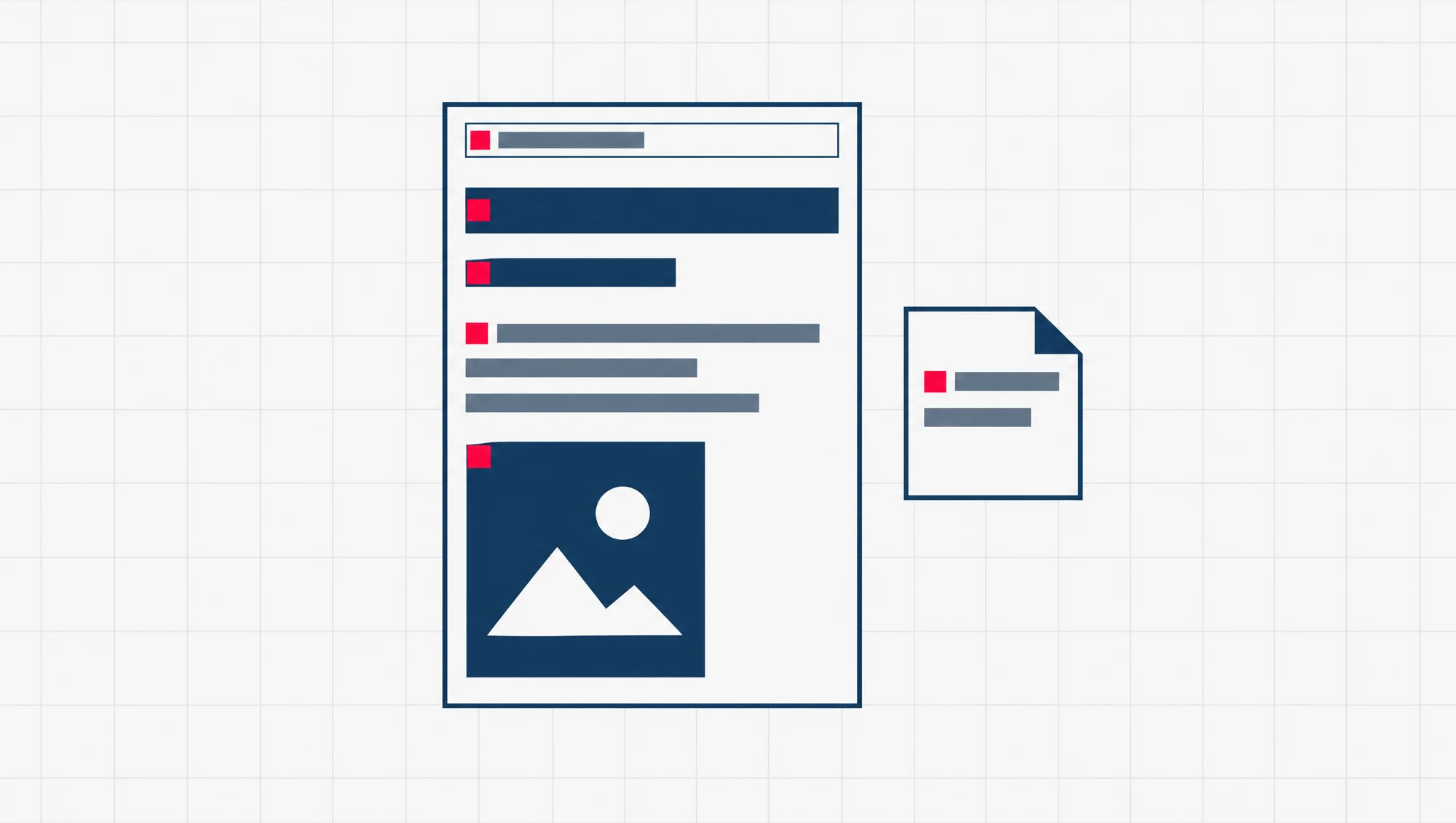
To add keywords to a blog post, put your keyword once in each of six places: the post title, one heading, the web address, the first paragraph, the meta description and the alt text of one image. Then stop. Google’s own guides give no number for how many times a keyword should appear, and they say repeating the same words over and over is tiring for readers.
A keyword here means the few words you expect someone to type into Google to find your post. Say your post is about choosing a printer for a small office. Your keyword might be “office printer for small business”. Two of the six places may be new to you. The meta description is a short summary of the post, kept in the page’s code. Alt text is a written description of a picture.
Putting your keyword in these places is part of on-page SEO. SEO is short for search engine optimisation: helping search engines understand your content, and helping people find your site. On-page SEO is the part you control on the page itself, in its words and its code. This guide shows where each of the six places is, what Google’s own guidance says about it, and which box to fill in on Blogger and on WordPress.
Read this as words instead
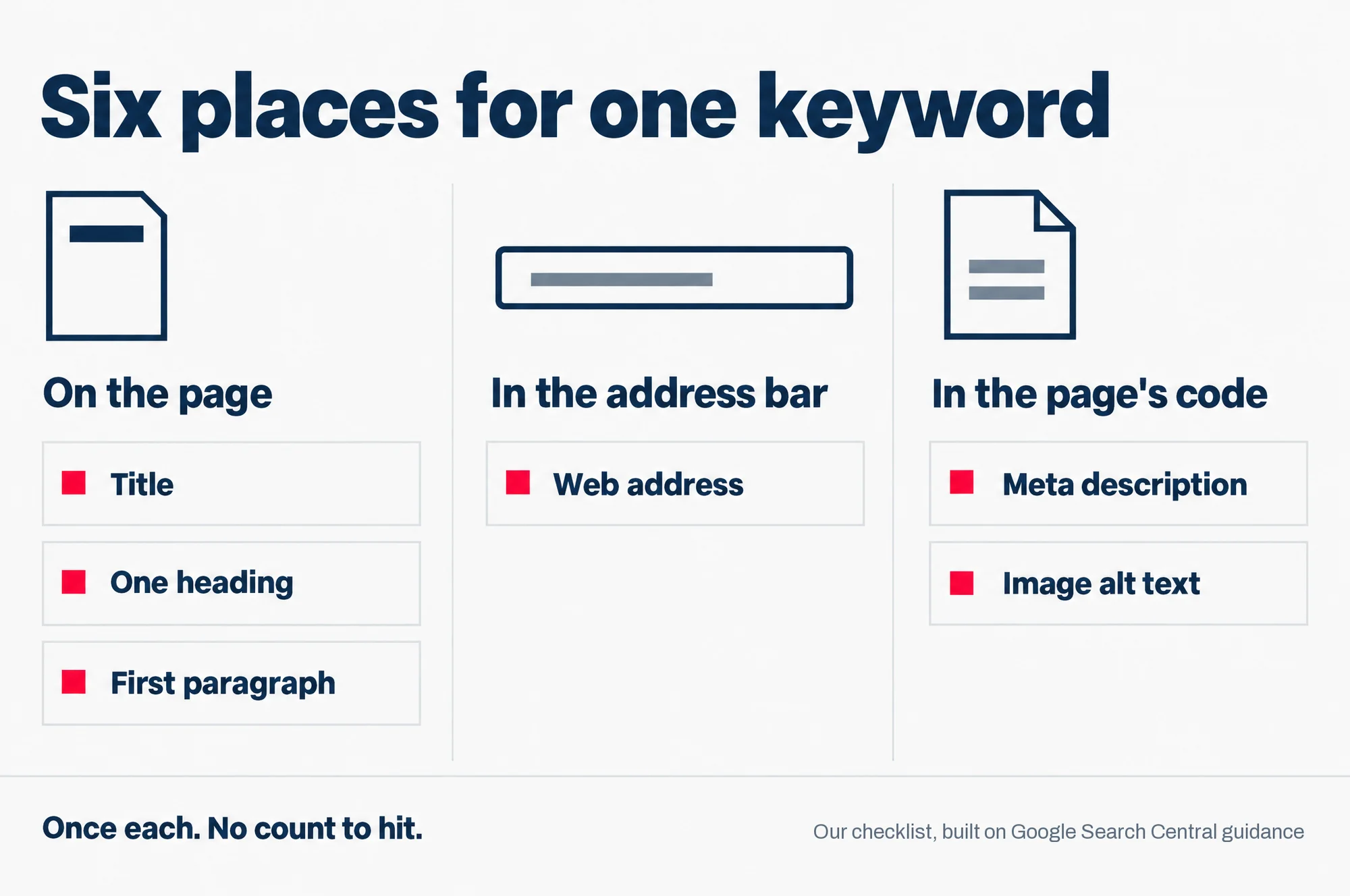
Six places for one keyword
- On the page: Title; One heading; First paragraph
- In the address bar: Web address
- In the page’s code: Meta description; Image alt text
Once each. No count to hit.
Our checklist, built on Google Search Central guidance
Start with one keyword for the post
Every step below assumes you have already picked the keyword. One post, one keyword. If two phrases both seem right, pick the one a customer would actually type, and let the other appear where it fits naturally.
Google’s starter guide for site owners puts it this way: “Think about the words that a user might search for to find a piece of your content.” It also points out that people who know a topic well search with different words from people who are new to it. If your readers are customers rather than people in your trade, write with the words they use.
If you have not chosen the keyword yet, do that first. Our guide on how to find seed keywords starts from your sales emails and customer questions, before you open any tool.
Where should keywords go?
Six places, once each. Some of them readers see on the page. Others sit in the page’s code, where Google and other programs read them. Here they are at a glance, then one at a time.
| Place | What it is | How to use the keyword |
|---|---|---|
| Post title | The name of the post, which Google can show as the blue link | Once, in a title that describes the post |
| One heading | A section title inside the post | In one heading only; the others describe their own section |
| Web address | The last part of the post’s address, called the slug | The keyword’s words, joined by hyphens |
| First paragraph | The opening lines of the post | Once, in a sentence that answers the reader’s question |
| Meta description | A short summary in the page’s code | Once, inside a plain one or two sentence summary |
| Image alt text | A written description of a picture | Only on an image the keyword truly describes |
1. The post title
Start with the title, because it often decides the click. Google calls the clickable headline in its results the title link, and says it is “often the primary piece of information people use to decide which result to click”. Google builds that link from a few sources. One of them is the page’s title element, the line in the page’s code that names the page.
Google’s rule for the title is short: “Write descriptive and concise text for your <title> elements.” On keywords it is just as plain: “It’s sometimes helpful to have a few descriptive terms in the <title> element, but there’s no reason to have the same words or phrases appear multiple times.”
Use the keyword once, in a title that says what the post is. “Office printers for small business: what to buy in 2026” works. “Office printer, small office printer, best office printers” is the kind of title Google warns “can make your results look spammy to Google and to users.”
2. One heading
Headings are the section titles inside your post. In the page’s code they are tagged H1, H2, H3 and so on, from the biggest to the smallest. Google’s starter guide says headings help readers find their way through a long post, and lists them as another source Google uses when it writes the title link.
Put the keyword, or a natural form of it, in one heading. Let every other heading say what its own section is about. Google’s starter guide says there is “no magical, ideal amount of headings a given page should have”, and it also says the order of heading levels does not matter to Google Search. There is no need for a keyword in every heading, then, or to fuss over H2 versus H3 for Google’s sake.
Keep the levels in order anyway, for your readers. The same guide says headings in order are “fantastic for screen readers”. A screen reader is a program that reads a page aloud for people who cannot see it.
3. The web address
The slug is the last part of the post’s web address, after the last slash. For this guide it is how-to-add-keywords-to-a-blog-post. Google’s advice on web addresses is to “use readable words rather than long ID numbers”, and to separate the words with hyphens rather than underscores.
Keep your expectations modest here. Google’s starter guide says keywords in the web address “alone have hardly any effect beyond appearing in breadcrumbs”. Breadcrumbs are the short trail of words, taken from the web address, that Google can show in a search result. The real gain is for people: a short, readable address tells a searcher what the page is before they click.
Set the slug before you publish, and leave a live post’s address alone unless you also send the old address to the new one.
4. The first paragraph
This place is for the reader. They typed those words, so seeing them in the opening lines tells them they are in the right place. It also helps the snippet, the couple of lines Google shows under the title link. Google says it builds snippets mainly from the page’s own content, picking the part that best fits each search, and an opening that answers the question plainly gives it something good to pick.
Write the sentence for a person first. If the exact keyword sounds clumsy in it, use a natural form. Google’s starter guide says its “language matching systems are sophisticated and can understand how your page relates to many queries, even if you don’t explicitly use the exact terms in them.”
5. The meta description
Your meta description can appear in Google’s results, and Google has said it does not rank pages by it. It is a one or two sentence summary of the post, written into the page’s code, and readers do not see it on the post itself. Google may show it as the snippet under your title link, when it “describes the page better than other parts of the content”. On ranking, a 2009 post, still on Google’s site, puts it directly: “we still don’t use the description meta tag in our ranking.”
Write it as a plain summary of this one post, with the keyword once where it fits. Do not write a list. Google says descriptions made of “long strings of keywords” are less likely to be shown as a snippet, and asks for a different description on every page.
6. Image alt text
Every picture in a post can carry alt text: a short written description, stored in the page’s code. It helps people who cannot see the image, including people who use screen readers. Google uses it, with the picture itself and the page around it, to work out what the image shows.
Google’s advice is to write alt text that “uses keywords appropriately and is in context of the content of the page.” It warns against the opposite: “Avoid filling alt attributes with keywords (also known as keyword stuffing) as it results in a negative user experience and may cause your site to be seen as spam.”
The rule, then, is to describe the picture. If one image really shows the thing your keyword names, its alt text can carry the keyword. A photo of a laser printer on an office desk can be “small office laser printer on a desk beside a laptop”. Every other image gets its own honest description.
How many times should you use a keyword?
There is no right number. Once in each of the six places, then write the rest of the post naturally.
You may have been told to aim for a keyword density. That is the idea that your keyword should make up a set percentage of the post’s words. Google’s advice on titles, snippets, headings, images and spam gives no such share. What they describe instead is a line you can hear when you cross it.
Google’s starter guide says: “Excessively repeating the same words over and over (even in variations) is tiring for users, and keyword stuffing is against Google’s spam policies.” Those spam policies are Google’s rules against tricks that try to fool its search systems. The starter guide also gives the other side: “If you are varying the words (writing naturally to not be repetitive), you have more chances to show up in Search simply because you are using more keywords.”
That second line is the useful one. A post about office printers that also says “laser printer”, “toner costs” and “printing for a team of ten” covers more of what people search for than one that repeats the same four words.
Can using a keyword too often hurt your post?
Yes. Google’s spam policies define keyword stuffing as “the practice of filling a web page with keywords or numbers in an attempt to manipulate rankings in Google Search results.” One of its examples is “Repeating the same words or phrases so often that it sounds unnatural.”
The same page says sites that break its spam policies “may rank lower in results or not appear in results at all.”
The test is simple, and you do not need a tool for it. Read the post aloud. If a sentence sounds like it was written for a machine, rewrite it for a person.
Where a keyword does not go
Four places get filled with keywords out of habit. None of them needs it.
The meta keywords tag. This is an old line of code for listing a page’s keywords. Google’s starter guide says plainly: “Google Search doesn’t use the keywords meta tag.” If your blog or plugin has a keywords box, you can leave it empty. Our piece on whether Google still uses meta keywords explains what to fill in instead.
Every heading. One heading carries the keyword. The rest are signposts for the reader. If every heading says “office printer”, none of them tells the reader what that section is about.
Every image. Only an image the keyword really describes gets it in its alt text. Google’s image guide names keyword-filled alt text as keyword stuffing.
The words you link with, in this post. The visible words of a link are called the link text, or anchor text. Google says link text “tells users and Google something about the page you’re linking to.” So link text describes the page at the other end of the link, not the keyword of the page you are writing. The other half works for you. Google’s Search Essentials name link text, with the title, the main heading and alt text, as places for the “words that people would use to look for your content”. So when your other posts link to this one, their link text can carry this post’s keyword.
The same steps on Blogger
The labels below are Blogger’s own, as of October 2026. If a menu looks slightly different on your screen, look for the same words.
First, check that search engines can see the blog at all. In Blogger, open Settings from the menu on the left. Under Privacy, make sure Visible to search engines is turned on. If it is off, turn it on before anything else.
Then, in the post you are about to publish:
- Title. Type the title at the top of the post. Blogger’s help says to “Include keywords that explain what the post or page is about” and to “Try to keep your titles under 60 characters.”
- One heading. Highlight the line you want as a heading. In the menu, click Paragraph, then choose the heading size.
- Web address. On the right, under Post Settings, click Permalink, Blogger’s word for the post’s web address. Choose Custom Permalink and type the slug, such as
office-printer-small-business. - First paragraph. Nothing to switch on. Just check the opening sentence uses the keyword naturally.
- Image alt text. Click the image in the post, then click Edit. Type your description in the alt box, then click Update. Blogger also offers a title box for a short description, but alt is the one Google’s image advice is about.
The search description needs a switch first. Blogger’s name for the meta description is the search description, and it sits under Meta tags. In Settings, under Meta tags, turn on Enable search description. Blogger’s help describes it as a summary of “what your blog is all about”, so write one for the blog as a whole.
That switch is for the whole blog. Once it is on, open a post and look under Post Settings on the right for a search description box. If you find one, write that post’s one or two sentence summary there, with the keyword once. If you do not, Google builds the snippet from the post’s own words, which is one more reason to make the first paragraph do its job.
If you ever change the address of a post that is already live, Blogger’s Settings has a Custom redirects option under Errors and redirects. Use it to send the old address to the new one.
For the wider habits of running a blog that people find, our SEO tips every blogger should know goes beyond keywords.
The same steps on WordPress
In WordPress, the slug sits in the Settings sidebar, which the gear icon in the top right corner of the editor opens, and the alt text sits in the image block’s settings. WordPress builds a post from blocks, such as a paragraph block or an image block, and each block has its own settings. For the SEO title and the meta description, the steps below use the Yoast SEO plugin as the example. A plugin is an add-on you install in WordPress.
- Title. Type the post title at the top of the editor. If you use Yoast SEO, it also has an SEO title field, which Yoast describes as “the title of your page you’ll see in Google’s search results.” Put the keyword once in each.
- One heading. Add your section headings as usual, and use the keyword in one of them.
- Web address. Save the post as a draft first. Then, in the Settings sidebar, click the Slug setting to change it. WordPress fills the slug in from your title, so a long title gives you a long slug. Cut it down to the keyword’s words.
- First paragraph. As on any platform, check the opening sentence uses the keyword naturally.
- Meta description. In Yoast SEO, open the search appearance preview, from the Yoast sidebar or the Yoast box under the post. It holds the SEO title, the slug and the meta description in one place. Write the post’s one or two sentence summary in the meta description field there, with the keyword once.
- Image alt text. Click the image block. In the block settings, on the Content tab, fill in Alternative text. WordPress notes that alt text added there “only applies to the image on that specific page or post.”
Two other boxes are easy to mix up with these. WordPress describes the Excerpt box in the Settings sidebar as a short preview your theme (the design your site uses) may show on pages such as your home page or an archive (a page that lists your posts by month or category). That is a different job from the meta description, which is written for Google’s results. Yoast’s focus keyphrase box is where you tell the plugin your keyword, so that it can check your post’s content against it.
Yoast’s content checks include keyphrase density, and Yoast says it will let you know if a long post seems to stray off topic or a short one uses the keyphrase too often. That check is the plugin’s own rule, not Google’s. Treat a warning there as a prompt to reread the post, not a number to hit.
If your site’s permalink setting is Plain, WordPress will not let you change the slug at all. Plain addresses end in the post’s ID number, such as ?p=123, rather than words.
For a tour of where Yoast puts its other settings, our review of the Yoast SEO plugin walks through the setup.
A five-minute check on your newest post
Open the post you wrote most recently, or the one you are about to publish. Write its keyword on a scrap of paper so you are checking against the same words each time. Then:
- Read the title. Does it hold the keyword once, and say plainly what the post is?
- Find one heading that can carry the keyword naturally. Leave the other headings describing their own sections.
- If the post is not live yet, cut the slug down to the keyword’s words, joined by hyphens.
- Read the first paragraph aloud. If the keyword sounds forced, rewrite the sentence around what the reader asked.
- Write the meta description, or the search description on Blogger: one or two sentences, the keyword once.
- Pick the one image the keyword truly describes and write its alt text. Describe every other image as it is.
- Save.
That is the keyword done. On-page SEO has more to it than keywords, so when you are ready for the rest, our on-page SEO checklist covers the other parts, from images to internal links.
Read the slides as words
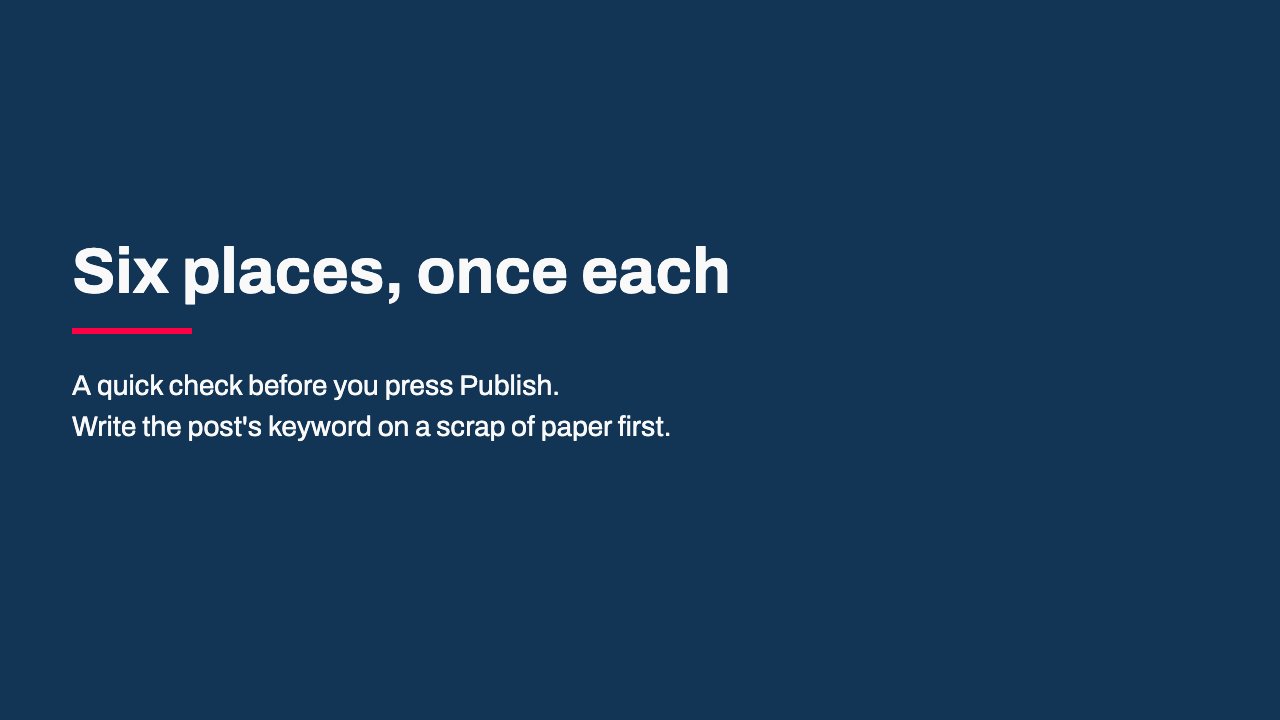
- Six places, once each: A quick check before you press Publish. Write the post's keyword on a scrap of paper first.
- Title and one heading: The title holds the keyword once and says plainly what the post is. One heading carries the keyword. Every other heading describes its own section.
- Web address: Cut the slug down to the keyword's words, joined by hyphens. Do it before the post goes live.
- First paragraph: Read it aloud. If the keyword sounds forced, rewrite the sentence for a person.
- Meta description: One or two sentences that sum up this post. The keyword once. Never a list. On Blogger, switch on the search description first.
- Image alt text: Only on the image the keyword truly describes. Every other image gets an honest description of what it shows.
- Where it does not go: The meta keywords tag. Every heading. Every image. The words of links in this post. A number or percentage to hit.