Yes. People on your Google Workspace account can make and run a YouTube channel, once your admin switches YouTube on for them. The part to get right is who owns the channel.
Make it on a Brand Account, a Google account in your business’s name rather than a person’s. Several people manage it from their own Google accounts, with no shared password. Give it two owners from the business, and give everyone else, your agency included, a role in YouTube Studio, the site where a channel is run.
Never let the company channel live on one person’s own login. Every Brand Account has one primary owner, the owner whose account the channel depends on. YouTube says that if you delete the primary owner’s account, the channel is deleted too.
This guide is for the owner or office admin of a business of 5 to 50 people who holds the Workspace admin login. Maybe someone has just asked “can we start a YouTube channel?” Or you have found out that your channel was made by an intern who left last year.
It covers five things: the switch, making the channel, who gets which role, bringing an old channel under the business, and the check before you delete an account.
Is YouTube switched on for your staff?
Check this first, because it decides what your staff can do. YouTube is one of the extra Google services a Workspace admin turns on or off. The switch sits in the Google Admin console, the website where your company’s Workspace account is run.
With YouTube off, someone signed in with their work account can still watch YouTube. They just cannot use or save anything, much like a visitor who is signed out. With it on, they can upload videos and comment.
Here is the switch. You need the YouTube administrator privilege to use it, a permission that comes with an admin role.
- In the Google Admin console, open Menu, then Apps, then Additional Google services, then YouTube.
- Click Service status.
- Click On for everyone, or pick one department or one group of people and set it to On.
- Click Save.
You do not have to turn it on for the whole company. Google lets you switch it on for an organisational unit, which is a department in your Admin console. Or you can pick an access group, a list of named people.
Pick the group: the two owners and whoever will run the channel.
Google also has a switch that turns Brand Accounts on or off for users. Google supports it only on its Education editions, the plans for schools, so it is not a step on a business plan.
Make the channel on a Brand Account, with two owners
YouTube offers two kinds of channel. A personal channel is one that only you can manage. A channel with a business or other name can have more than one owner and manager.
Making the second kind creates a Brand Account. For a company channel, pick it.
Who should make it? Our advice: the business owner, signed in with their own Workspace account. Not a shared login such as marketing@, one address that several staff sign in to, and not the intern who first asked.
Whoever makes it becomes the primary owner, so it should be the person least likely to leave.
Here are YouTube’s steps for a channel with a business name.
- Sign in to YouTube on a computer or the mobile site.
- Go to your channel list.
- Click Create a new channel.
- Choose a profile picture, the channel name and a handle, the @name people use to find you.
- Click Create channel. This makes the new Brand Account.
Add the second owner on day one
YouTube recommends that a Brand Account has at least one other owner besides the primary owner. In a small business, that is one named backup: a partner, a director or the office manager.
Do it now, not the week someone resigns. An owner has to have been an owner for 7 days or more before they can make themselves the primary owner. A backup added on someone’s last day cannot take over in time.
To add them:
- Go to the Brand Accounts section of your Google Account.
- Under “Your Brand Accounts”, select the channel’s account.
- Select Manage permissions, then Invite new users.
- Enter their email address and choose the role Owner.
- Click Invite, then Done. They get an email and accept it.
Owners can do the most, and they control who manages the account. A Manager on the Brand Account cannot change who the primary owner is.
Both owner logins are now the keys to the channel. So turn on 2-Step Verification for both: a second check after the password, such as a code or a tap on their phone. Our Google Workspace security checklist for small businesses shows who to enforce it for and how not to lock staff out.
Give everyone else a role, not the password
Your marketing person, your video agency and the freelancer who adds subtitles all need to get into the channel. None of them needs to be an owner, and none of them should have an owner’s password.
YouTube’s answer is channel permissions: roles you give out in YouTube Studio. Each person signs in with their own Google account and gets only the level of access you pick. YouTube says this is safer than sharing your password, and gives you more control over who can view or change your channel.
That is how several people manage one company channel, in two layers. The Brand Account holds the ownership, and a change of primary owner is made there. Channel permissions give the day-to-day helpers their access.
Which role for whom
| Role | What it can do | Who it fits |
|---|---|---|
| Owner | Everything, including deleting the channel and managing permissions | The channel’s owner, the Brand Account’s primary owner. It is not a role you hand out. |
| Manager | See all channel data, manage permissions, edit channel details, upload, publish and delete content; cannot delete the channel | The staff member who runs the channel day to day |
| Editor | Edit everything, upload and publish; cannot delete the channel or published content, manage permissions or enter into contracts | An agency that posts for you and needs to see revenue |
| Editor (Limited) | The same as Editor, without revenue data | Most agencies and freelancers who post for you |
| Subtitle Editor | Add, edit, publish and delete subtitles, and nothing else | A translator |
| Viewer | See all channel details, revenue included; cannot change anything | A partner or bookkeeper who checks the numbers |
| Viewer (Limited) | The same as Viewer, without revenue data | Someone who only needs to see how videos are doing |
Our advice for an agency is Editor (Limited), unless they need revenue figures for their work. It lets them do the posting while the money side stays with you.
Switch the channel over, then invite people
A channel made on a Brand Account has to be moved over to channel permissions before you can use them. Only the primary owner can do it, signed in to YouTube Studio.
- Go to studio.youtube.com, signed in as the primary owner.
- On the left, click Settings, then Permissions.
- Click Move Permissions.
- Click Invite, and fill in the email address and the role for each person.
- Click Save. Each person gets an email to accept.
People already on the Brand Account are copied across. You still set each person’s role and send their invite. Give your backup owner Manager, the role that can manage permissions. An invite runs out after 30 days, so chase anyone who has not accepted.
To take someone’s access away later, open Settings, then Permissions in YouTube Studio. Click the arrow next to their name and choose Remove access.
One order matters here: settle the two owners first, then switch to channel permissions. If you cannot make someone the primary owner, YouTube says to check that the channel is not using channel permissions. Going back from them to the Brand Account means inviting everyone again.
Move an existing channel to your Workspace account
Here the channel already exists. It has videos and subscribers, and one person made it, on their personal Gmail or their own work account. You want it under the business without losing anything.
You do not move the channel to a new login. You put it on a Brand Account, then make the business owner’s Workspace account its primary owner.
First, find out whether that channel is on a Brand Account. It matters because off a Brand Account, YouTube lets you change a channel’s managers, but not its owners.
If it is on a Brand Account, the fix is gentle, and nothing is moved or deleted.
- The person who owns it invites the business owner’s Workspace account as an Owner, using the invite steps in the section above.
- The business owner accepts, then waits 7 days.
- The business owner goes to the Brand Accounts section of their Google Account, selects the channel’s account and clicks Manage permissions.
- Next to their own name, they click the down arrow, choose Primary owner, and click Transfer.
- They invite the backup as a second owner, and the first person’s access can then be reduced or removed.
If it is a personal channel, its owner cannot be changed where it sits. So the channel has to be moved onto a Brand Account first. YouTube’s tool for this is the Move channel option in the channel’s advanced settings, and YouTube calls the move a channel transfer.
It is the one risky step in this guide. YouTube says to do it only if necessary, because a transfer done wrongly can delete the wrong channel. If the account you move it to already has a channel, that channel is deleted to make room, with its videos, playlists and history.
YouTube allows the move only between accounts linked to the same Google Account. So the person who made the channel has to do it, signed in as themselves.
YouTube’s move page sets more conditions. The channel must be opted out of channel permissions, and nobody else can have access through them. So anyone with a role in YouTube Studio is removed first, then invited again after the move.
Sit with them and do it before their last day. Keep YouTube’s page “Move your YouTube channel from one Brand Account to another” open, and read it through once before you click anything. Then add the business owner as an Owner and follow the steps above.
If the person who made it has already left, look for their Workspace account in your Admin console. If it is still there, do not delete or suspend it yet. Google’s admin help says deleting a user deletes Brand Account assets with no other owners, and suspending one makes a channel they own alone unavailable to them. Every route in this section starts from the account that owns the channel. So keep that account until the business owner is the primary owner.
If the channel sits on their personal Gmail instead, YouTube’s steps start from that account too, so you need to reach them and ask.
When someone leaves: check the channel before you delete their account
What happens to a YouTube channel when you delete a Workspace user? If that user is the channel’s primary owner, YouTube’s help says the channel is deleted with their account.
Google’s Workspace admin help puts it another way. Deleting a user deletes Brand Account assets that have no other owners. Where there are other owners, Google says the assets pass to another owner’s Workspace account by themselves. The two pages differ when the channel has a second owner, so do not count on that handover. Move the primary ownership yourself first.
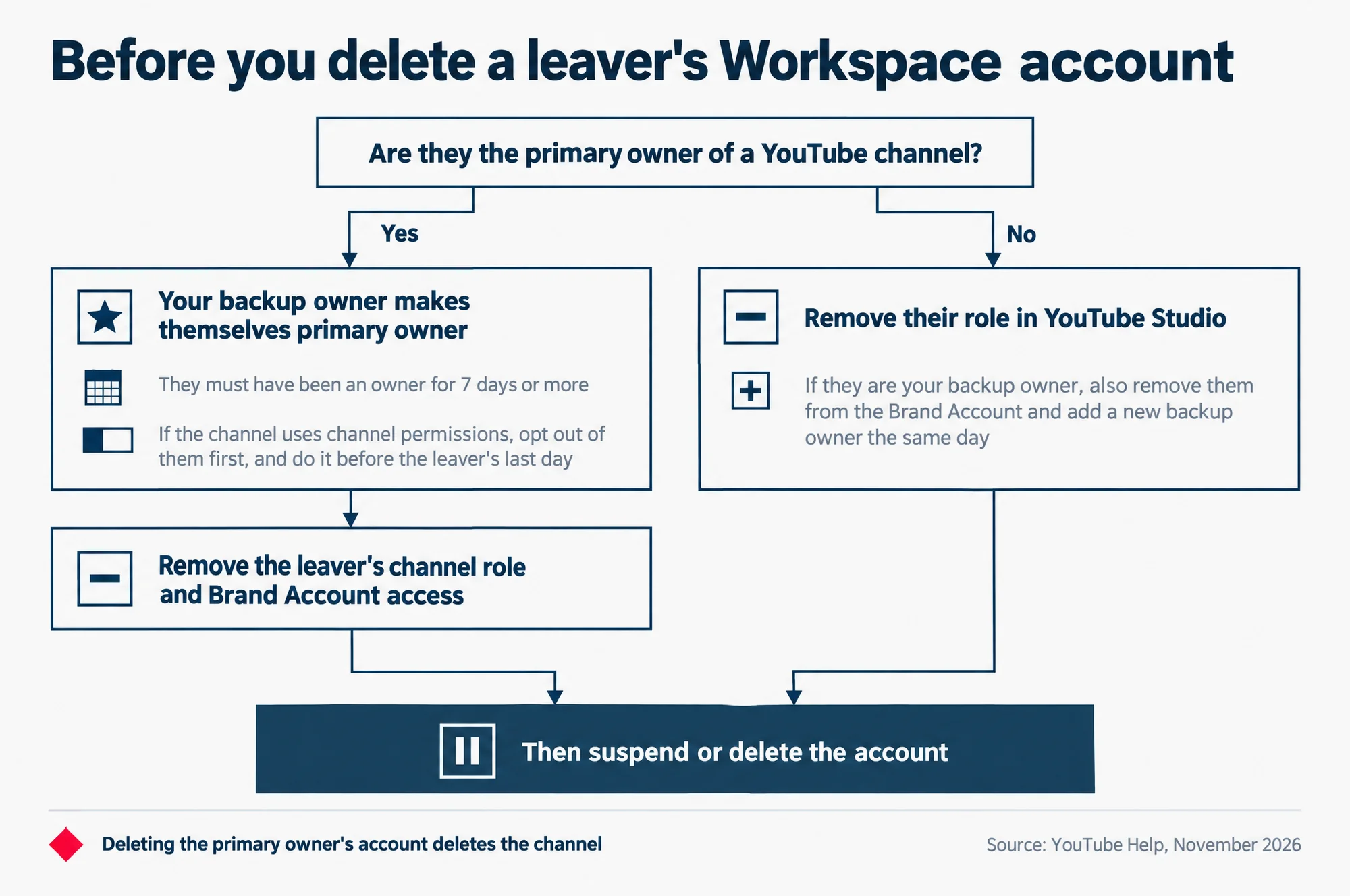
So before you delete any leaver’s Workspace account, check whether they are the primary owner of a YouTube channel. This is the moment the whole setup is for.
Read this as words instead
Before you delete a leaver’s Workspace account
Are they the primary owner of a YouTube channel?
- Yes: your backup owner makes themselves primary owner (they must have been an owner for 7 days or more), then remove the leaver’s channel role and Brand Account access. If the channel uses channel permissions, opt out of them first, and do it before the leaver’s last day.
- No: remove their role in YouTube Studio. If they are your backup owner, also remove them from the Brand Account and add a new backup owner the same day.
Then suspend or delete the account.
Deleting the primary owner’s account deletes the channel.
Source: YouTube Help, November 2026
If they are the primary owner, your backup takes over first. Added on day one, the backup is well past the 7-day wait. They make themselves primary owner from the Brand Accounts section of their Google Account, as in the steps above.
There is a catch if the channel uses channel permissions. If you cannot make someone the primary owner, YouTube says to check that the channel is opted out of them. The opt-out is in YouTube Studio: Settings, then Permissions, then “Opt out of permissions in YouTube Studio”. Afterwards, everyone has to be invited to the Brand Account again.
So do the handover while the leaver still works for you, before their last day. If YouTube asks for the primary owner at any step, they are still there.
Then remove the leaver. Take away their role in YouTube Studio, and remove them from the Brand Account’s Manage permissions list.
If they are not the primary owner, it is simpler. Remove their channel role in YouTube Studio along with the rest of their access. If the leaver is your backup owner, also remove them from the Brand Account’s Manage permissions list. Add a new backup owner the same day, because a new owner has to wait 7 days before they can become the primary owner.
What about suspending their account, which switches it off without deleting it? Google’s Workspace admin help says a YouTube channel owned only by that user becomes unavailable to them. If the channel has other owners, Google says it passes to another owner’s Workspace account. So do not treat a suspension as a safe place to park the channel: move the primary ownership first, then suspend or delete.
For the rest of a leaver’s account, see our guide to Google Workspace offboarding when staff leave. It covers their email, their files and whether to suspend or delete. Add one line to whatever checklist you use from it: is this person the primary owner of a YouTube channel?
What to check next
Your channel is now only as safe as the Workspace account behind it. That means who holds the admin login, which group has YouTube switched on, and what happens to each account when people join and leave.
Our Google Workspace setup and admin support page sets out what looking after that side involves, for a Singapore business.