
Most people in your company need no admin role at all. Keep two super admins: you and one named backup, each with a separate login for everyday work. Give anyone else the smallest ready-made role that covers their job. And when the job is temporary, give the role an end date, a setting Google announced for the Admin console on 23 September 2026.
This guide is for the owner, office manager or outside IT person of a business of 5 to 50 people, who holds the one admin login and keeps getting asked “can you make me admin?” It covers what each of Google’s ready-made roles can do, how many super admins to keep, which role fits your office manager, your IT contractor and your reseller, and how to set access that ends on a date.
One word first. The Google Admin console is the website where your company’s Google Workspace account is run: the users, their passwords, the settings for apps such as Drive and Calendar, and the bill. An admin role is a key to part of it, or all of it.
What an admin role is, and why “make everyone admin” is the mistake
Giving someone an admin role lets them into your Admin console. Google’s own help puts the choice simply: you can make a user a super administrator, who can do every task there, or give them a role that limits which tasks they can do, such as only managing service settings or only resetting passwords.
The easy answer is to make everyone who asks a super admin. It saves a minute today.
The cost comes later. Every super admin login can manage every part of your company’s account: every user, every setting and the billing. Each one is another password that, if stolen, opens the whole account. Google’s advice for admin accounts is the least privilege approach: each person gets the tools needed for their usual tasks, and no more.
There is a second reason to give each person their own role rather than share one login. If several people sign in to the same admin account, Google notes that you cannot tell from the audit log, the console’s record of who changed what, which of them made a change.
Google’s prebuilt admin roles, in one table
Google calls its ready-made roles prebuilt administrator roles. Each one bundles the permissions for one common job. These are the six a small office is most likely to use, in Google’s own names.
| Role | What it can do | Who in a small office it fits |
|---|---|---|
| Super Admin | Everything in the Admin console, including creating and assigning admin roles and managing other admins | You and one named backup. Nobody else, as a standing role. |
| User Management Admin | Create and delete user accounts, rename users, change passwords, for anyone who is not an admin | An office manager who adds and removes staff |
| Help Desk Admin | Reset passwords for anyone who is not an admin, and view user profiles | An office manager who only handles “I’m locked out” |
| Groups Admin | Create groups, manage their members and their access settings | Whoever runs shared addresses such as a sales or enquiries list |
| Services Admin | Turn services on or off and change their settings, including Calendar, Drive and Docs; manage Chrome and mobile devices | An IT contractor setting up Drive, Calendar or devices |
| Mobile Admin | Approve, manage, block or wipe phones and other devices | An IT contractor who looks after company phones |
Two limits are worth knowing before you choose. User Management Admin and Help Desk Admin cannot touch admin accounts: only a super admin can reset an admin’s password or change an admin’s account. And Mobile Admin is listed for accounts that signed up for Google Workspace after February 2018; an older account can build the same thing as a custom role.
Google’s full list has a few more roles for narrower jobs, such as storage, Google Voice and directory syncing. You can also give one person more than one role, and they get the permissions of all of them.
If no prebuilt role fits, Google lets you build a custom admin role from the same permissions, grouped your own way. Start with the prebuilt roles and build a custom one only when a real job falls between two of them.
If you would rather watch than read, this four-minute video from itGenius, a Google Workspace support firm, explains the super admin and admin roles.

Watch on YouTube: Google Workspace Roles Explained Super Admin and Admin, by itGenius.
It was published in December 2024, before Google added end dates to admin roles, so use the steps further down for that part.
How many super admins to keep: two
Google says plainly that at least one person in your account must be a super administrator, and that it recommends at least two. The reason it gives is practical: if one of you forgets your password, the other can reset it.
For a business of 5 to 50 people, two is our advice: the owner and one named backup. The backup is the person who can get you back in when you are on leave, have lost your phone, or have left the company.
Why not three or four? Google’s help pages on admin roles give no upper number. But each super admin can do everything, including making more admins. Every extra one is another login that opens the whole account, with nothing it is kept from. Before you add a third, check whether that person needs one of the smaller roles below instead.
Google adds two rules for every super admin, and both are cheap to follow.
- Give each super admin two accounts. One is for admin work only. The other is for email and everyday work. Google’s own example is a pair like admin-maria@ and maria@ for the same person. Sign in to the admin account to do an admin task, then sign out.
- Turn on 2-Step Verification for every admin account. 2-Step Verification means a password alone is not enough to sign in: the person also confirms with a second step, such as a prompt on their phone or a security key. Google says this matters most for super admins, because their accounts control access to all business and employee data.
One of your super admins is also the primary administrator, the one who receives billing and other important account notices from Google. Keep that on the owner’s admin account.
Our Google Workspace security checklist covers 2-Step Verification for the rest of your staff, and how to switch it on without locking anyone out.
Who gets which role: the office manager, the IT contractor and the reseller
Here are the three people from the start of this guide. Each needs something different.
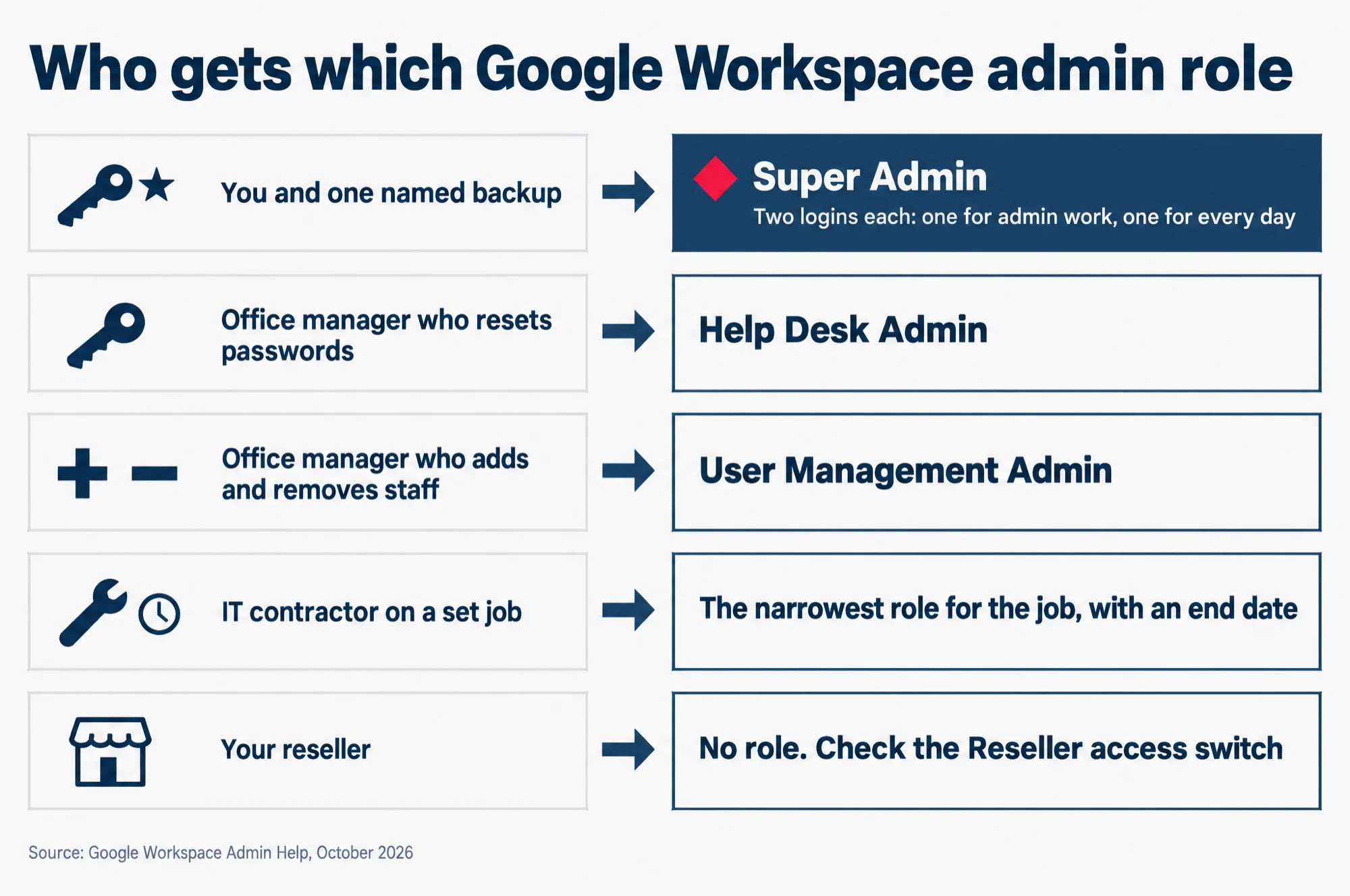
Read this as words instead
Who gets which Google Workspace admin role.
- You and one named backup: Super Admin, with two logins each, one for admin work and one for every day.
- Office manager who resets passwords: Help Desk Admin.
- Office manager who adds and removes staff: User Management Admin.
- IT contractor on a set job: the narrowest role for the job, with an end date.
- Your reseller: no role; check the Reseller access switch.
Source: Google Workspace Admin Help, October 2026.
The office manager
If they only reset passwords, give them Help Desk Admin. It covers the colleague who is locked out, and very little else.
If they also add new staff and remove leavers, give them User Management Admin. That lets them create and delete user accounts and change passwords. It still stops at admin accounts, so they cannot change yours.
Both roles can be limited to some of your users rather than all of them. Google calls these sets of users organizational units.
If the office manager also looks after shared addresses, such as a sales list that reaches three people, add Groups Admin.
The IT contractor
Start from the job, not from the person. Setting up company phones is Mobile Admin. Changing how Drive or Calendar works is Services Admin.
Some jobs need a super admin. Google keeps a short list of tasks for super admins only, and moving your old data in with Google’s data migration service is one of them. So is installing apps from the Google Workspace Marketplace.
For those jobs, give the contractor super admin with an end date, on a login of their own. Never hand over your own login, and never a shared one such as admin@. When the date arrives, the access ends by itself.
The reseller
If you bought Google Workspace through a reseller, you do not need to give them a role. Their access comes through a separate setting.
Reseller access is a switch, not a role. Google’s help says that a reseller managing your subscription can access your Admin console and raise support cases for you, unless you remove that access. The switch sits under Account, then Reseller management, and only a super admin can change it.
Google recommends leaving it on, so the reseller can troubleshoot for you. Two things to check while you are there. If you buy from more than one reseller, they all get access unless you turn it off. And turning it off removes access for every reseller at once.
We resell Google Workspace ourselves, so this is the switch that covers resellers like us. Our page on what a Google Workspace reseller can do sets out the rest.
Google’s list of roles also includes a Reseller Admin role. Its permissions are for the reseller’s own side of the work, such as placing orders and managing the customers it resells to, so it is not a role you hand out from your own account.
How to give admin access that ends on a date
Google announced on 23 September 2026 that admin roles can now be given for a set period. When the time is up, the access the role gave is removed automatically. Nobody has to remember to take it back.
Google names the cases it is for: short projects, cover while someone is away, and outside audits. In a small office that is the IT contractor’s two-week project, or the office manager holding the fort while you are on leave.
Here is how to set it, following Google’s Admin Help. You must be signed in to a super admin account.
- In the Google Admin console, open Menu, then Account, then Admin roles.
- Point to the role you want to give and click Assign admin.
- Click Assign members, find the person by their email address, and click Add.
- Tick the box next to the person and click Change expiration.
- Pick a ready-made length, such as 30 days, or choose Custom and enter a date and time.
- Click Save, then Assign Role.
Someone who already holds a role can be given an end date too. On the same page, point to their row, click Actions, and choose Set expiration.
The limits, as Google gives them:
- One year at most. A custom end date can be up to a year away, and never in the past.
- Never on the primary administrator. Google keeps that account a permanent super admin.
- One role per person. Google’s help says you cannot give the same person several roles with end dates, even different ones. Pick the one role that covers the job.
- Some accounts may wait. Google says the feature is available to all Google Workspace customers, but notes that certain enterprise users might not see the option until it is fully released.
The end date ends what the role gave. It does not close the person’s account, and it does nothing about the files and email they leave behind.
What to read next
Roles with an end date take care of temporary access. A person leaving the company is a bigger job: their account, their email and their files all need a home before the account goes.
Our Google Workspace offboarding guide walks through those steps in the order that loses nothing. It is the natural next read for whoever now holds the super admin login.