
Microsoft 365 storage limits sit in four places, not one. On the Microsoft 365 Business plans, each person gets 1 TB of OneDrive, their own file space, and a 100 GB mailbox for their email. The company’s shared files sit in SharePoint, in one shared pool of 1 TB plus 10 GB for every licence you buy. And when someone leaves, their OneDrive runs on a clock of its own once the licence comes off.
Each one fails in its own way. A full mailbox stops sending first, then turns away incoming mail. A full OneDrive turns read-only for that one person: they can open their files, but not edit them or add new ones. A shared pool that stays over its limit can put the company’s shared sites into read-only mode. So when a “storage almost full” warning arrives, the first job is to work out which of the four it is about.
The figures below are the ones on Microsoft’s own help pages in October 2026, for Microsoft 365 Business Basic, Business Standard and Business Premium, the three plans Microsoft builds for companies of up to 300 people. Where a price appears, it is in US dollars, as Microsoft prints it on those pages. Sizes are in gigabytes (GB) and terabytes (TB), and Microsoft counts 1 TB as 1,024 GB.
| Where | Whose it is | How much | What stops when it fills |
|---|---|---|---|
| OneDrive | Each person | 1 TB | No new uploads, edits or syncing. Existing files turn read-only: they open, but cannot be edited |
| Mailbox | Each person | 100 GB. Plus an archive for older mail: 50 GB on Basic and Standard, up to 1.5 TB on Premium | Sending stops at 99 GB. Incoming mail is bounced at 100 GB |
| SharePoint | The whole company, shared | 1 TB plus 10 GB per licence bought | Sites can go read-only, and changes cannot be saved |
| A leaver’s OneDrive | The company, once the licence is off | Whatever was in it | Read-only on day 60, archived on day 93 |
OneDrive: 1 TB for each person, and it does not come out of the shared pool
OneDrive is each person’s own file space in the cloud. Microsoft describes it as storage “provided for individual licensed users in an organization”. On Business Basic, Business Standard and Business Premium alike, that space is 1 TB per person.
The 1 TB is the same on all three plans. Microsoft’s table offers a rise to 5 TB only against its Enterprise E3 and E5 plans, not the Business ones. If one person on a Business plan needs more than 1 TB, Microsoft’s answer is to buy extra storage for that person, covered further down.
One detail matters for anyone comparing Microsoft 365 with Google Workspace. Each person’s OneDrive sits outside the company’s SharePoint pool. Microsoft’s SharePoint limits page says so in a footnote to the pool size: “Not including the OneDrive created for each licensed user.” So a colleague with 800 GB of video in their OneDrive is mostly using their own 1 TB. It does not shrink the shared pool’s size.
Microsoft adds a caveat under its OneDrive table: “Pooled storage limits still apply at the tenant level.” A tenant is Microsoft’s word for your company’s whole Microsoft 365 account. Its help page also lists an organisation going over its “total pooled storage limit” as one reason a OneDrive can show full.
When it fills, that person’s files freeze. Microsoft’s help for work accounts puts it this way: “While you’re over your OneDrive storage quota, you can’t upload, edit, or sync new files, and your existing files are read-only.” Microsoft adds that they can still download or delete files to get back under the limit. Syncing here is the copying that keeps the files on a laptop matched with the ones in OneDrive.
Microsoft lists three reasons a work OneDrive can say it is full. The person went over their own quota, the storage limit set for them. The organisation went over its total pooled limit. Or a folder someone shared with them pushed their own account over. The recycle bin, where deleted files wait before they go for good, counts too, so a clear-out is not finished until the bin is emptied.
The way out, in Microsoft’s words, is to “delete some files or buy more storage”. The person can find their largest files from the Storage used link at the bottom left of OneDrive on the web. Buying more is covered further down.
The mailbox: 100 GB, and it closes in three steps
Every mailbox on the three Business plans holds 100 GB. Email has a limit of its own for each person, so one person’s full inbox does not take space from anyone else.
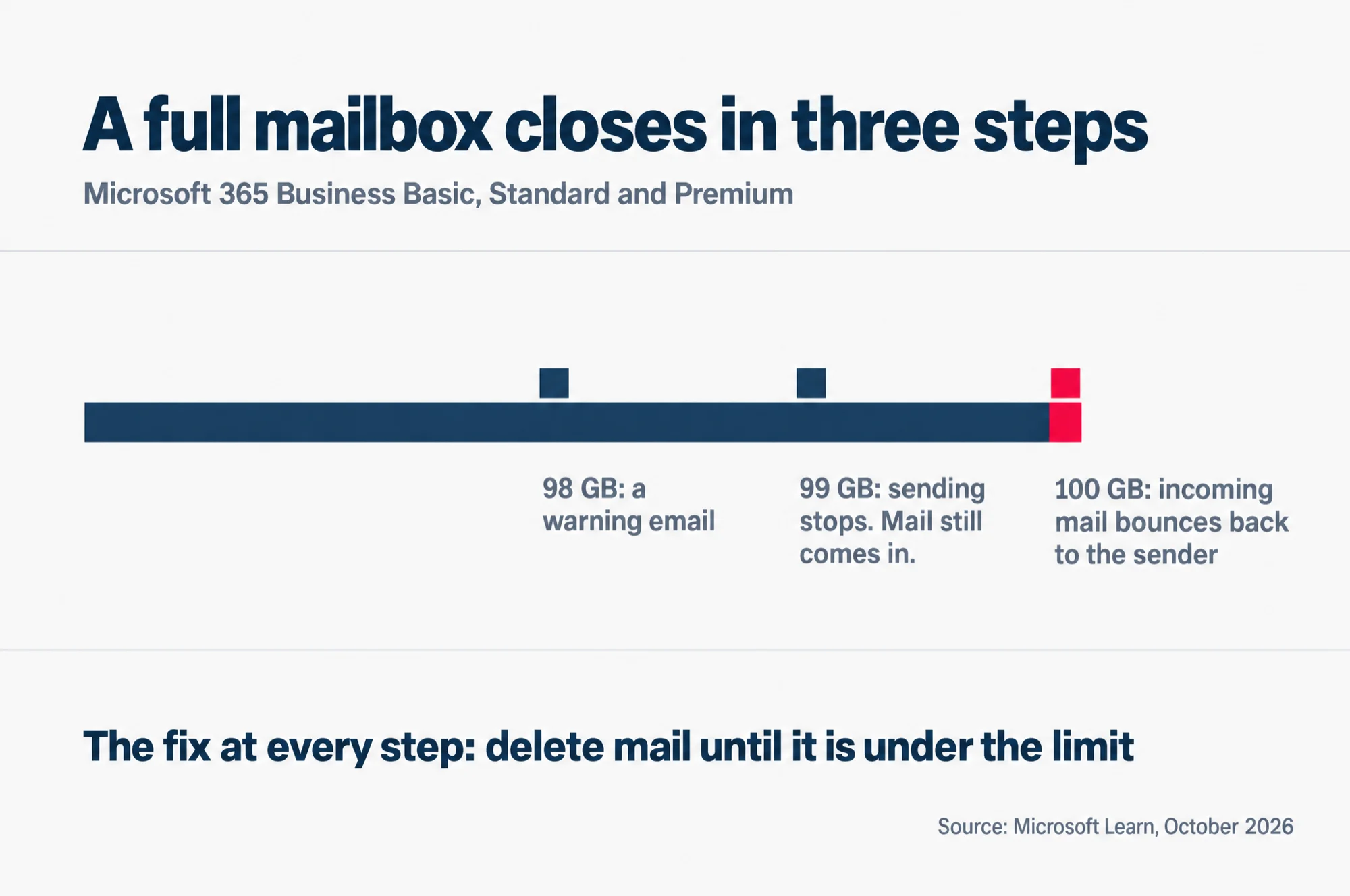
The mailbox does not stop all at once. Microsoft sets three marks, and each one does something different.
Read this as words instead
A full mailbox closes in three steps, on Microsoft 365 Business Basic, Standard and Premium.
- 98 GB: a warning email.
- 99 GB: sending stops. Mail still comes in.
- 100 GB: incoming mail bounces back to the sender.
The fix at every step: delete mail until it is under the limit.
Source: Microsoft Learn, October 2026.
- At 98 GB, a warning. The person gets an email saying the mailbox is close to full. Microsoft says the warning “is intended to encourage users to delete unwanted mail.”
- At 99 GB, sending stops. The person “can’t send new messages until enough email is deleted to bring the mailbox below the size limit.” Mail still comes in.
- At 100 GB, incoming mail bounces. Exchange Online, the email service inside Microsoft 365, “rejects any incoming mail” and sends the sender a non-delivery report, the automatic “your message wasn’t delivered” reply.
That last step is the one your customers see. A customer who emails a quotation request to a full mailbox gets the bounce, and your staff member never sees the request. Microsoft says the sender “can try resending the mail later”. Whether they bother is up to them.
The fix at both stops is the same: delete mail until the mailbox is under the limit again. Do not plan on raising the limit instead. Microsoft’s page lets an admin go the other way, “Administrators can reduce maximum mailbox sizes per user or globally”, and says of its limits in general that “You can’t modify most of these limits”.
The archive is a second mailbox, and its size depends on the plan
An archive mailbox is a separate store for that one person’s older mail, kept apart from the everyday inbox. Its size is where the three Business plans differ. If the archive is the reason you are choosing a plan, our comparison of Microsoft 365 Business Basic, Standard and Premium sets out what else each plan adds.
Business Basic and Business Standard: an archive of 50 GB per person.
Business Premium: each person “initially receives 100 GB of storage in the archive mailbox”. Auto-expanding archiving is a setting that lets the archive grow past that. With it turned on, Microsoft adds more space in steps “until the archive storage capacity reaches 1.5 TB”.
Microsoft is strict about what an archive is for. It holds one person’s mail, or one shared mailbox’s mail, and nothing else. Copying everybody’s email into one mailbox to archive it is, in Microsoft’s word, “prohibited”.
Shared mailboxes, the kind a team uses for an address like accounts@ or enquiries@, have their own limit. Without a licence of their own, Microsoft caps them at 50 GB.
SharePoint: one pool for the whole company
SharePoint is where the company’s shared sites and shared files live, as opposed to each person’s own OneDrive. Its storage is one pool for the whole organisation, and every site draws from it.
Microsoft sizes the pool as “1 TB plus 10 GB per license for the eligible plan that you purchase, plus any Microsoft 365 Extra File Storage add-ons that you purchase.” An add-on is an extra you buy on top of your licences.
For a small company, that means the pool is mostly the 1 TB base. A 20-person company with a licence each has 1 TB plus 200 GB to share. At 50 licences it is 1 TB plus 500 GB, still less than half again.
| Part of the shared pool | Storage, GB |
|---|---|
| 1 TB base, every company | 1,024 GB |
| Added by 10 licences | 100 GB |
| Added by 20 licences | 200 GB |
| Added by 50 licences | 500 GB |
Microsoft’s own worked example is a company of 100 users, which comes to 2 TB. Each licence adds 10 GB, so going from 10 licences to 20 adds 100 GB of shared space, not another terabyte.
Two things count against the pool that are easy to miss. The sites’ recycle bins count, and Microsoft recommends “emptying it regularly”. And the pool is counted in binary gigabytes, the powers-of-two units computers count in, where Microsoft says “1 GB = 2^30 bytes”. That is 1,073,741,824 bytes to the gigabyte. It will not change a decision. It may explain a total that looks slightly off.
What happens when the pool is full
Shared work can stop being saved. When the pool runs out, a Global admin (the top admin role for the whole account) or a SharePoint admin gets an email from Microsoft, and one of the messages it may carry reads: “SharePoint Online is out of storage space. Sites are in read-only mode and changes can’t be saved.”
Microsoft’s limits page frames it as a risk for a company that stays over: “If your tenant continues to operate above your storage limits, you are at a risk of your environment being put into ‘read-only’ mode.” In read-only mode, Microsoft says, users “may be unable to add or modify content until storage usage is reduced or additional capacity is purchased.”
This is the limit that touches everyone at once. A full OneDrive stops one person. A full mailbox stops one person. A full pool stops work on every shared site.
Microsoft gives admins an early sign. In the SharePoint storage report, “Banner notifications appear when SharePoint usage exceeds 80% of quota.” Act when that banner appears; the email comes later.
Microsoft lists three ways out: “Purchase add-on storage or extra licenses. Archive inactive content that should be retained. Delete content that’s no longer needed.”
The archive route needs a word of explanation. Microsoft 365 Archive takes content nobody works on any more out of the everyday pool, while still holding it within SharePoint. Microsoft says archived data “doesn’t count toward your organization’s active storage quota”. It is not free once you are past the pool, though. In Microsoft’s own example, a company 200 GB over its pool that archives those 200 GB pays “$0.05/GB/month for 200 GB of archive storage”. That is 5 US cents for each GB, every month, so US$10 a month for that example.
A leaver’s OneDrive: the limit is time, not space
When someone leaves and their licence comes off, their OneDrive does not vanish. It becomes what Microsoft calls an unlicensed OneDrive account, and from then on the limit that matters is the calendar.
Microsoft’s rule: unlicensed accounts “are automatically put into read-only mode after 60 unlicensed days and archived after 93 unlicensed days.” The name read-only is misleading. Microsoft says that from then on “neither admins nor end users have access to their content” unless an admin takes an action such as giving the account a licence again.
Getting an archived OneDrive back costs money. To reactivate one, you turn on billing for unlicensed accounts. Microsoft then charges a one-off reactivation fee of “$0.60/GB for that account”, which is 60 US cents for each GB in it. From that month on, it charges “$0.05/GB/Month”, 5 US cents for each GB every month, for every account in the organisation that has been unlicensed for more than 93 days, not only the one you wanted back. Microsoft’s own example is one 1 TB account brought back for a one-off US$614.40.
Leaving billing off is not a way to keep the files for free. An unlicensed account that stays unpaid is, in Microsoft’s words, “subject to the cumulative 365-day nonpayment clock for deletion”. In plain words, Microsoft adds up the days the account goes unpaid. After 365 of them, its files are at risk of deletion. The clock began on 1 July 2026. For an account that was already unlicensed and unpaid on that day, Microsoft says “deletion risk begins no earlier than July 1, 2027.”
Two more things that catch small companies out. An unlicensed OneDrive cannot borrow spare room from your SharePoint pool: Microsoft says these accounts “can’t utilize unused SharePoint storage quota”. And it drops out of the OneDrive usage report, which, Microsoft says, “only includes users who have a valid OneDrive license”. An admin who checks storage there will not see the leaver at all.
The cheap move is to copy what you need out of the leaver’s OneDrive before day 60. Our guide to finding and removing unused Microsoft 365 licences walks through the leaver’s mailbox and files in the right order, including how to keep their email without paying for a licence.
Where the admin checks each one
All three checks start in the Microsoft 365 admin centre, the website where the holder of the admin login manages users, licences and billing. Look under Reports, then Usage. Each limit has its own report, and none of them is live: plan on a lag of a day or more.
The shared pool is the one to check first, because it is the one that stops everybody.
- Sign in to the Microsoft 365 admin centre. In the menu, select Reports. If you cannot see Reports, select Show all first.
- Select Usage, then, under Reports, select SharePoint.
- Open the Storage tab. It shows how much of the pool is used.
Microsoft says this report “refreshes every 48-72 hours”, so a big clear-out this morning will not show yet. The SharePoint admin centre, a separate admin page for SharePoint alone, gives a second view: its Active sites page shows storage used across all sites against the total at the top, though Microsoft notes it “doesn’t include changes made within the last 24-48 hours.”
Each person’s OneDrive has its own report.
- In the admin centre, go to Reports, then Usage.
- Under Reports, select OneDrive, then open the Usage tab.
- Read the Storage used (MB) column for each person, or select Export to sort it as a spreadsheet. MB is megabytes, and 1,024 MB make 1 GB.
For one person, there is a quicker view. Go to Users, then Active users, select the person and open the OneDrive tab. Next to Storage used it shows their space against their limit, in Microsoft’s example “3 GB of 1024 GB”. The 1024 GB there is the 1 TB limit.
Mailboxes are one level deeper.
- In the admin centre, go to Reports, then Usage.
- Under Reports, select Exchange, then the Email activity tab.
- Under Email activity, select View More, then choose Exchange, then Mailbox usage.
The Quota chart there sorts every mailbox into four groups: Good, Warning, Can’t send and Can’t send/receive. The last two are the ones to act on today. Microsoft says the Storage chart “doesn’t include archive mailboxes”, so the archive needs its own look.
One thing may make all three reports less useful than they look. Microsoft hides people’s names in usage reports by default, so you may not be able to tell whose OneDrive is the heavy one. To turn names on, go to Settings, then Org Settings, and on the Services tab select Reports. Clear the box next to Conceal user, group, and site names in all reports, then select Save.
What more space costs, and who sells it to you
It depends on which limit you hit. Microsoft’s help page on buying more storage covers files only: OneDrive and SharePoint. For a full mailbox, the fix Microsoft gives is deleting mail, and on Business Premium the larger archive leaves more room for old mail.
For one person’s OneDrive: OneDrive Extra Storage. Microsoft sells it “as capacity packs in 100-GB, 500-GB, and 1-TB through 6-TB sizes”. A capacity pack is a fixed block of extra space. You assign a pack to one licensed person, the way you assign any add-on. A pack “can’t be split across multiple users”, and no one person can go past 25 TB in total.
For the shared pool: Office 365 Extra File Storage. That is the add-on’s name on Microsoft’s page, even for a Microsoft 365 subscription. It adds storage to SharePoint “in 1-GB increments”, so you can buy close to the amount you are short. If it is missing from the list of add-ons you can buy, Microsoft says that “your plan isn’t eligible to buy it”.
Or buy more licences. Every licence adds 10 GB to the pool. That is a slow way to buy space, and only worth it if you were going to add the people anyway.
Microsoft also has newer pay-as-you-go options for both OneDrive and SharePoint, billed on use above your limit. Both are in public preview, an early release that any business can try before the final version. Both need an Azure subscription, a separate Microsoft cloud account. That account also needs a resource group, a named folder inside Azure, linked to it. That is more setup than a five-person office needs to solve a full pool, so they are not the first place to look.
On price, Microsoft’s help page prints no figure. Instead it tells you to follow its purchase steps and “review the pricing information before you buy more.” So the price you see is the one on your own purchase screen, on the day.
If you bought through a partner, the partner sells you the storage
Not every business buys Microsoft 365 straight from Microsoft. Some buy it through a reseller. One kind of reseller Microsoft names is a Cloud Solution Provider, or CSP, partner, and it says to contact that partner to buy more licences. For those businesses, Microsoft is clear: “If you bought your subscription through Volume Licensing or a Cloud Solution Provider (CSP), you can’t buy Office 365 Extra File Storage directly from Microsoft.” Volume Licensing is Microsoft’s contract route for buying many licences at once. The purchase, and the price, come from the partner.
To see which way you bought, go to Billing, then Your products, in the admin centre, and open your Microsoft 365 subscription. Microsoft says one bought through a reseller shows the word Reseller under Purchase channel. If you bought Microsoft 365 from us, that partner is us. Our page on the software licences we resell lists Microsoft 365 among them, set up and supported by us.
If someone’s OneDrive suddenly shows 10 GB
Admins in online forums have reported users’ OneDrive limits dropping from 1 TB to 10 GB. Those reports named an E5 subscription and an E3 developer licence. E3 and E5 are Microsoft 365 Enterprise plans, a different family from the Microsoft 365 Business plans this page covers. Microsoft’s own OneDrive table lists 1 TB for every Business plan. Still, if one of your people shows less than 1 TB, there are causes an admin can check.
- Look at the person’s real limit. Go to Users, then Active users, select them and open the OneDrive tab. Next to Storage used, the second figure is their limit.
- Check the company default. In the SharePoint admin centre, go to Settings and select OneDrive Storage limit. Microsoft says this default applies to everyone “for whom you haven’t set specific storage limits”, so a lowered default lowers everyone.
- Check whether someone set a limit for that one person. A specific limit overrides the default.
- Check the licence. Microsoft says that after a licence change, “the available storage space is updated automatically within 24 hours after they access OneDrive.”
Be careful when you put the number right. Microsoft warns the other way too: “If you decrease the storage limit and a user is over the new limit, their OneDrive will become read-only.” And if a Business plan user still shows less than 1 TB with the default and their own limit both at 1 TB, take it to Microsoft support or to the partner you bought from.
How this compares with Google Workspace
Microsoft 365 splits storage up. Each person has their own OneDrive and their own mailbox, each with its own set size, and the shared sites draw from one pool. So when a personal box fills, it stops only that person.
Google Workspace works the other way, with one pooled pot shared by the whole organisation. What stops there, and when, is a different list. If you are weighing Microsoft 365 against Google Workspace, or run both, our guide to the Google Workspace pooled storage limit sets out the Google side in the same order: what stops, where the admin checks, and what more space costs.