
Unused Microsoft 365 licences in a small business come in three kinds. Some seats were bought and never given to anyone. Some still belong to people who have left. And some sit with staff who only ever open their email, on a plan that pays for a lot more than email. Each kind has its own check in the Microsoft 365 admin centre and its own safe fix, and all three fit in an afternoon.
The fixes are quick. The saving can take months to reach the bill.
Microsoft only lets you cut the number of seats on a subscription in a short window after you buy it, renew it or add seats to it. Miss that window, and a spare seat you find in month four can keep billing until the subscription renews. So the most useful thing to take away from this page is your renewal date, with a reminder in the calendar a week before it.
A word on the words first. Microsoft calls each paid place on your plan a licence. This page also calls it a seat. You pay for every licence on the subscription, whether somebody signs in with it or not. Where prices appear below, they are the ones on Microsoft’s own pages in September 2026, in US dollars and before GST, because that is how Microsoft prices Singapore subscriptions.
Where does the admin centre show a seat nobody uses?
In two places, and you need both. One tells you how many seats you pay for. The other tells you who actually uses theirs.
The Licenses page counts the seats. Under Billing, then Licenses, the admin centre lists each product you pay for, such as Microsoft 365 Business Standard, with a total. That total adds up every subscription you hold for the same product, so two subscriptions of five and eight seats show as 13. Open a product and you get the names of the people who hold one. If the total is bigger than the list of names, the gap is seats you pay for that nobody has been given.
The usage report shows who is using theirs. Under Reports, then Usage, the Microsoft 365 apps report has an Active users tab with a table of every person. For each one it gives the last date they used Exchange, which is the email, and the last date they used OneDrive (their own files), SharePoint (the shared team files) and Microsoft Teams (chat and meetings). A person whose dates are all blank or months old is holding a seat they do not use. By default, Microsoft hides people’s names in its usage reports, which it says helps companies with local privacy laws, so you may have to turn the names on before the table is any use (step 4 below).
The report runs over the last 7, 30, 90 or 180 days, and its figures are usually a day or two behind. Neither page knows who has left the company. You do, so bring a list of current staff with you.
- Sign in to the Microsoft 365 admin centre with an admin account.
- Go to Billing, then Licenses. Write down the total for each product.
- Open each product and count the people listed under it.
- Turn on names in the reports. Go to Settings, then Org Settings, and on the Services tab select Reports. Clear the box next to Conceal user, group, and site names in all reports, then select Save. Microsoft says a Global Administrator can change this, and that it takes a few minutes to apply.
- Go to Reports, then Usage. If you cannot see Reports, select Show all first.
- Under Reports, choose Microsoft 365 apps, then the Active users tab, and set the period to 90 days.
- Select Export to get the table as a spreadsheet, and sort it by the Exchange date.
- Mark each person as left, email only, or uses everything.
To take a licence off someone later, the account you sign in with needs an admin role such as License Administrator or User Administrator.
The three kinds of unused seat, and the safe fix for each
Once the spreadsheet is marked up, every spare seat falls into one of three groups. They need different handling, because only one of them is safe to remove straight away.
| Kind of seat | How it shows up | The safe fix |
|---|---|---|
| Bought, never given to anyone | The Licenses total is higher than the number of names under it | Reduce the seat count on the subscription |
| Still held by someone who left | A leaver’s name in the list, usually with old dates in the report | Keep their email and files first, then take the licence off, then reduce the count |
| Held by someone who only uses email | A recent Exchange date, with the other dates blank or old | Consider moving that person to a cheaper plan |
There is one thing the table cannot show. Taking a licence off a person does not, on its own, lower the bill. It turns their seat into a seat nobody has been given, which is the first row again. The bill only drops when you also reduce the number of licences on the subscription, under Billing, then Your products.
Microsoft enforces that order. It will not let you reduce the count while every licence is still assigned to someone. You unassign first, then remove.
The first kind is therefore the easy one: nothing is attached to those seats, so reducing the count loses nothing. The second kind is the one to slow down on, because a licence is what keeps a leaver’s mailbox and files alive. The third kind is a seat on a bigger plan than the person needs.
What happens to the mailbox and OneDrive when the licence goes?
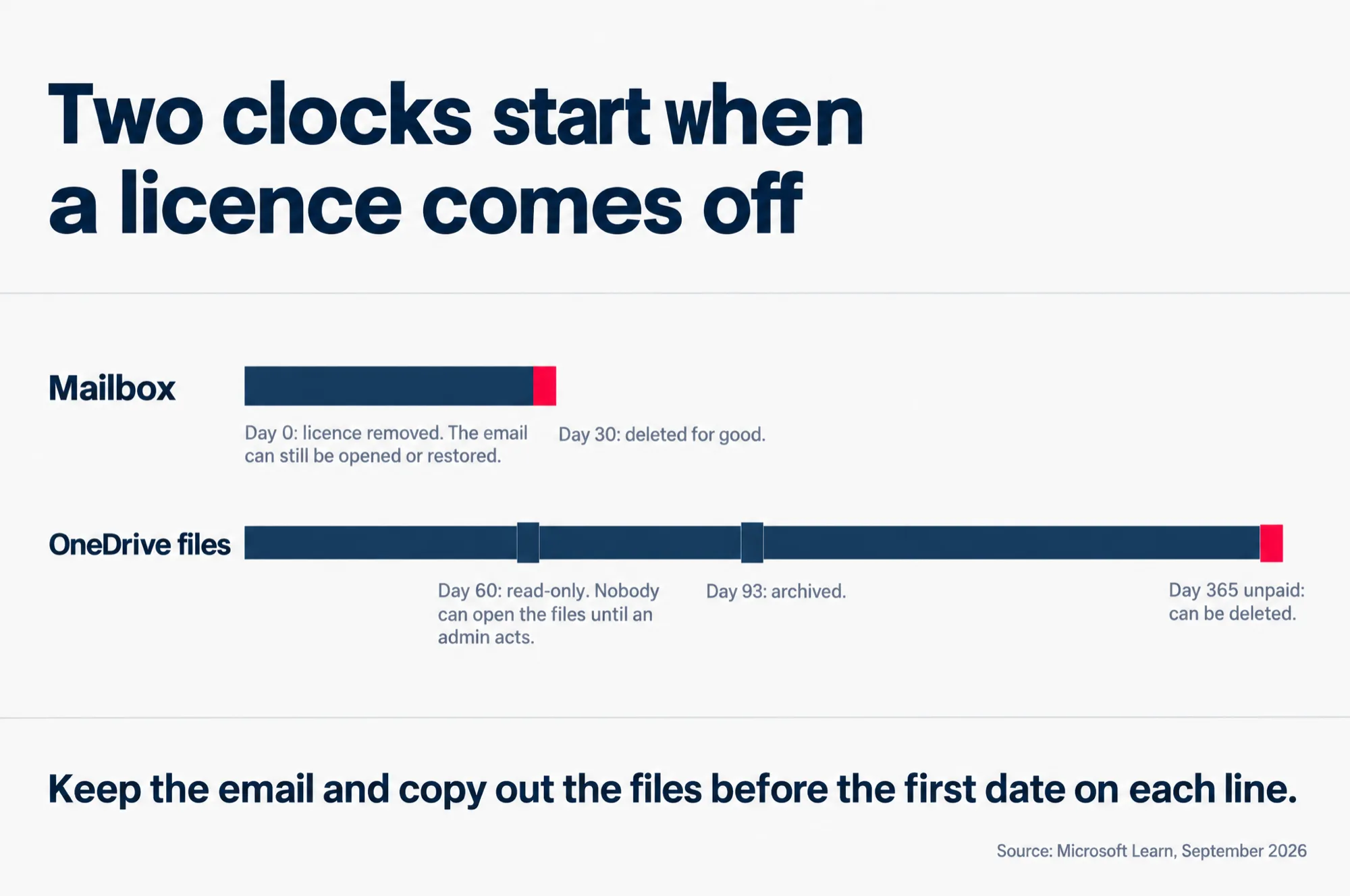
The mailbox is kept for 30 days and then deleted for good. The OneDrive files run on a separate, slower clock. Neither one is lost on the day you untick the box, but neither one is safe for long either.
Microsoft’s own help is blunt about the mailbox: “When you remove a license, that user’s data is held for 30 days.” Inside those 30 days you can still get at the data or restore the account. After them, in Microsoft’s words, the content “is permanently deleted from Microsoft 365 and can’t be recovered”.
OneDrive keeps going for longer, but locks up along the way. The clock starts on the day the licence comes off. On day 60 Microsoft puts the person’s OneDrive into what it calls read-only mode. Despite the name, from then on neither you nor the person can open the files until an admin takes an action such as giving the account a licence again. On day 93 it is archived. After 365 days unpaid, the files can be deleted.
Read this as words instead
Two clocks start when a licence comes off.
- Mailbox
- Day 0: licence removed. The email can still be opened or restored.
- Day 30: deleted for good.
- OneDrive files
- Day 60: read-only. Nobody can open the files until an admin acts.
- Day 93: archived.
- Day 365 unpaid: can be deleted.
Keep the email and copy out the files before the first date on each line.
Source: Microsoft Learn, September 2026.
So the real deadline for a leaver’s files is not day 93. It is the day before day 60, because after that you cannot simply open the OneDrive and copy out what you need.
There is a Singapore reason to be careful with the 30 days as well. If the person who left handled invoices, quotations or purchasing, some of your company’s records may only exist in their mailbox. ACRA says every company must keep its accounting records “for at least five years after the end of the financial year when the transactions or operations were completed”. Thirty days is a great deal shorter than that. Before a licence comes off a mailbox like that, move the email somewhere it will stay.
How to keep a leaver’s email without paying for it
Turn their mailbox into a shared mailbox, then take the licence off. A shared mailbox is an inbox that people on your team can open alongside their own, and under 50 GB it needs no licence at all. The email stays, the address keeps receiving mail, and once you also lower the seat count on the subscription, the seat stops costing you.
The order matters. The licence has to still be on the account when you convert it. If you have already taken it off, Microsoft’s instruction is to add it back first, or the option to convert will not appear.
- In the admin centre, go to Users, then Active users, and select the person who left.
- On the Mail tab, select Convert to shared mailbox, then Convert.
- Give the colleagues who need the old email access to the shared mailbox.
- Once the conversion is done, and the mailbox is under 50 GB, take the licence off on the Licenses and Apps tab and save.
- Reduce the seat count on the subscription, when your window allows it.
If the mailbox is over 50 GB, you have two choices. Delete large old messages, such as ones with big attachments, until it fits. Or put an Exchange Online Plan 2 licence on the shared mailbox, which lifts the limit to 100 GB and still costs you something each month.
A shared mailbox holds email only. The person’s OneDrive files are still on the clock in the section above, so copy the ones you need into a shared team folder, or into a colleague’s OneDrive, before day 60.
If your business runs Google Workspace as well, or is moving from one to the other, the same leaver has a different answer on the Google side, with its own costs and its own clock. Our Google Workspace offboarding guide walks through it in the same order.
Why the saving may not start until your renewal date
Because Microsoft only lets you lower the seat count for a short time after the seats were bought. Outside that window, you can still set the lower number, but you usually keep paying for the old number until the subscription renews.
Microsoft spells the window out for what it calls an MCA billing account, short for Microsoft Customer Agreement, which is one of the ways a business can be billed directly by Microsoft. There, you can only remove licences “within seven days of buying or renewing your subscription”. Seats you add in the middle of a term get their own seven days, counted from the day you bought them.
After that, in Microsoft’s words, “the change appears on the first invoice you receive after the subscription renewal date.”
Picture how that plays out. A business finds three spare seats in month four of an annual plan, removes them, and the invoice does not move for eight months, because the window had closed.
Whatever your billing type, the subscription page tells you where you stand. Go to Billing, then Your products, and open the subscription. If the window is closed, the page shows the date your changes will take effect. The Remove licenses option only works while recurring billing is turned on, and it lets you choose whether the change happens now or when the subscription renews. Recurring billing is the setting that keeps billing the subscription when its term ends, and Microsoft turns it on by default when you pay by credit or debit card. Turning it off also cancels any change you have scheduled on the subscription.
So do two things on the day you find the spare seats. Schedule the lower count for the renewal date, so it happens even if nobody remembers. And put a reminder in the calendar a week before that date, to check the count once more before it locks in for another term.
If you bought through a partner, the buttons may not be yours to press. On the Your products page, a column called Purchase channel says how each subscription was bought. If it says Reseller, Microsoft lists that as one of the reasons the Buy licenses and Remove licenses buttons may not work for you, and for a subscription bought from a Cloud Solution Provider it tells you to contact that partner. Ask them which window applies to your subscription before you count on a date. If you bought Microsoft 365 through our software licensing service, that partner is us.
One more thing has changed for partner-sold subscriptions. Letting one lapse at the end of its term used to come with a free grace period. Microsoft’s partner documentation says that grace period ended on 4 May 2026. Now a partner-sold subscription that is not renewed stops at the end of the term, or, if it is eligible, moves to a paid monthly extension billed at the monthly rate plus 3 per cent (23 per cent where the product has no monthly plan). Eligibility depends mostly on the subscription’s dates: when it was bought or last renewed, and when its term ends. The same documentation says an eligible subscription that is only set not to renew, and not cancelled outright, is moved to the paid extension. So if you want one to stop, ask your partner to cancel it at the end of the term, and ask whether yours is eligible. Running out the clock is no longer a free way to shrink the bill.
When to move someone to Business Basic instead
When the person needs their email, their files and Teams, and never opens Word or Excel as a program installed on their computer. That can fit several roles in a small business: the part-timer on the front desk, the driver who checks mail on a phone, the director who only reads and replies.
Business Basic gives each person the business email on your own domain, 1 TB of cloud storage, Microsoft Teams, and the web and mobile versions of Word, Excel, PowerPoint and Outlook. What it leaves out is the desktop apps. Microsoft puts the line plainly: Basic “provides lightweight web and mobile versions of apps”, while Business Standard and Premium “provide installable desktop applications that can be used offline”.
The saving is real. On Microsoft’s Singapore page in September 2026, Business Basic was US$7.00 per person per month on a yearly plan, before GST, against US$14.00 for Business Standard. That is US$84 a year for every person you move down from Standard. Those are the list prices Microsoft set from 1 July 2026. A subscription that last renewed before then stays on its old price until the next renewal, so check your own invoice for the gap you would actually close.
Check the Usage tab, then ask before you move anyone. The Active users tab shows email, file and Teams activity. Next to it, the same Microsoft 365 apps report has a Usage tab, and its table shows for each person whether they used Word, Excel or PowerPoint, and whether on Windows, a Mac, the web or mobile. A person active in Word or Excel for Windows or Mac is using the installed programs that Business Basic leaves out. The tab covers the last 7, 30, 90 or 180 days, so a spreadsheet someone opens only at year end may not show up. Ask them as well, because finding out after the move is the kind of saving that costs a day of somebody’s work.
The move also runs into the same window as everything else on this page. Giving someone a Basic licence frees up their Standard seat, but the bill only drops when the Standard count on its subscription comes down. So a downgrade is usually a renewal-day job as well. Buy the Basic seats close to the renewal date, because until the Standard count falls you pay for both, and schedule the Standard count to fall at renewal.
Before you move anyone down a plan
Moving a person to a cheaper plan means they lose something. The question is what they would notice, and it is worth answering person by person rather than for the whole office at once.
Our guide to Microsoft 365 Business Basic, Standard or Premium sets out what each plan gives one person, side by side, so you can see exactly what someone gives up before their seat changes.