Microsoft 365 Copilot, the AI chat assistant in Microsoft 365’s apps, shows each person only what that person can already open. Microsoft puts it plainly: Copilot “only surfaces organizational data to which individual users have at least view permissions.” Permissions are the settings that decide who can open each file.
So preparing Microsoft 365 for Copilot is not about Copilot at all. It is about who can open which files.
That is the comfort and the catch. Copilot will not break into the payroll folder. But if the payroll folder is already open to the whole office, anyone in the office can now ask Copilot for it. Before, they had to stumble on it. Now they only have to ask.
Two words first. SharePoint is where your team’s shared files live, in one or more sites, usually one per team or project. OneDrive is each person’s own file space, which they can share out file by file or folder by folder.
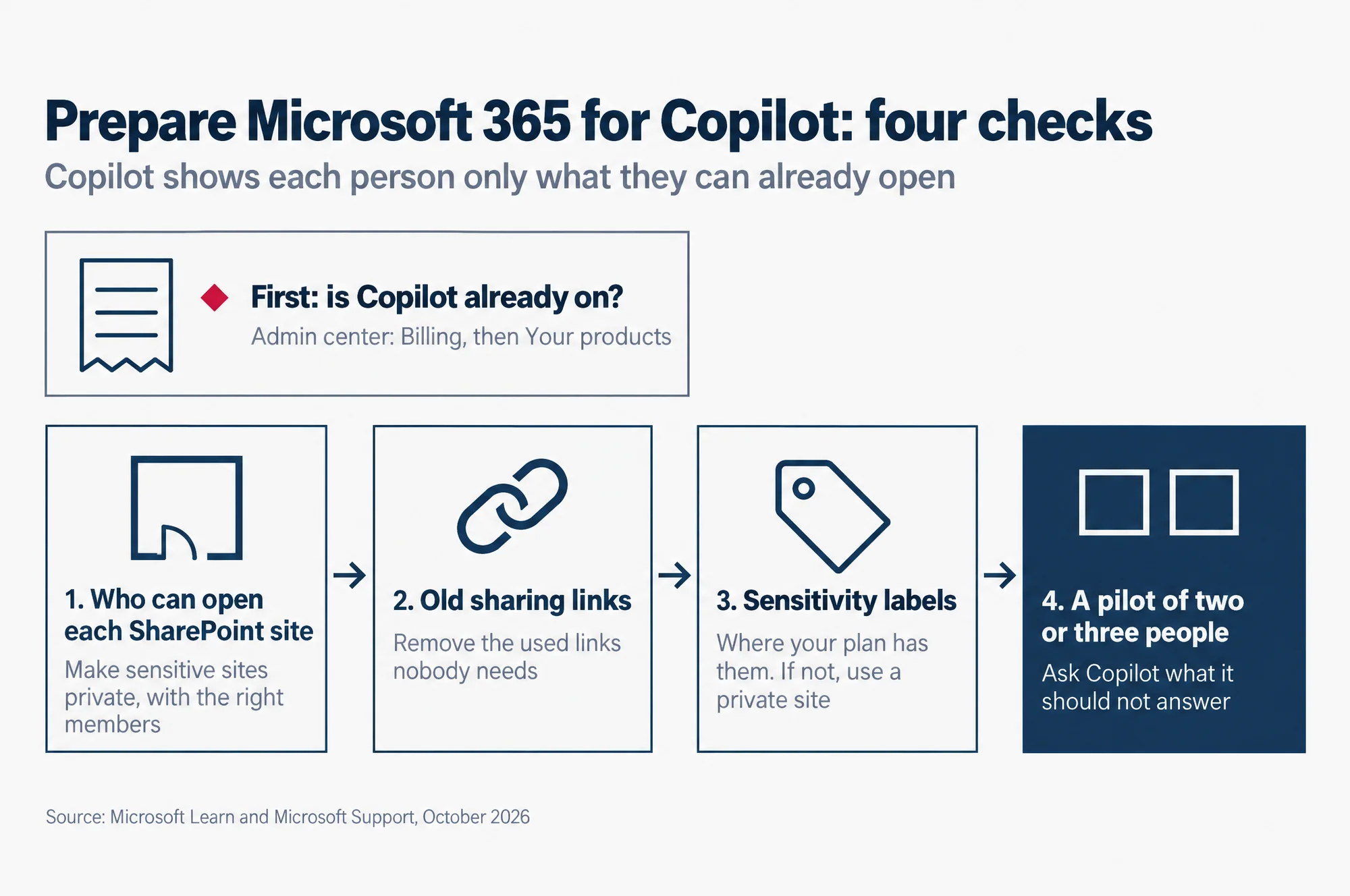
Before you buy Copilot seats, or soon after you find you already have them, do four checks. A seat is one person’s Copilot licence.
- Who can open each SharePoint site. Make the sensitive ones private, with only the right people inside.
- Old sharing links and widely shared OneDrive folders. A sharing link is a web address that lets other people open a file or folder. Find the links that were used, and remove the ones nobody needs.
- Sensitivity labels, where your plan has them. A label is a tag such as Confidential on a file. Where your plan has no labels, move the sensitive files to a private site instead.
- A pilot of two or three people. A pilot is a small trial group. They ask Copilot blunt questions before anyone buys more seats.
This guide is for the owner or office manager of a Singapore business of 5 to 50 people, with no IT team, who holds the Microsoft 365 admin login. That is the account that can change settings for the whole company.
Read this as words instead
Prepare Microsoft 365 for Copilot: four checks. Copilot shows each person only what they can already open.
First: is Copilot already on? Admin center: Billing, then Your products.
1. Who can open each SharePoint site: make sensitive sites private, with the right members.
2. Old sharing links: remove the used links nobody needs.
3. Sensitivity labels: where your plan has them. If not, use a private site.
4. A pilot of two or three people: ask Copilot what it should not answer.
Source: Microsoft Learn and Microsoft Support, October 2026.
What Copilot can see, and what it cannot
Copilot sees what the person asking can see. No more. Microsoft’s privacy page says Copilot works through your own permissions, and asks you to use them “to help ensure the right users or groups have the right access to the right content within your organization.” Microsoft’s announcement of the small-business plans gives the same promise in everyday words: “Copilot only sees what it is allowed to see.”
That promise is only as good as your permissions. Copilot does not know that a file is private in spirit. It knows whether the person asking can open it.
Your files do not train Microsoft’s AI. Microsoft says prompts, responses and the company data Copilot reads “aren’t used to train foundation LLMs,” the large language models behind Copilot. So the risk to manage is inside your company, not outside it: the wrong colleague seeing the right file.
It also means the same Copilot gives different answers to different people. A director asking about bonuses may rightly see the bonus sheet. A new hire asking the same question should get nothing, and will get nothing, if the folder is set up correctly.
Before the four checks: is Copilot already on?
You may not be deciding whether to buy Copilot. You may already have it.
On 1 July 2026, Microsoft introduced two small-business plans with Copilot built in: Microsoft 365 Business Standard with Copilot and Microsoft 365 Business Premium with Copilot. On Microsoft’s Singapore compare-plans page in October 2026, those are the two names listed for Standard and Premium, and both show Microsoft 365 Copilot as included.
To check, sign in to the Microsoft 365 admin center, the website where your company’s Microsoft 365 account is run, open Billing, then Your products. If your admin center uses the simpler view, open Subscriptions instead.
Microsoft says each line shows the product name and the number of licences assigned, so you can see which plan you are on and how many people hold it. You need a global or billing admin login to see this page. Those are the two admin roles Microsoft lets see your subscriptions.
If the product name ends in “with Copilot”, everyone who holds a licence on that plan already has Copilot. The four checks below are then not a step before buying. They are overdue, and worth doing first.
If your plan is still a plain Business Standard or Business Premium, ask your provider which plan it renews onto. Your provider is whoever bills you for Microsoft 365: Microsoft itself, or a reseller. Ask before the renewal date rather than after.
We resell Microsoft 365 ourselves, so if xSquare bills your subscription, that question comes to us. Our software licensing page explains how we set up and support Microsoft 365 licences.
Check 1: who can open each SharePoint site
Start here, because one setting opens a whole site at once.
When someone creates a SharePoint team site, Microsoft offers two privacy choices: “Public – anyone in the organization can access this site” or “Private – only members can access this site.” A public site is open to every staff account. So every staff member can ask Copilot about what is in it.
That is fine for the office handbook. It is not fine for payroll, HR records, contracts or customer data.
Look at your sites in the SharePoint admin center, the part of the Microsoft 365 admin center that runs SharePoint:
- Open the SharePoint admin center, then Sites, then Active sites. Microsoft says this page lists the sites in your organisation, including sites that belong to Microsoft 365 groups. A group is the set of people a site was made for.
- Select a site that holds sensitive files.
- Select Membership. Microsoft says this shows the site’s admins, owners, members and visitors.
- Remove anyone who does not need the site, or change their role, then select Save.
Then make the sensitive sites private. Many team sites belong to a Microsoft 365 group. Microsoft’s help shows how to change a group’s privacy in Outlook on the web, the version of Outlook you open in a browser: select the group under Groups, select Edit group, and under Privacy choose Public or Private, then Save. Microsoft notes the change may take a few minutes.
Our advice: list the three or four kinds of file that would hurt most if the wrong person saw them, and find where each one lives. For most small businesses that is salaries, staff personal details, client contracts and the company’s bank or tax papers. Fix those sites first. The rest can wait for the pilot.
Check 2: old sharing links and widely shared OneDrive folders
Sharing links are the other way files end up wider than anyone meant. Someone shares a folder for one project, the project ends, and the link stays.
The good news: an old link that nobody ever clicked is not something Copilot can show. A “People in your organization” link works for anyone signed in to your company’s Microsoft 365 who has it. Microsoft says creating one “doesn’t make the associated file or folder appear in search results or make it accessible through Copilot.” The link has to be clicked first. Microsoft calls that click redemption. Anyone links, which work for whoever has the link, follow the same rule.
The catch: most links are clicked the moment they are sent. Microsoft says that if you send the link from SharePoint or OneDrive on the web, in an Outlook email or in a chat in Teams, Microsoft 365’s chat and meetings app, it is redeemed automatically for each person it was sent to. That works for up to 100 people, so in a business of 50 it covers the whole office.
So a link that was emailed round the office has, in effect, already been clicked by everyone on that email.
Specific people links are different again. They name the people who can use them, and Microsoft says they make the file “accessible through Copilot” for everyone added to the link, straight away.
| Kind of link | Who can use it | When Copilot can show the file to them |
|---|---|---|
| Anyone | Whoever has the link | Only after they click it |
| People in your organization | Anyone signed in to your company’s Microsoft 365 who has the link. Not guests, who are people from outside your company. | Only after they click it, but sending it by Outlook, Teams chat or the web counts as a click for each named person |
| Specific people | Only the people named on the link | Straight away, for each person named |
So the links worth your time are the ones that were used, on files that should never have been shared that widely. The old link to last year’s event photos can stay.
Tighten the default first
Microsoft says that, by default, “SharePoint sets sharing settings to the most permissive option.” That is the most open choice, the one that lets files be shared most widely.
You change that in the SharePoint admin center under Policies, then Sharing. Microsoft says you can also set expiration and permission options for links there, so a new link can run out after a set time. That does nothing to old links. It stops the problem growing while you clean up.
Then remove the links nobody needs
Without extra tools, this is a job for each file’s owner, because they know what they shared and why. Ask each person to open the folders they remember sharing in their OneDrive and remove what is no longer needed. Microsoft’s steps, for a file or folder:
- Select the file or folder, then select Details to open the details pane.
- Under Has access, select Manage access.
- To stop sharing it completely, select Stop sharing. To remove one link, open the Links tab, select the remove icon beside the link, then confirm with Remove.
That is slow across a whole company, and people forget what they shared. The reports in Check 4 do the finding for you, once your first Copilot seat is in place.
Check 3: sensitivity labels, where your plan has them
A sensitivity label is a tag such as Confidential that you put on a file or an email. A label can also switch on protection settings, such as encryption, which scrambles the file so only approved people can read it. Microsoft’s labels come from Microsoft Purview, its set of data protection tools.
Labels are a second layer, not the first. Microsoft says Copilot recognises and uses the labels you apply. In its words: “These labels provide an extra layer of protection.” Where a label encrypts a file, Microsoft says Copilot returns content from it only if the person asking has the right to copy from it. But a label does not fix a site that is open to everyone. Checks 1 and 2 do that.
Business Premium includes them. Microsoft’s setup guide for Business Premium lists “Sensitivity labels for email and files and meetings in Microsoft Teams” among what the plan includes, and gives example labels such as Normal, Personal, Private and Confidential.
On other plans, check before you plan around them. Microsoft says “the licensing requirements for users depend on the features you use,” and that admins also need a licence to manage labels. Its full table of which plan gets which label feature sits in a reference document it calls the Purview service description. If you are on Business Standard, read your plan’s details there before you count on labels.
If you are still choosing a plan, our comparison of Microsoft 365 Business Basic, Standard and Premium sets out what each of the three plans adds.
If labels are not on your plan, you lose less than it sounds. The simple fix needs no label at all: move the sensitive files into a private site that only the right people belong to. Copilot cannot show a file to someone who cannot open it.
Check 4: a pilot of two or three people
Copilot is licensed per person, so nothing makes you buy every seat at once. Start with two or three. They are your test, and the first seat also unlocks the tools that make Checks 1 and 2 faster.
Our guide to what a Copilot seat costs in Singapore gives the price per seat on each plan, so you know what the pilot costs before you buy it.
The first seat brings SharePoint Advanced Management
SharePoint Advanced Management is Microsoft’s extra set of SharePoint admin tools for finding overshared files, meaning files open to more people than need them, and locking sites down. Microsoft says that if your organisation “assigns at least one Microsoft Copilot license to a user, SharePoint administrators get access to” the parts of it that support Copilot. You do not buy it separately for this. One feature, restricting which outside apps can create sites, still needs Microsoft’s paid add-on, an extra you buy on top of your plan. A small business is unlikely to miss it.
The useful part is the data access governance reports. They are reports on who can reach which files, and Microsoft says they “help you identify sites that contain potentially overshared or sensitive content.” Run these three first:
- In the SharePoint admin center, open Reports, then Data access governance, then View reports under a category.
- Run the site permissions baseline report. Microsoft says it shows your current permission structure, meaning who can open what, across SharePoint and OneDrive sites, so you can see which sites need attention now.
- Run the Everyone except external users report. “Everyone except external users” is Microsoft’s name for every staff account at once. Microsoft says the report finds the top 100 sites where content was shared with your entire organisation in the past 28 days. So it lists at most 100 sites, and only sharing from the last four weeks.
- Run the sharing links reports. Microsoft says they show the sites where people created the most sharing links in the last 28 days, split into Anyone, People in your organization and Specific people links. Links made before those 28 days will not show here, so the owners’ clean-up in Check 2 still matters.
For a site that must stay locked, Microsoft’s Restricted Access Control limits it to one group of people. Microsoft says people outside that group “can’t access the site or its contents, even if they had prior access through permissions or a link.” That closes old links on that site in one step.
Then let the pilot try to break it
Our advice: give the pilot seats to people in different roles, and include at least one person with ordinary access, not only managers. Copilot answers each person from their own access, so a director’s test proves little about what a new hire would see.
For the first week, ask them to try the questions you hope Copilot cannot answer for them:
- Show me everyone’s salaries.
- What did the boss email about bonuses this year?
- List the staff NRIC numbers (their Singapore identity card numbers).
- Summarise the latest contract with our biggest client.
Every answer that shows something it should not is a permission to fix, not a Copilot fault. Note the file, find where it lives, and fix the site or the link with Check 1 or Check 2. Then ask again.
After that, let the pilot use Copilot for real work. Our advice to our own clients is to judge it on a month of real output before buying more seats. By then you know two things: whether it earns its cost, and whether your files are ready for everyone else.
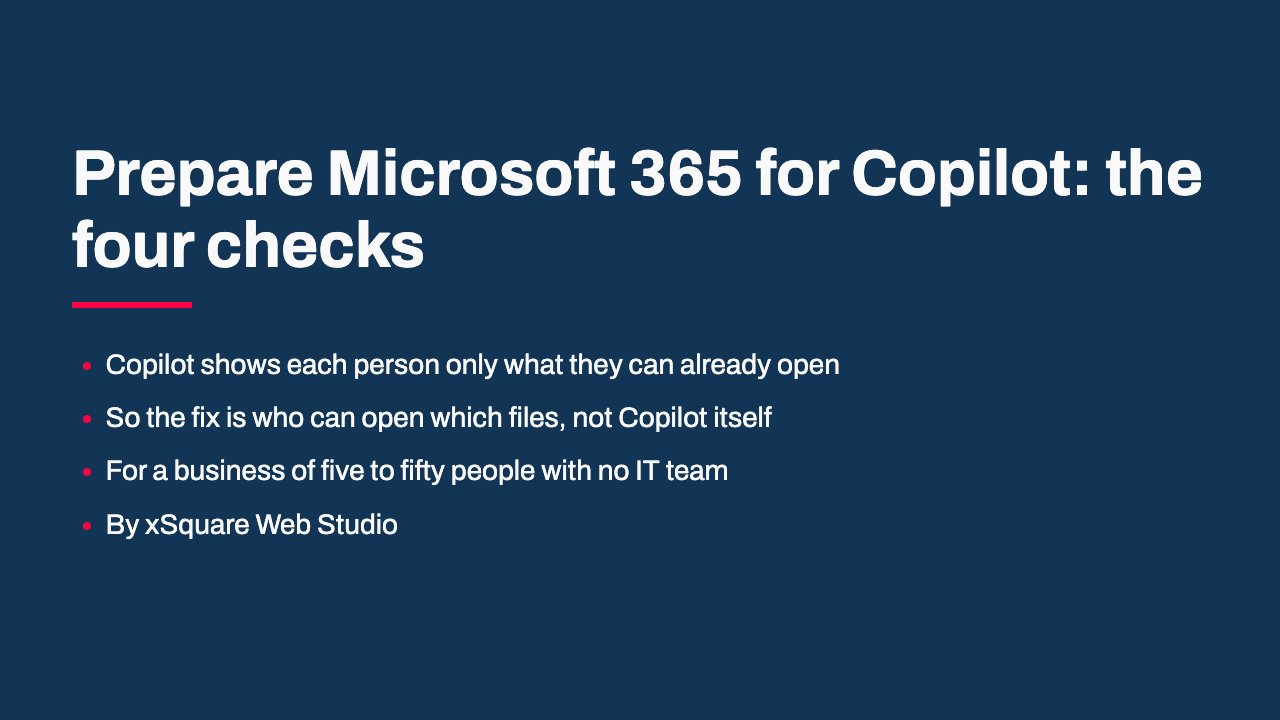
If you want the four checks on one page to work through with whoever helps you run Microsoft 365, the slides below carry them in order.
Read the slides as words
- Prepare Microsoft 365 for Copilot: the four checks: Copilot shows each person only what they can already open; So the fix is who can open which files, not Copilot itself; For a business of five to fifty people with no IT team; By xSquare Web Studio
- First: is Copilot already on?: In the Microsoft 365 admin center, open Billing, then Your products; A plan name ending in "with Copilot" means those people have Copilot now; If so, the four checks are overdue, so do them first; Still on a plain plan? Ask your provider what it renews onto
- Check one: who can open each SharePoint site: SharePoint admin center: Sites, then Active sites; Select a sensitive site, then Membership; Remove anyone who does not need it, then Save; Make the sensitive sites private: in Outlook on the web, Edit group, then Privacy; Start with salaries, staff details, client contracts, bank and tax papers
- Check two: old sharing links: An Anyone or People in your organization link nobody clicked is not something Copilot can show; A link sent by Outlook, Teams chat or the web counts as clicked for each person named; Specific people links work for the people named straight away; Tighten the default: SharePoint admin center, Policies, then Sharing; File owners remove old links: Details, then Manage access
- Check three: sensitivity labels, where your plan has them: A label is an extra layer, not a fix for a site open to everyone; Business Premium includes sensitivity labels; On other plans, check Microsoft's Purview service description first; No labels? Move the sensitive files into a private site
- Check four: a pilot of two or three people: The first Copilot seat brings SharePoint Advanced Management; SharePoint admin center: Reports, then Data access governance; Run the site permissions baseline, Everyone except external users and sharing links reports; Pick people in different roles, including one with ordinary access; Ask what Copilot should not answer: salaries, bonuses, staff NRIC numbers; Fix each leak at the site or the link, then ask again
- Then decide on more seats: Judge the pilot on a month of real output; Read our guide to Microsoft Copilot pricing in Singapore for the cost side; Decide the cost and the prep together
What it costs, and what to read next
The prep costs you time more than money. Checks 1 and 2 use the SharePoint admin center and each person’s OneDrive, which you already have. Check 3 uses labels only where your plan includes them. Check 4 costs the pilot seats, and those seats bring the reports with them.
The bigger question is what Copilot costs once the pilot works: whether you add it to your current plan, move to a “with Copilot” plan, or start with Copilot Chat, which comes at no extra cost with eligible plans. Copilot Chat is a chat version of Copilot that answers from the web, and on an eligible plan you already have it.
Microsoft prices Singapore subscriptions in US dollars, before GST, Singapore’s goods and services tax. The choice changes the bill per person.
Our guide to Microsoft 365 Copilot pricing in Singapore sets out every option side by side, with the yearly cost per seat. Read it beside this checklist, so you decide the cost and the prep together.