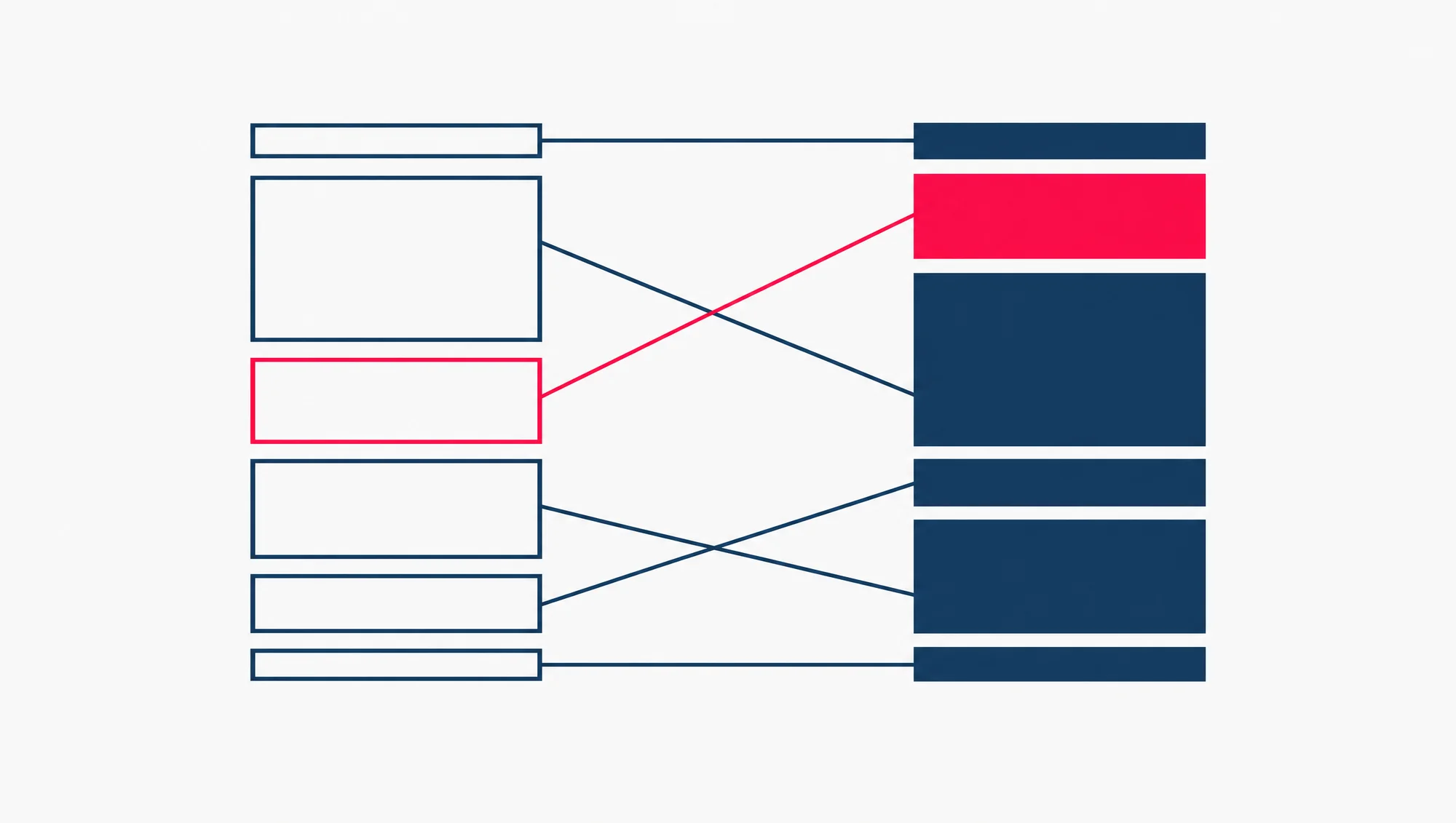
Yes, a website redesign can hurt your SEO (search engine optimisation: the work that helps your pages get found on Google). It hurts where it changes something Google already knew about your site: a page’s address, its title and words, the links between your pages, or the rules that tell Google what it may read. A page’s address is its URL, such as example.com/services/.
When a redesign gives pages new addresses, or moves the site to new servers, it is also a site migration. If a site migration comes with a redesign of the content and URL structure, Google warns that “you will probably see some traffic loss as Google might need to relearn and reassess the individual pages”.
So change as little of that as you need, and tell Google clearly about the rest. The work falls into four stages:
- Before the build: list the pages that bring visitors from Google, with their addresses and titles.
- During the build: keep every address you can, and match each one that must change to its closest new page.
- On launch day: switch on a redirect for each moved address. A redirect sends visitors, and Google, from the old address to the new one; the permanent kind is coded 301. Then remove the rules that hid the test site from Google, and submit the new sitemap, the file that lists your pages for Google.
- In the first weeks: read Search Console, Google’s reports on how your site does in its search, page by page. Leave old SEO faults alone unless the site migration already touches that page.
If you are still deciding whether the site needs a rebuild at all, read how to modernise an old website without a full rebuild first. This guide picks up after the decision.
Which changes cost search traffic, and which do not
A site migration comes in two kinds. The split turns on one question, and it is the first one to settle with whoever builds your new site: does any page’s address change?
If every address stays the same, nothing needs a redirect. A new hosting company (the firm whose servers hold your site) or a move to a CDN (a network of servers that delivers your pages from closer to each visitor) is this kind of site migration. Google keeps it apart, as a change that doesn’t “affect the user-visible URL”, the address people see. A new design on the same addresses needs no redirects either, because nothing has moved. What still needs checking is that each page keeps its title, its words and its links.
If any address changes, Google treats it as a site migration with URL changes. That covers more than a new domain name, the name your site lives at, such as example.com. It includes a move from HTTP to HTTPS, the secure, encrypted form of a web address. It also includes a path change such as example.com/page.php?id=1 becoming example.com/widget: the kind of change a new platform or a new menu can bring.
| The change | Does an address change? | What to do |
|---|---|---|
| New design, same pages at the same addresses | No | No redirects for those pages. Check that each page keeps its title, words and links, and test the site before launch. |
| New hosting company or CDN, same addresses | No | Copy and test the site on the new servers, remove any temporary blocks that stop Google crawling (visiting and reading) it, then point your domain at the new servers. |
| New platform or new menu that renames page paths | Yes | Match each old address to its closest new page and redirect it with a 301. |
| Several old pages merged into one | Yes | Redirect every old address to the merged page. |
| An old page dropped, with no match on the new site | Yes, it goes | Let the old address return a 404 (not found) or 410 (gone). |
| HTTP to HTTPS, or www.example.com to example.com on the same domain | Yes | Redirect every page. The Change of Address tool, a Search Console setting that tells Google you moved to a new domain, is not used for either. |
| A new domain name | Yes | Redirect every page, then use the Change of Address tool for every version of the old domain. |
The cheapest change is the one you do not make. Before a page is renamed because the new menu reads better, check what that page earns in search. If it earns nothing, rename it freely. If it brings in customers, the new name has to be worth a redirect and the few weeks Google can take to start showing the new address in place of the old.
Before the rebuild: write down what the old site earns
Do this before anyone touches the old site, because afterwards the evidence is gone. Start with your most important addresses. Google names four places to find them:
- your sitemap, since your most important addresses are likely in it;
- your analytics (the tool that counts your visitors, such as Google Analytics) or your server logs (your host’s record of every request), for the addresses that get the most traffic;
- the Links to your site feature in Search Console, for pages that other sites and your own pages link to;
- your content management system (CMS), the software you edit your pages in, which can usually list every address that holds content.
Search Console’s Performance report adds the part that matters most to a business: which pages bring clicks. It shows how often your pages appear in Google Search and how often people click them. Open it and click the Pages tab to see your best performing pages. Our advice: for every page that earned clicks, note four things in a spreadsheet. Its address, its title, its main heading, and roughly what it says. Those are the parts a redesign can quietly rewrite, and the same list becomes your redirect map in the next step.
Two more things go on the list. The first is images and downloads, such as a PDF price list. Google notes that these “might already be getting traffic from Google Search or links”, so they move with the pages. The second is the way you proved to Search Console that you own the site. If that was a small HTML file uploaded to the old site (a verification file), copy it into the new one, so the proof still works after the site migration.
If the old site is already gone, the Wayback Machine at web.archive.org may hold copies of its pages. It is a public archive of old web pages, run by the Internet Archive. You may use it to find archived copies of a site you own the rights to. There is no promise your pages are in it: the Archive “can’t guarantee that your site has been or will be archived”. While the old site is still up, the Save Page Now feature saves one page at a time. That is worth doing for your best pages before they change.
How redirects carry an old page to its new address
A redirect is an instruction on your server, the computer that sends your pages to visitors. It sends anyone who asks for an old address, Google included, on to the new one. Google recommends a permanent redirect set on the server, and names two codes for it: 301 and 308. Both come from RFC 9110, the public standard that defines the web’s status codes. It says a 301 means the page “has been assigned a new permanent URI”, URI being the standard’s word for an address. In plain terms: this page has moved for good, and here is where.
Permanent and temporary redirects are different to Google. With a permanent redirect, Google shows the new address in its results. With a temporary one, such as a 302, it shows the old address. A redesign is permanent, so the redirect should be too. If your platform’s redirect setting asks you to choose, choose 301.
A permanent redirect also carries the old page’s link value across. In Google’s words, “301 and other permanent redirects don’t cause a loss in PageRank”. PageRank is part of how Google weighs the links pointing at a page.
Match each old page to its closest new one
Every address on your list gets one new address: the page on the new site that answers the same question. An old service page goes to the new service page. A blog post goes to the same post at its new address.
The shortcut to avoid is sending every old address to the home page. Google says not to redirect many old URLs “to one irrelevant single URL destination, such as the home page of the new site”, because it “might be treated as a soft 404 error”. A soft 404 is a page Google treats as missing even though your server did not say so. Google adds that it can confuse visitors too: someone who clicked an old link to your pricing page lands on the home page instead.
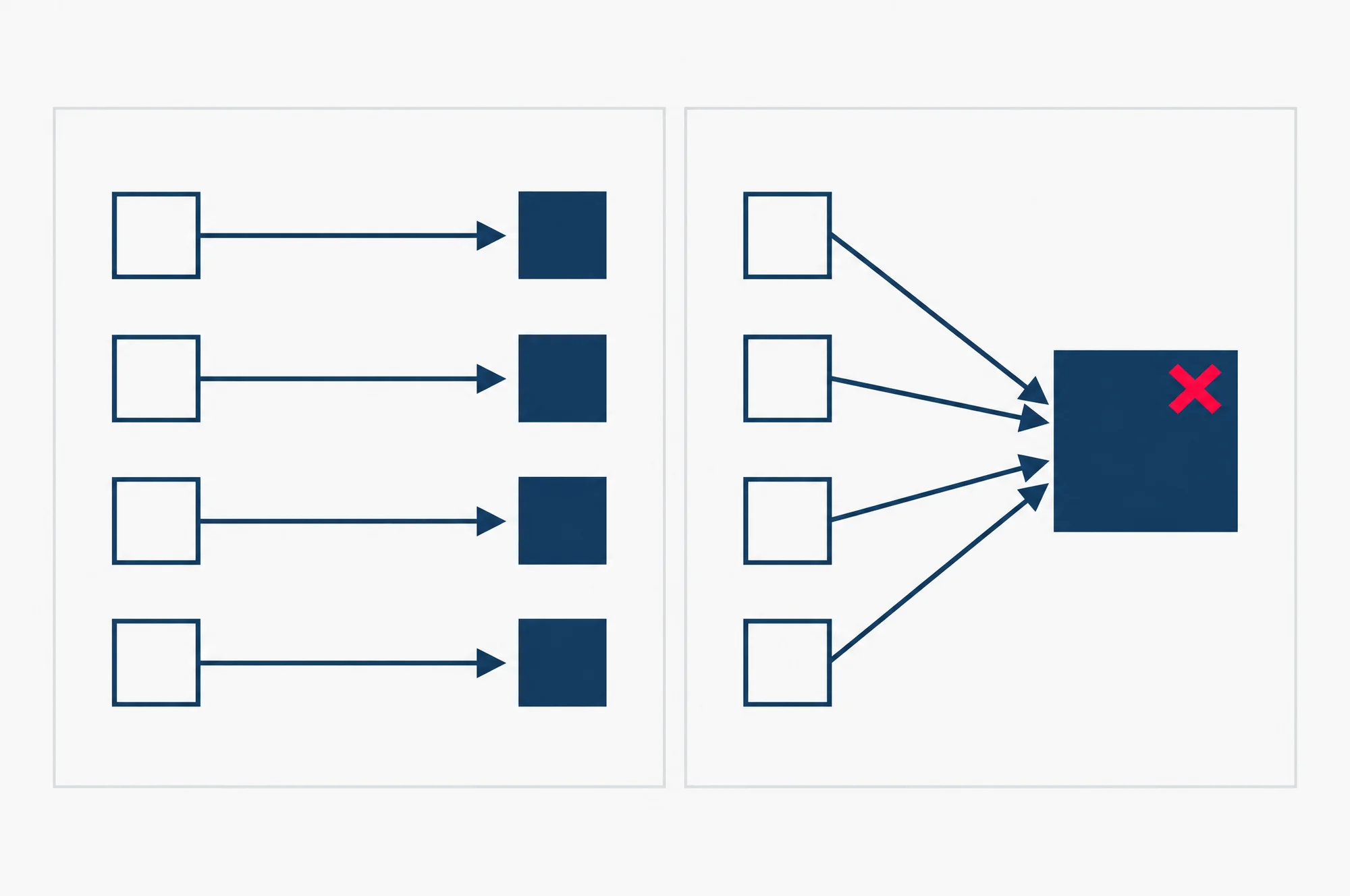
Two cases have a cleaner answer. Where several old pages were merged into one new page, redirect them all to the merged page; Google allows that. Where an old page has no match at all, let its address return an error. Google says such URLs should “correctly return an HTTP 404 or 410 error response code on the new site”. A 404 means not found; a 410 means gone.
If someone else is building the new site, a freelancer or a studio, ask to see this map before launch day. If you would rather hand the whole build to someone, our web design and development service designs and builds websites in Singapore.
Point straight to the final page
A redirect chain is one redirect leading to another: the old address sends you to a second address, which sends you on to a third. It can happen on a site that has been rebuilt before, when an old redirect points at a page that is now moving again. Google can follow up to 10 steps, but it advises redirecting to the final destination directly, and otherwise keeping a chain to “ideally no more than 3”. When you build the new map, update the old redirects too, so each one goes straight to its page on the new site.
Keep them for at least a year
Google’s advice is to keep the redirects for as long as possible, “generally at least 1 year”. That gives it time to pass every signal to the new addresses, including the links on other sites. For people, Google suggests keeping them for good, since old links in emails, brochures and other sites’ articles never update themselves.
Redirects do slow each visit a little, Google notes. So change your own links to the new addresses, and ask the sites that send you the most visitors to update theirs.
What our own redirect map showed
We rebuilt our own site and launched it on 25 July 2026. Some addresses changed, so our site migration had a redirect map of 38 old addresses, each matched to its new page. On 21 September 2026, 36 of them led to a live page in a single 301 step. The ones that did not were not broken. One failed to connect once, then redirected cleanly on both retries. The others were links out to other companies’ sites, which add steps of their own.
That single-step test is the one worth copying: follow each old address and confirm it lands on a live page in one step.
Our average position in Search Console was 35.8 in July, 34.7 in August and 24.9 in the first 18 days of September. Average position is where a site’s pages sit in Google’s results, on average, so a lower number is better. Many things move a position, so these numbers do not show the rebuild caused the gain. They do show the average did not fall after launch.
Launch day: the checks that decide whether Google can read the new site
The first check is for rules left over from the test site. While a new site is being built, some owners block all crawling, or add noindex rules so unfinished pages stay out of Google’s results. Robots.txt is a file that tells search engines which addresses they may visit. noindex is a rule on a page that tells them not to list it. Both have to come off at launch.
Then work through the rest, in this order:
- Remove the test site’s blocks: the robots.txt rule that stopped crawling, and every noindex rule added during the build.
- Switch on the redirects, then test them. Google suggests the URL Inspection tool in Search Console for single addresses; it shows what Google knows about one page. For a long list, use a script or a command-line tool, a small program that checks many addresses in one go.
- Check that each new page names itself as the main version. This is the canonical tag, a line in the page’s code that tells Google which address is the original. On the new site, each page’s canonical should be its own new address.
- Change your own links. Menus, buttons and links inside your articles should point at the new addresses, not lean on redirects.
- Submit the new sitemap. In Search Console’s Sitemaps report, paste the sitemap’s address into the “Add a new sitemap” box and click Submit. On Wix or Squarespace, the platform probably manages your sitemap for you.
- Update the links you control elsewhere: your social media profiles and your ad campaigns.
The Change of Address tool is only for a new domain. It tells Google your site has moved from one domain or subdomain to another, such as example.com to example.org, or shop.example.com to store.example.com. A subdomain is a named part of a domain, such as the shop in shop.example.com. Google says not to use it for an HTTP to HTTPS change, for switching between www and non-www, or for pages moving within the same domain. So a redesign that keeps your domain never touches it.
Since 17 June 2026, Google asks one more thing for a new domain. Submit the change for every version of the old domain, www and non-www included, “even if you’re not actively using these variants”. Each version has to be verified in Search Console first, which means proving you own it.
Two things help on the day itself. Google suggests timing a site migration for when your traffic usually dips, so fewer people meet any problem; for a business that is busiest before Chinese New Year, that means not the week before. And expect extra visits from Google: after a site migration, it will “temporarily crawl your new site more heavily than usual”. If your hosting plan is a small one, ask your host whether it can take the load.
What to check in Search Console in the first weeks
Expect some movement. Google says rankings can go up and down while it recrawls the site, and that they settle over time. As a general rule, it says, a small to medium-sized website “can take a few weeks for most pages to move”, and larger sites take longer. So a dip in the first week does not, on its own, mean something broke. Three reports tell you whether it did.
The Sitemaps report: are the new addresses being picked up?
The Sitemaps report lists each sitemap you have submitted and how many page addresses Google read from it. Google expects a sitemap of new addresses to start with zero pages indexed and to fill up over time, while the old addresses drop out. If your old sitemap is still listed, Search Console may warn that its addresses redirect. Google says that warning is normal and can be ignored. You are moving those pages on purpose.
The Page indexing report: are old links landing on missing pages?
The Page indexing report lists the pages Google has and has not indexed, with the reason for each. If you have never opened it, our guide on how to check your website’s SEO for free starts with this check.
A redirect that points at a page that does not exist is a mistake Google says it meets often: “We frequently see people redirecting to the wrong (non-existent) URLs on the new site.” The sign is an unusually high number of “Not found (404)” pages in Search Console. If the count climbs after launch, open the list, find the old addresses in it, and fix their redirects.
Your old addresses will also appear, as “Page with redirect”. That one is expected. Google says an address listed there “will not be indexed”, because it redirects; the page it points to is the one you want indexed.
The Performance report: is each old page’s traffic arriving at its new address?
This is the report that tells you whether the site migration kept what the old site earned. Filter it by page, using the address of one of the old top pages from your list, then by its new address. Use Compare in the date filter to set the weeks after launch against the weeks before. Over the weeks, clicks on the old address should fall while clicks on the new one rise. Google describes the same pattern: as the new pages are indexed and start ranking, the reports show “the URLs on the new site getting search impressions and clicks”. An impression is one time someone saw a link to your page in Google.
If an old top page loses its clicks and the new address gains none for several weeks, check the new address with URL Inspection. Among what it shows about that page is whether Google could find and index it.
If you would rather someone read these reports with you each month, monthly Search Console reporting is part of our SEO service for Singapore businesses.
Should you fix old SEO problems during the site migration?
Fix an old problem during the site migration only when it already touches that page. Leave everything else until the new site has settled. Then, if traffic drops, you can trace the drop to one cause.
The rule comes from Google, which advises changing “only one thing at a time”. Its example is close to a typical redesign: to move to a new domain, change your content management system and switch to a new layout, do them one after the other. Google also says to set up the new site’s CMS “preferably the same as the old site used”. That is not always possible, since a rebuild sometimes happens because the old platform has to go. When it is possible, do the site migration first and the redesign after.
In practice, every old fault goes into one of two piles.
Fix it during the site migration when the page is being rewritten or moved anyway. A weak title on a page that is getting a new address and new words can be fixed in the same step, because Google is relearning that page either way. So can two thin pages about the same thing, merged into one with both old addresses redirected to it.
Leave it until after when fixing it means touching pages the site migration would otherwise leave alone. A new way of writing titles across the whole site, a new plan for internal links, a speed project on pages that are not changing: each of these is a second change. Make it a few weeks after launch, once the Performance report shows the moved pages have settled, and you will see its effect on its own.
The four stages, as a short checklist to print or hand to whoever builds your new site:
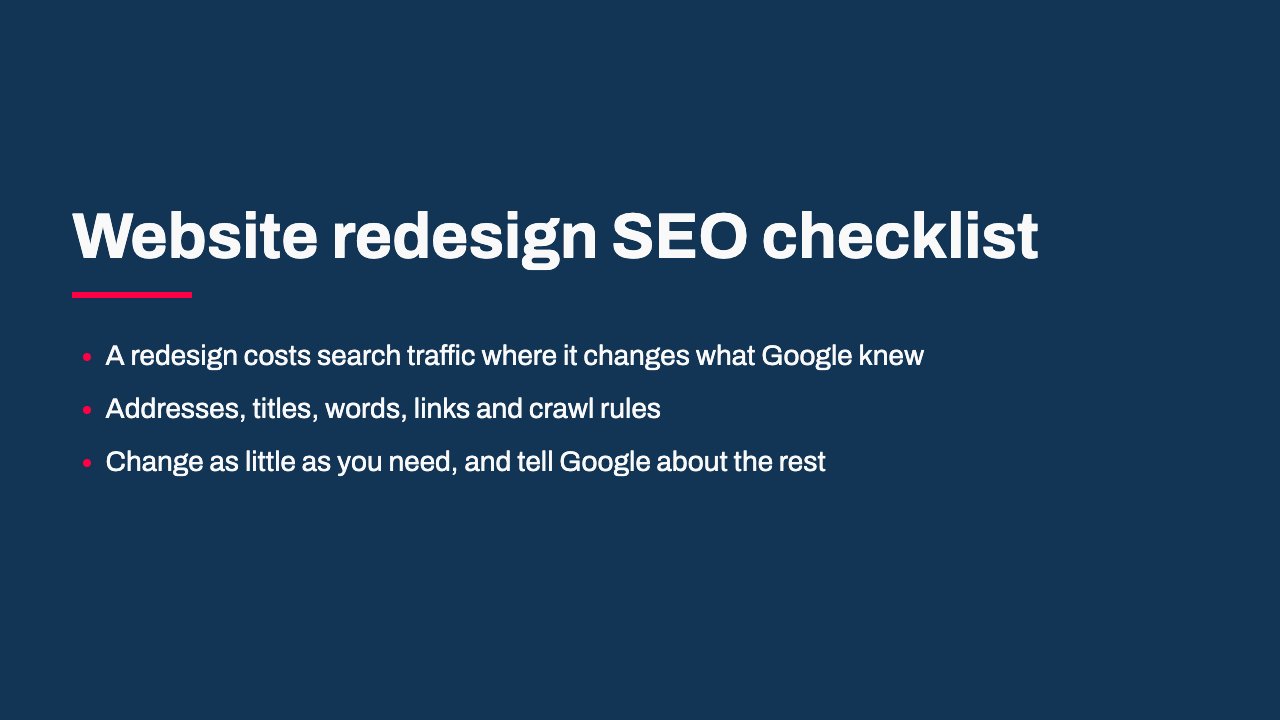
Read the slides as words
- Website redesign SEO checklist: A redesign costs search traffic where it changes what Google knew; Addresses, titles, words, links and crawl rules; Change as little as you need, and tell Google about the rest
- Before the build: List the pages that bring clicks: Performance report, Pages tab; For each: address, title, main heading, what it says; Add images and PDFs that get traffic; Keep your Search Console proof file for the new site; Save your best pages in the Wayback Machine
- During the build: Keep every address you can; Match each moved address to its closest new page; Do not send many old addresses to the home page; Merged pages: redirect all of them to the merged page; Dropped pages with no match: let them return not found
- Redirects: Use a permanent redirect: a 301 or a 308; Point straight at the final page, no chains; Update old redirects from earlier rebuilds; Keep them generally at least 1 year
- Launch day: Remove the test site's robots.txt block and noindex rules; Switch on the redirects and test them; Each new page names its own address as canonical; Change your own links to the new addresses; Submit the new sitemap in Search Console; New domain only: Change of Address for every version
- The first weeks: Sitemaps: new addresses fill up over time; Page indexing: watch for a rise in Not found (404); Page with redirect is expected for old addresses; Performance: old page clicks fall, new page clicks rise
- Old SEO faults: Fix one during the move only if the move touches that page; Leave the rest until the new site settles; One change at a time, so a drop has one cause
My website builder handles redirects. Is that enough?
It can be. Google notes that platforms such as Blogger or Shopify may already have redirects built in. Check that the builder’s redirect is permanent (a 301), then test a few old addresses after launch. If your platform cannot set a redirect on the server at all, Google reads an instant meta refresh (a redirect written into the page itself, set to 0 seconds) as permanent, and says to use JavaScript redirects only when neither of the others is possible.
Should I keep paying for my old domain name after moving to a new one?
Yes. Google’s Change of Address help recommends paying for the old domain for at least a year, so nobody else can buy it and use it for harm. Your redirects also live on that domain, and they are what carry old links and bookmarks across.
Why does Google still show my old address after the site migration?
Google keeps track of both the old and the new address after a redirect, and may still show the old one now and then, for example after a site migration to a new domain name. Google calls this normal, and says that as people get used to the new address, the old ones fade away without you doing anything.
Your next step: compare your old top pages with their new addresses
Run one check in the second or third week after launch. Open the Performance report in Search Console, filter by page, and look at each top page from your old site’s list, then at the new address it now redirects to. Each old page should be handing its clicks to its new one. A page whose old address has lost its clicks while the new one has gained none is the one to look at first.
Our guide to the Search Console Performance report shows how to set those filters and read what comes back.